Workflows
Chain AI steps into a saved workflow, run it on your images, and start it automatically on upload, on a schedule, from a webhook or on a product change.
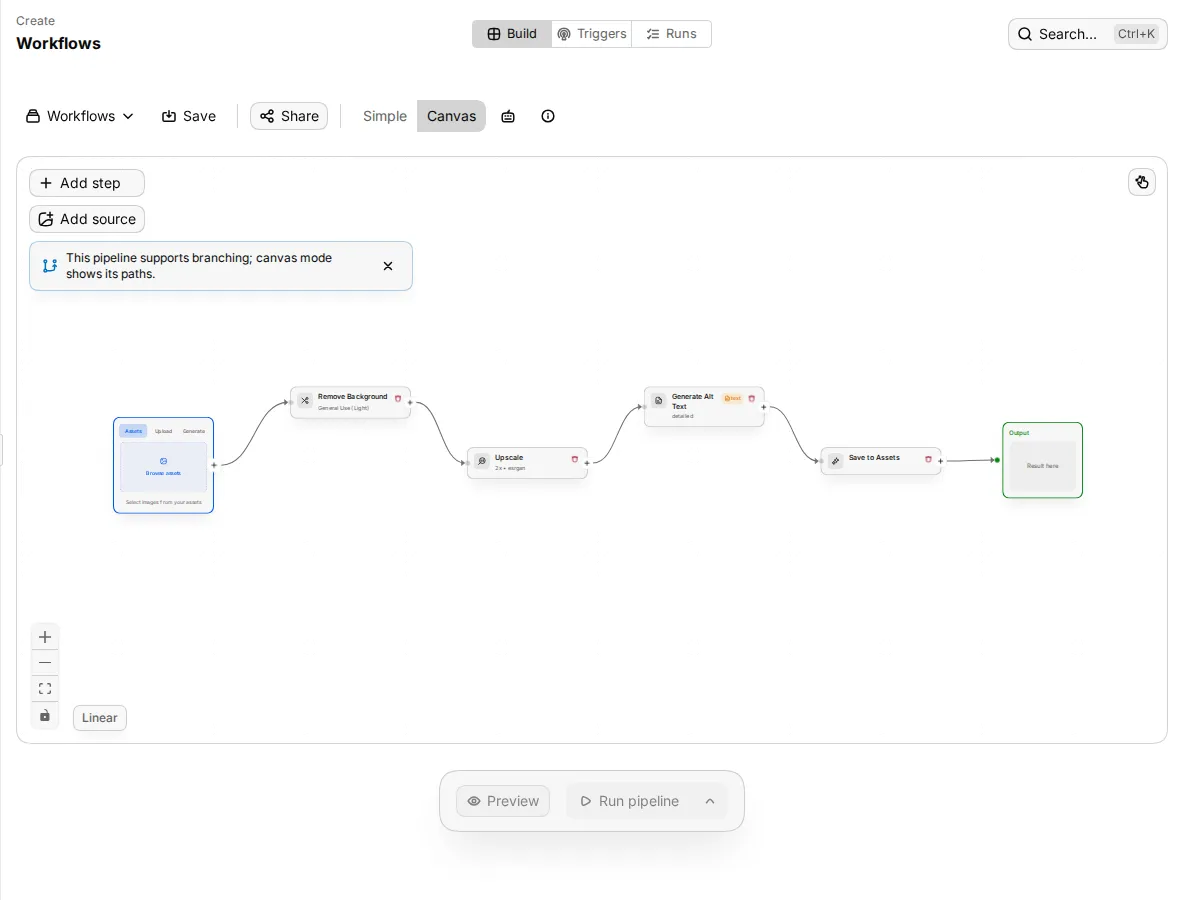
A workflow is a chain of steps that runs in order, for example remove background, upscale, write alt text and save to Sirv. Save it once and run it whenever you need it, or add a trigger so it runs by itself when new images arrive. Use a batch instead when you need only one tool, once.
Who can use this:
| Task | Who |
|---|---|
| Open Flows and the builder, run a workflow | Members with Run workflows: Owner, Admin and Editor by default |
| Save and edit workflows, add triggers | Members with Create and edit workflows: Owner, Admin and Editor by default |
| Turn a trigger on | Members with both Create and edit workflows and Run workflows |
| Delete workflows | Members with Delete workflows: Owner and Admin by default |
Each step also needs its tool's permission. For example, a product lifestyle step needs Use advanced tools (3D, virtual try-on, lifestyle).
| Plan | Saved workflows |
|---|---|
| Free | 0 |
| Core | 10 |
| Growth | 50 |
| Enterprise | Custom |
You can build and run a workflow on any plan. Saving one needs a plan with saved workflows, and triggers belong to a saved workflow. At the limit, delete a workflow you no longer use before you save a new one.
Find your workflows
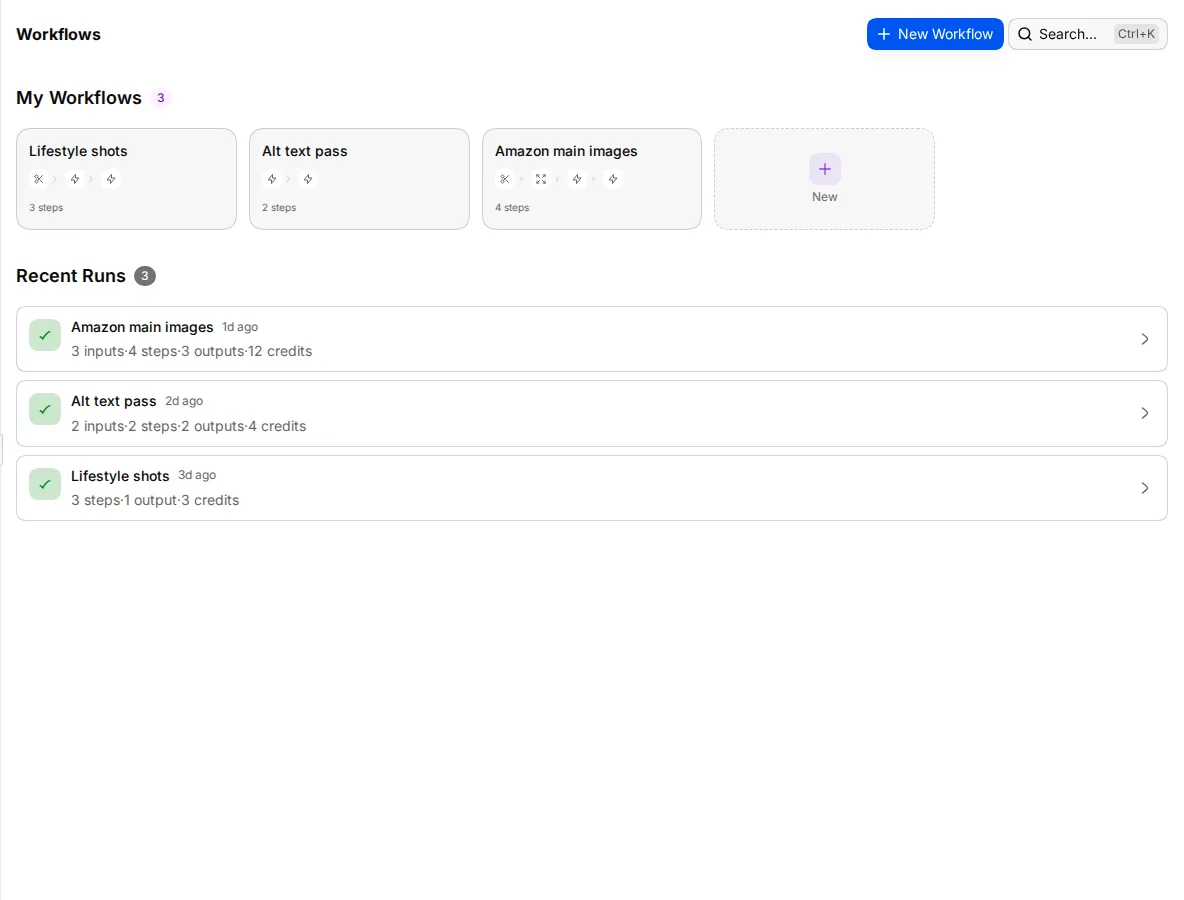
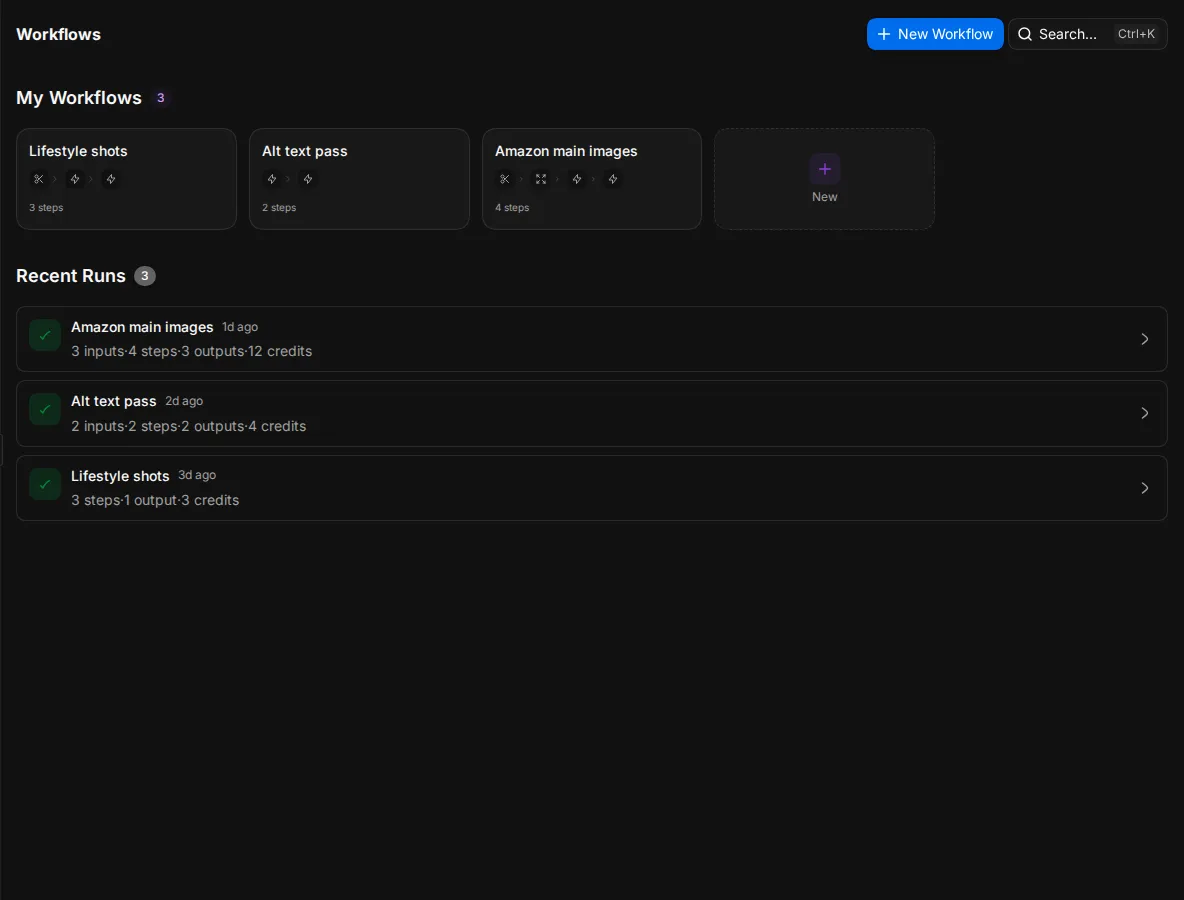
Open Flows in the sidebar. The page lists My Workflows and Recent Runs. Click a workflow to open it in the builder, or click New Workflow to start one.
Build a workflow
- Open Flows and click New Workflow. The builder, Workflow Studio, opens on the Build tab.
- Pick a template under Quick start, such as Amazon-Ready Product or Alt Text Pass, or start from an empty canvas.
- Click Add step, search for a tool and add it. Steps are grouped as E-commerce, Enhancement, Generation, Analysis, Advanced, Storage and Workflow Control.
- Click a step to set its options, such as the model, the scale or the prompt.
- Repeat until the chain is complete.
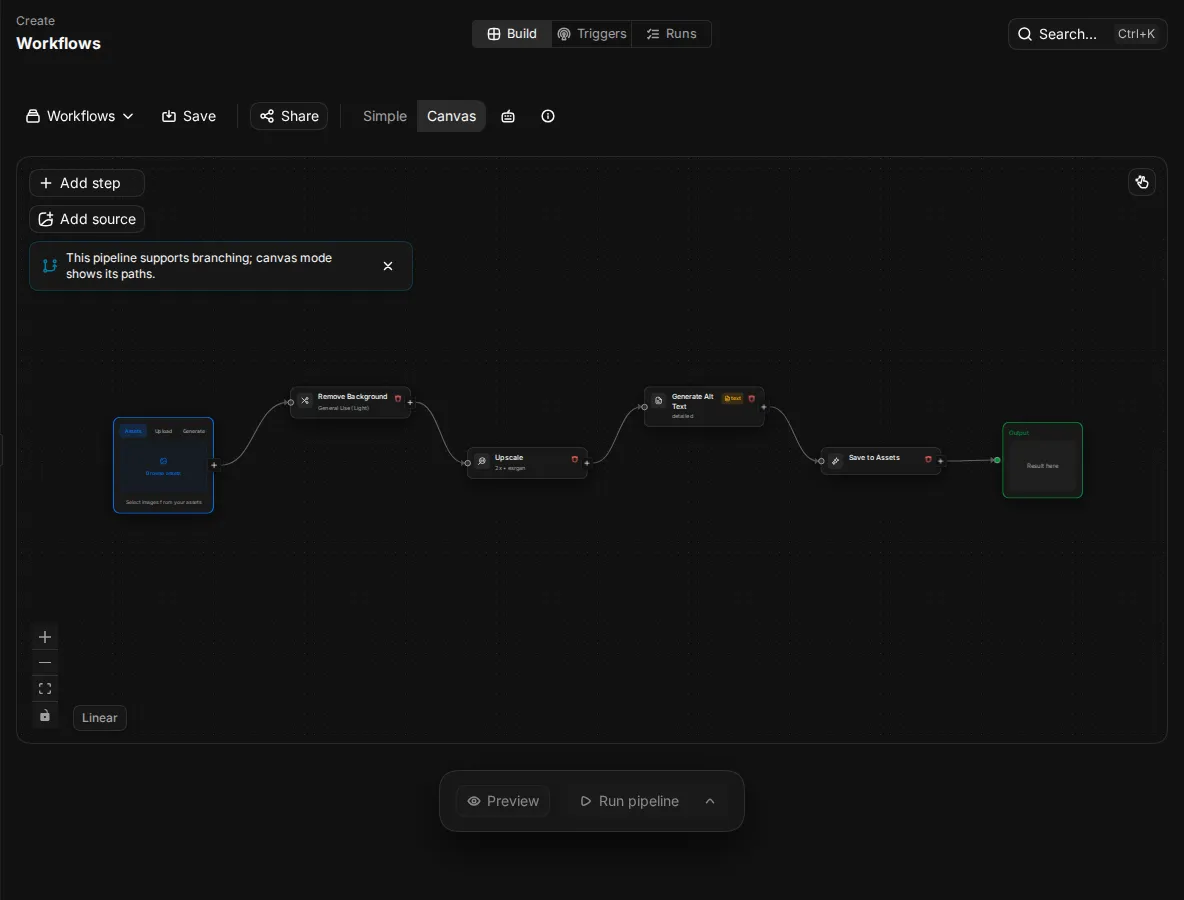
Switch between Simple, a list of steps, and Canvas, a diagram of the steps, at the top of the builder.
Besides the AI tools, steps can save and organise results: Save to Assets, Add to Collection, Add Tags, Move to Folder, Link to Product, Save to Sirv, Push to Shopify and Save to CSV. Control steps shape the run: Review pauses the run until someone approves the results, Image Review and Channel Readiness Gate check images, and AI Router sends each image down a different branch.
Run a workflow
- Add source images on the first step.
- Open the run options and pick Run all to run every step, or Step by step to stop after each step.
- Click Run.
Each step costs the same credits as the tool on its own. See AI tools for prices. A Review step pauses the run and shows Review will pause for approval on the canvas. Changes to Shopify always need approval before they are sent.
When the run ends, click Download ZIP or Upload to Sirv to keep the results. A Save to Assets step saves them to the library instead. If a saved result is made from a product image, it waits on the AI results tab of Review.
The Runs tab lists past runs with their steps, outputs and credits.
Save a workflow
- Click Save.
- Enter a Name and, if you like, a Description (optional).
- Click Save workflow.
To keep the original and save your changes as a copy, click Save as new workflow.
Start a workflow automatically
A trigger runs a saved workflow by itself. Triggers run the last saved version of the workflow.
- Save the workflow.
- Open the Triggers tab.
- Click Add upload trigger, Add schedule trigger, Add webhook trigger or Add change trigger.
- Set the trigger's options. They are described below.
- Click the dry run button, such as Preview upload match, to see which images the trigger would pick. A dry run does not start a run and uses no credits.
- Check Enable checks. It lists anything that blocks the trigger, such as a missing permission, and says Ready to enable. when all is well.
- Click Enable trigger.
A new trigger starts off. Once it is on, matching events can spend credits.
Upload trigger
Runs when images are uploaded to the library. One upload of many files starts one run. Narrow it with Folders, Collections and Tags, turn on Require linked product to skip images without a product, and filter by Product status.
Schedule trigger
Runs at set times. Under Schedule mode, pick Hourly, Daily, Weekly, Monthly or Cron. Daily, weekly and monthly runs start at 02:00; weekly runs on Monday and monthly on the 1st. With Cron, enter a five-field Cron expression. Pick a Timezone; the default is UTC. Next 5 run times shows when it will run.
Choose what to run on:
- Target type: a collection, a smart collection or a product group.
- Asset selection policy: Approved primary image per product, Approved gallery images, Assets missing alt text or All approved linked images.
- Batch limit: the most images in one run, from 1 to 10,000.
- Skip if active: skip a run while the last one is still running.
Webhook trigger
Lets another system start the workflow with an HTTP POST to the trigger's Webhook URL.
- Copy the signing secret when Studio shows it. It is shown only after you create or rotate it. Rotate secret makes a new one; callers that use the old secret stop working until you update them.
- Sign each request: send the Unix time in the
x-sirv-studio-timestampheader, and inx-sirv-studio-signaturethe HMAC-SHA256 of the timestamp, a full stop and the raw JSON body, made with the secret. Requests older than 5 minutes are refused. - Under Payload shape, pick what the body sends: asset IDs, image URLs, a product ID or a product SKU.
- Set Max images per event (1 to 1,000) and Max payload size. Turn on Require event ID to refuse requests without a stable
eventId, and Allow external image URLs to import images from URLs. - Click Send test event to check a sample body. A test does not run the workflow or use credits.
For the Studio API, see API.
Change trigger
Runs when a product's status changes, for example from draft to active. Ignore events written by this trigger is always on, so a workflow cannot start itself in a loop. Ignore events from another trigger and Cooldown seconds (300 by default) stop runs from piling up.
Limit what a trigger spends
Each trigger can have a monthly credit cap. Studio holds credits before each run, and skips the run if it would go over the cap. The month is a calendar month in UTC. The trigger shows Credit usage: Reserved, Used and Remaining cap, or Not set when there is no cap. Today the cap is set through the API, not in the builder.
Keyboard shortcuts on the canvas
| Keys | Action |
|---|---|
| ⌘ Enter (Mac) or Ctrl Enter | Run the workflow |
| ⌘ S | Save the workflow |
| ⌘ Z | Undo |
| ⌘ Y or ⌘ Shift Z | Redo |
| Delete | Delete the selected step |
| M | Switch between Run all and Step by step |
| F | Full screen |
| Esc | Close a dialog |