Review
Approve or reject supplier submissions and AI results, send images to design for correction, and see who decided what.
The Review page is where people decide what reaches your products. Supplier and team uploads wait here for approval, and so do AI results made from library images. Nothing in review changes a product until someone approves it.
Who can use this:
| Tab | What it holds | Who sees it |
|---|---|---|
| Submissions | Uploads from suppliers and team members that wait for approval | Members with Approve assets in review workflow, or with permission to view and edit products |
| AI results | AI results made from library images | Members with Approve assets in review workflow |
| Design | Supplier images sent to your team for correction | Members who can approve, and members with Correct supplier images in the Design queue |
| Activity | A log of review decisions | Members with Approve assets in review workflow |
Only members with Approve assets in review workflow can approve or reject. By default that is the Owner, Admin and Reviewer. An Editor can open Submissions and work in Design but cannot approve. See Roles and permissions.
Open the Review page
Click Review in the sidebar. Its badge counts the submissions and AI results that wait for a decision. The four tabs are under Review in the sidebar. Studio opens the tab you most likely need: AI results when it has items and Submissions is empty, otherwise Submissions.
Review submissions
- Open Review > Submissions.
- Click an upload in the queue. The detail panel shows the image, its product and the results of the upload checks.
- Click Approve or Reject. If the image failed a check, the button reads Approve anyway.
The queue shows uploads To decide by default. Filter it by Warnings, Approved or Rejected, sort it, or search by Filename, supplier, or product. Review filters narrow it by Submitted by, Product and Submission batch. To see the uploads as cards, switch from Detail review to Grid review.
Other actions on a submission:
- Add comment leaves a note on the image.
- Edit with AI opens the image for AI editing.
- Send to design passes the image to your team for correction. See below.
- Autofix this asset fixes failed checks automatically when it can.
Reject with a reason
When you click Reject, Studio asks for a Reason for rejection:. Pick a standard reason, such as Image is blurry or low resolution, one of your workspace's own reasons, or Custom reason... to write your own of up to 2,000 characters. When you reject several images, you can add Item-level reasons for each one. Press ⌘ Enter (Mac) or Ctrl Enter to send.
The supplier gets the reason as a notification and by email.
Undo a decision
After you approve or reject a submission, the confirmation shows Undo for 8 seconds. Undo puts the image back in the queue. Only the person who decided, or the workspace Owner, can undo. If the image was already sent to Shopify, Studio warns you that the change may have gone out.
Decide on many submissions at once
- Tick the images you want, or tick the box at the top of the queue to select every visible image.
- Click Approve or Reject with the count, for example Approve 12.
Under More selected actions you can also Assign selection to me or Unassign selection. To approve only images that passed every check, use the button that reviews and approves all passing assets, then confirm.
One action can cover up to 1,000 images.
Review AI results
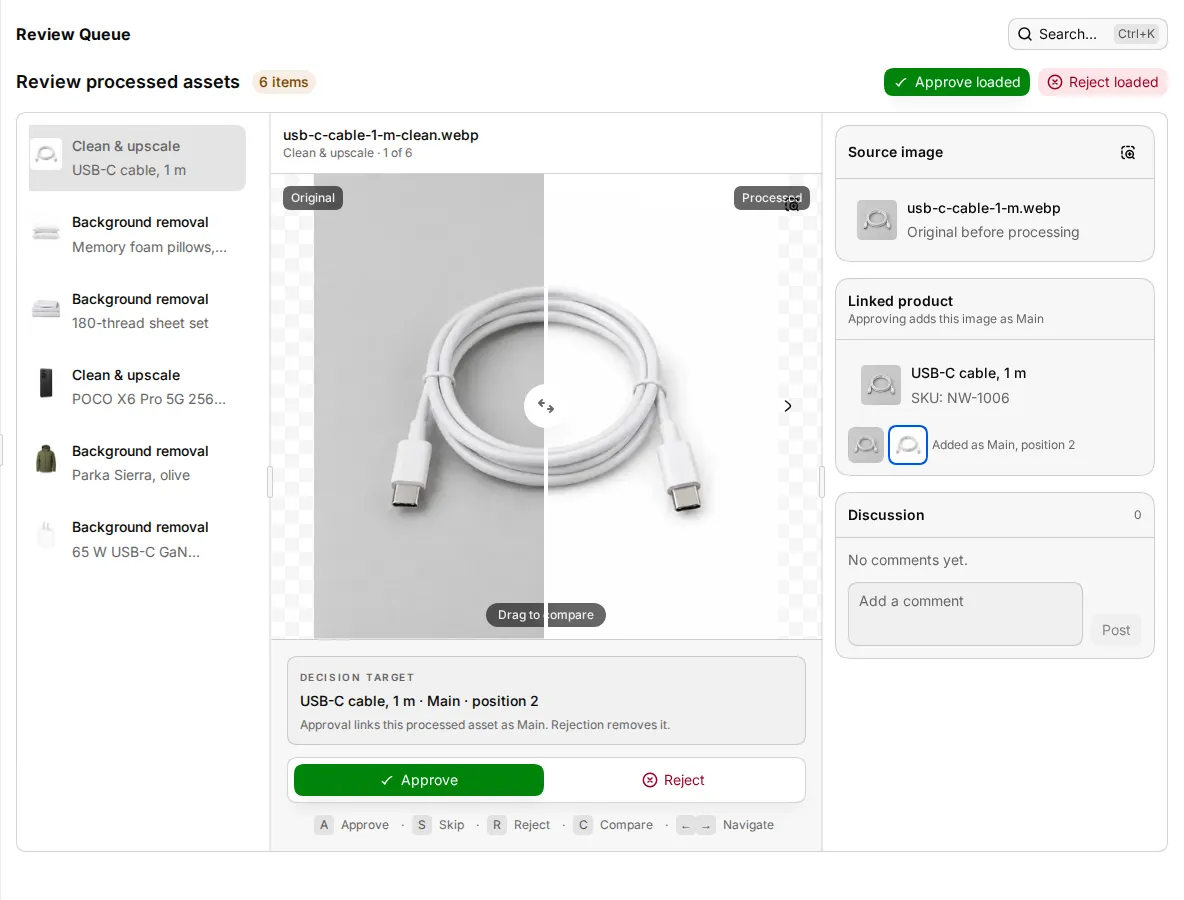
When an AI tool makes a result from a library image, the result waits on the AI results tab.
- Open Review > AI results.
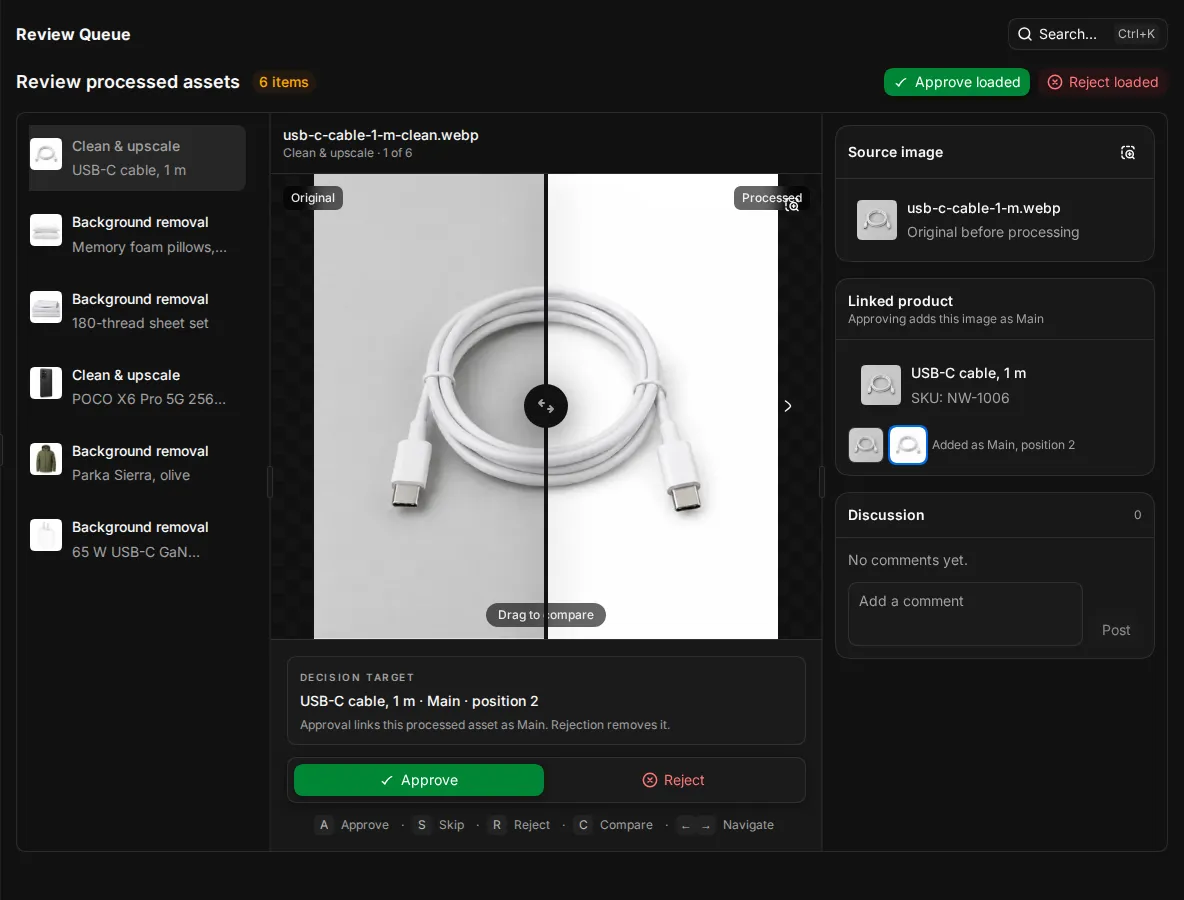
- Compare the original and the result with the slider, or press C to open the full comparison.
- Press A or click Approve to keep it. Press R or click Reject to remove it. Press S to skip it for now.
The Decision target line says what approval does. If the original image is on a product, the result is added to every product that uses the original, in the same position. If the original was the main image, the result becomes the main image and the original moves to the gallery. The original is not deleted. If the original is not on a product, approval keeps the result in the library. Rejection removes the result.
Approve loaded and Reject loaded decide on every result loaded on the page at once. There is no Undo on this tab.
Results in a one-person workspace
In a workspace with only one active member, Studio approves that member's own AI results straight away, if they have permission to approve. These results go to the library. They never replace a product image until someone approves them into the product.
Send an image to design
When a supplier image is almost right, your team can fix it instead of sending it back.
- On Submissions, click Send to design.
- Describe the Required changes. The supplier does not see these instructions.
- Optional: send it to Pixelz for retouching. Pixelz bills your account per image.
On the Design tab, a designer claims the request with Claim and start work, fixes it with Fix in Studio or Upload correction, then clicks Submit correction. A reviewer then clicks Approve correction, Request further design changes or Request supplier changes. Requests move through Queued, In progress, Awaiting approval and Resolved, and can be Blocked or Returned. Filter the tab by All or Mine.
See what was decided
The Activity tab lists review events: submitted, approved, rejected, withdrawn and undone. Filter it by Action or Actor.
Keyboard shortcuts
| Keys | Submissions (detail) | Submissions (grid) | AI results |
|---|---|---|---|
| A | Approve | Approve the selection | Approve |
| R | Reject | Reject the selection | Reject |
| S | Skip | ||
| J / K | Next / previous | Next / previous | |
| ← / → | Previous / next | ||
| X | Select or clear the current card | ||
| ⌘ A | Select all | ||
| C | Compare | ||
| Esc | Clear the selection | Clear the selection |