Roles and permissions
What each built-in role can do, how to make custom roles, and how to give one member more or less access.
Every member of a workspace has one role. A role is a set of permissions, such as Upload and edit assets or Publish products and images to connected stores. Studio has seven built-in roles. You can also make custom roles, and give one member different permissions from their role. This page lists every permission and explains how to change who can do what.
Who can use this:
| Task | Who |
|---|---|
| See the roles in Settings > Roles | Every member with View team members, which is every built-in role |
| Make, change and delete custom roles | Members with Manage roles and permissions: Owner and Admin by default |
| Change one member's permissions | Members with Manage roles and permissions |
Custom roles are available on every plan.
Built-in roles
| Role | What it is for |
|---|---|
| Owner | Full workspace ownership. Every workspace has one Owner. |
| Admin | Manage team and settings, all asset operations. |
| Editor | Upload, edit and process assets. |
| Reviewer | Review supplier submissions, approve or reject assets and leave feedback. |
| Uploader | Upload and basic editing for external contributors. |
| Vendor | External contributor with product-scoped access. Suppliers in the supplier portal have this role. |
| Viewer | View and download assets only. |
Built-in roles do not change. To make a role like one of them with a few differences, duplicate it.
What each role can do
A tick means the role has the permission. The permission names are the ones Studio shows in Settings > Roles.
| Permission | Owner | Admin | Editor | Reviewer | Uploader | Vendor | Viewer |
|---|---|---|---|---|---|---|---|
| Assets | |||||||
| Correct supplier images in the Design queue | ✓ | ✓ | ✓ | ||||
| View assets in gallery | ✓ | ✓ | ✓ | ✓ | ✓ | ✓ | ✓ |
| Upload and edit assets | ✓ | ✓ | ✓ | ✓ | ✓ | ||
| Delete assets (soft delete) | ✓ | ✓ | |||||
| Download original files | ✓ | ✓ | ✓ | ✓ | |||
| Share assets within workspace | ✓ | ✓ | ✓ | ||||
| Push assets to CDN/channels | ✓ | ✓ | |||||
| Approve assets in review workflow | ✓ | ✓ | ✓ | ||||
| Add comments to assets | ✓ | ✓ | ✓ | ✓ | ✓ | ✓ | ✓ |
| Folders | |||||||
| View folders | ✓ | ✓ | ✓ | ✓ | ✓ | ||
| Create and edit folders | ✓ | ✓ | ✓ | ||||
| Delete folders | ✓ | ✓ | |||||
| Full folder control including permissions | ✓ | ✓ | |||||
| Collections | |||||||
| View collections | ✓ | ✓ | ✓ | ✓ | ✓ | ||
| Create and edit collections | ✓ | ✓ | ✓ | ||||
| Delete collections | ✓ | ✓ | |||||
| Share collections externally | ✓ | ✓ | |||||
| Products | |||||||
| View products | ✓ | ✓ | ✓ | ✓ | ✓ | ✓ | |
| Create and edit products | ✓ | ✓ | ✓ | ||||
| Delete products | ✓ | ✓ | |||||
| Link assets to products | ✓ | ✓ | ✓ | ||||
| Sync products from external sources | ✓ | ✓ | |||||
| Publish products and images to connected stores | ✓ | ✓ | ✓ | ||||
| Tools | |||||||
| Use basic tools (bg removal, upscale, alt text, depth map) | ✓ | ✓ | ✓ | ✓ | |||
| Use generation tools (image gen, video gen) | ✓ | ✓ | ✓ | ||||
| Use advanced tools (3D, virtual try-on, lifestyle) | ✓ | ✓ | |||||
| Batch Operations | |||||||
| View batch job status and history | ✓ | ✓ | ✓ | ✓ | ✓ | ||
| Start batch processing jobs | ✓ | ✓ | ✓ | ||||
| Cancel running batch jobs | ✓ | ✓ | |||||
| Review and approve batch results | ✓ | ✓ | ✓ | ✓ | |||
| Workflows | |||||||
| View saved workflows | ✓ | ✓ | ✓ | ✓ | |||
| Create and edit workflows | ✓ | ✓ | ✓ | ||||
| Delete workflows | ✓ | ✓ | |||||
| Run workflows | ✓ | ✓ | ✓ | ||||
| Share workflows with team | ✓ | ✓ | |||||
| Team | |||||||
| View team members | ✓ | ✓ | ✓ | ✓ | ✓ | ✓ | ✓ |
| Invite new members | ✓ | ✓ | |||||
| Manage roles and permissions | ✓ | ✓ | |||||
| Remove members from workspace | ✓ | ||||||
| Settings | |||||||
| View workspace settings | ✓ | ✓ | |||||
| Edit workspace settings | ✓ | ✓ | |||||
| Integrations | |||||||
| View integration status (Sirv, Shopify) | ✓ | ✓ | ✓ | ✓ | |||
| Connect and disconnect integrations | ✓ | ✓ | |||||
| Billing & Credits | |||||||
| View billing and invoices | ✓ | ✓ | |||||
| Manage payment methods and subscription | ✓ | ||||||
| View credit balance and usage | ✓ | ✓ | ✓ | ✓ | ✓ | ||
| Allocate credits to team members | ✓ | ✓ | |||||
| Analytics | |||||||
| View workspace analytics | ✓ | ✓ | ✓ | ✓ | |||
| Export workspace analytics | ✓ | ✓ | |||||
| Supplier portal | |||||||
| View supplier portal and assignments | ✓ | ✓ | ✓ | ✓ | |||
| Upload to assigned products | ✓ | ✓ | |||||
| Manage supplier assignments | ✓ | ✓ |
Some things to know about the defaults:
- Only the Owner can remove members, give someone the Admin role, and pay for plans and credits.
- Review opens for members who can approve assets, correct supplier images, or both view and edit products.
- Analytics in the sidebar shows for members with View credit balance and usage.
- Single sign-on settings are for the Owner only, whatever their role allows.
Make a custom role
- Go to Settings > Roles and click New role.
- Type a Name of up to 40 characters.
- Under Start from, pick the built-in or custom role closest to what you need, or No permissions.
- Click Create role.
- On the role's page, add a Description of up to 300 characters if you like.
- Under Permissions, open a group and turn permissions on or off.
- Click Save.
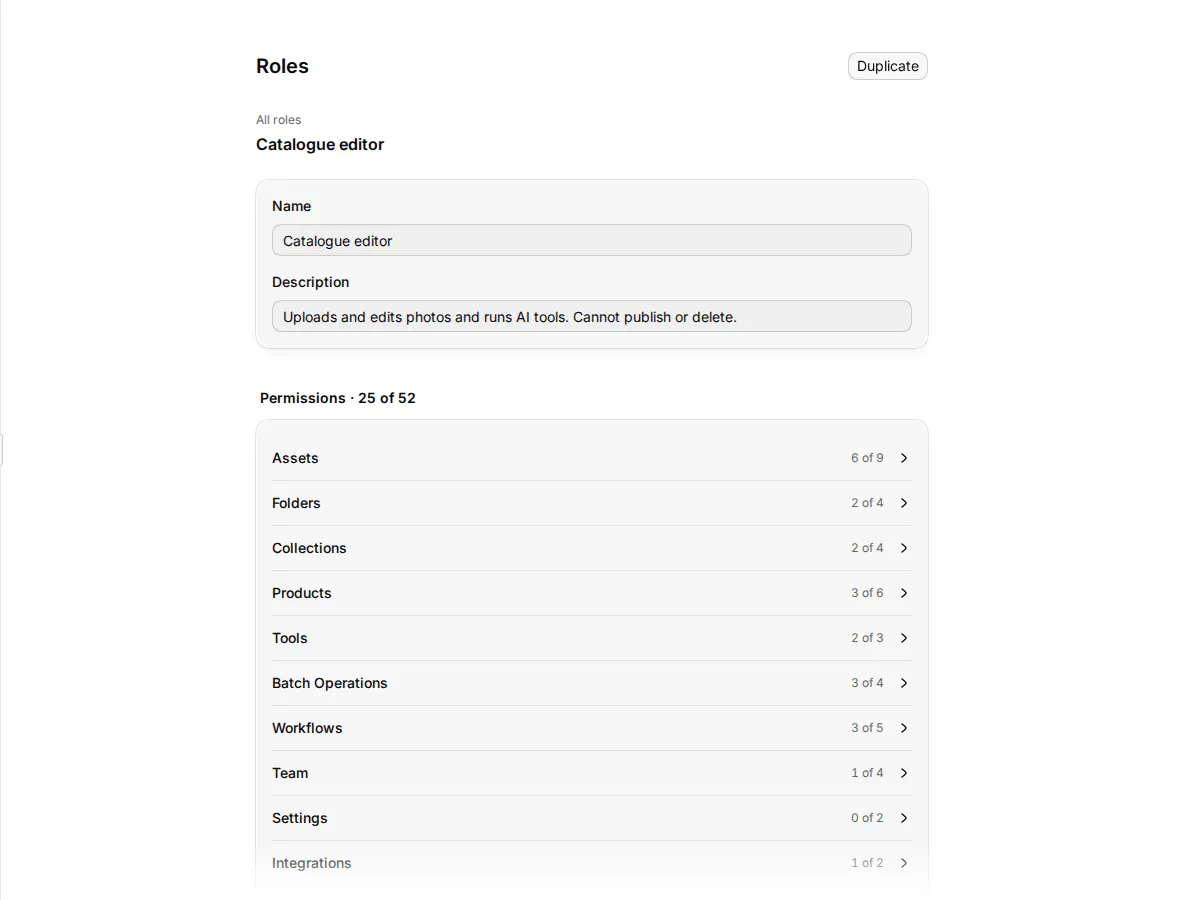
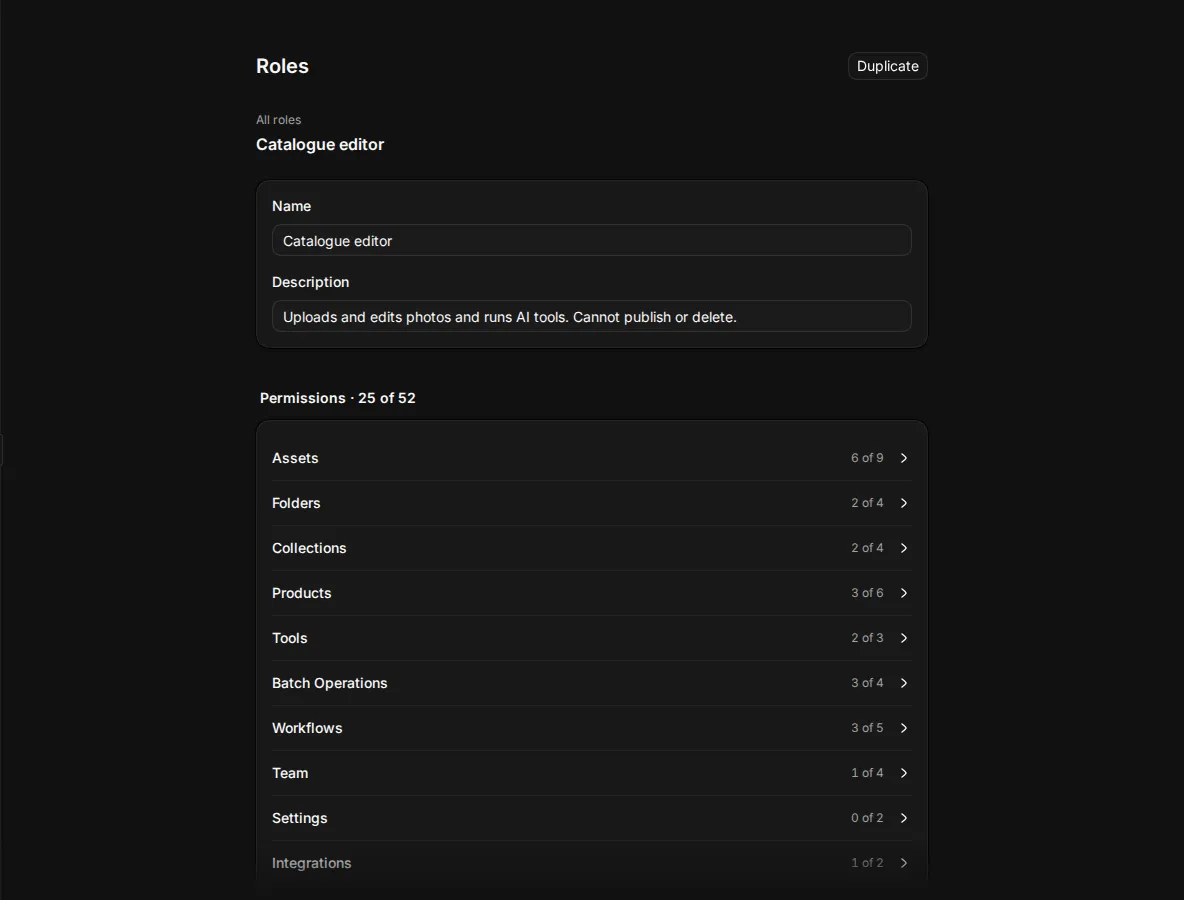
To start from an existing role in one step, open its ⋮ menu in the list and click Duplicate, or open a built-in role and click Duplicate at the top.
A few rules apply:
- A workspace can have up to 20 custom roles.
- Turning a permission on also turns on the view permission it needs. For example, Upload and edit assets turns on View assets in gallery. Turning a view permission off also turns off the permissions that need it.
- Upload to assigned products stays with the built-in Vendor role. A custom role cannot have it.
- You can only change a role whose permissions you have yourself. Otherwise the page says only the Owner can change it.
- A role with Manage roles and permissions counts as an admin role. Only the Owner can give it to people.
When you save a role, every member with it gets the new permissions at once. The role's History shows who made it and every rename and permission change.
Give a role to people
Pick the role when you invite someone, or change a member's role on Settings > Team. See Team. The role page shows how many members have it, with a link to Open Team.
Delete a custom role
- Open the role and scroll to Danger zone.
- Click Delete role.
- If people have the role or a pending invitation with it, pick their New role.
- Click Delete role to confirm.
Members, pending invitations, Shopify staff and single sign-on rules that use the role move to the new role. This cannot be undone.
Give one member different permissions
Use this when one person needs a little more or a little less than their role, without making a new role.
- Go to Settings > Team.
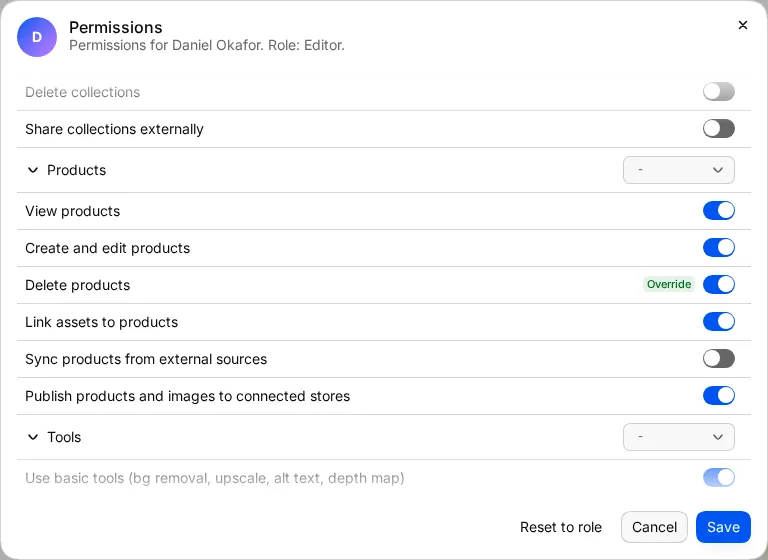
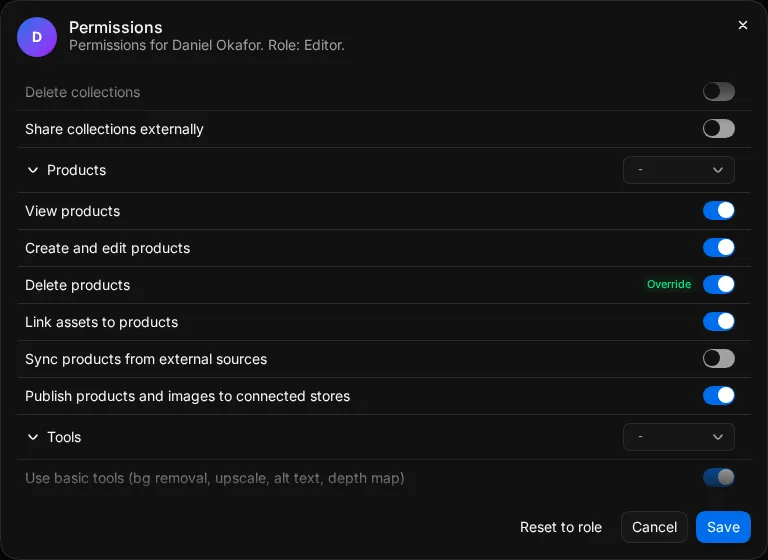
- Click the ⋮ button on the member's row and click Change permissions…
- Open a group and use the switch next to each permission. A switch that differs from the role shows Override. Use the group menu for Allow all, Deny all or Reset all.
- Click Save.
The member's row then shows Custom permissions. To go back to the role, click Reset to role, then Save. You cannot change the Owner's permissions or your own.
Allow or deny one item
Under the permission switches, On one item lets you allow or deny one permission on one folder, file, collection or product. An exception wins over the role and the switches above.
- Click Add exception.
- Pick Allow or Deny.
- Pick the Kind (folder, file, collection or product) and choose the item.
- Pick the Permission.
- Under Until, pick No end date, For 7 days or For 30 days.
- Optional: type a Reason.
- Click Add exception.
A member with an exception that ends on a date shows Temporary on the team list. To take an exception away, click Remove exception. The member gets the role's permission back on that item at once.
Related
- Team
- Single sign-on: map identity provider groups to roles.
- Supplier portal setup: roles for suppliers and reviewers.