Workspace
Name your workspace, set its logo, language, currency and content languages, transfer ownership or close it.
A workspace holds your products, files, team, plan and credits. This section covers the workspace's own settings, the people in it, what each role can do, single sign-on, the activity record and your personal account. This page covers Settings > General: the name, logo, language, currency and content languages, and how to transfer or close the workspace.
Who can use this:
| Task | Who |
|---|---|
| Open General | Members with View workspace settings: Owner and Admin by default |
| Change the name, logo, language, currency and content languages | Members with Edit workspace settings: Owner and Admin by default |
| Transfer ownership or close the workspace | The Owner only |
Change the name and logo
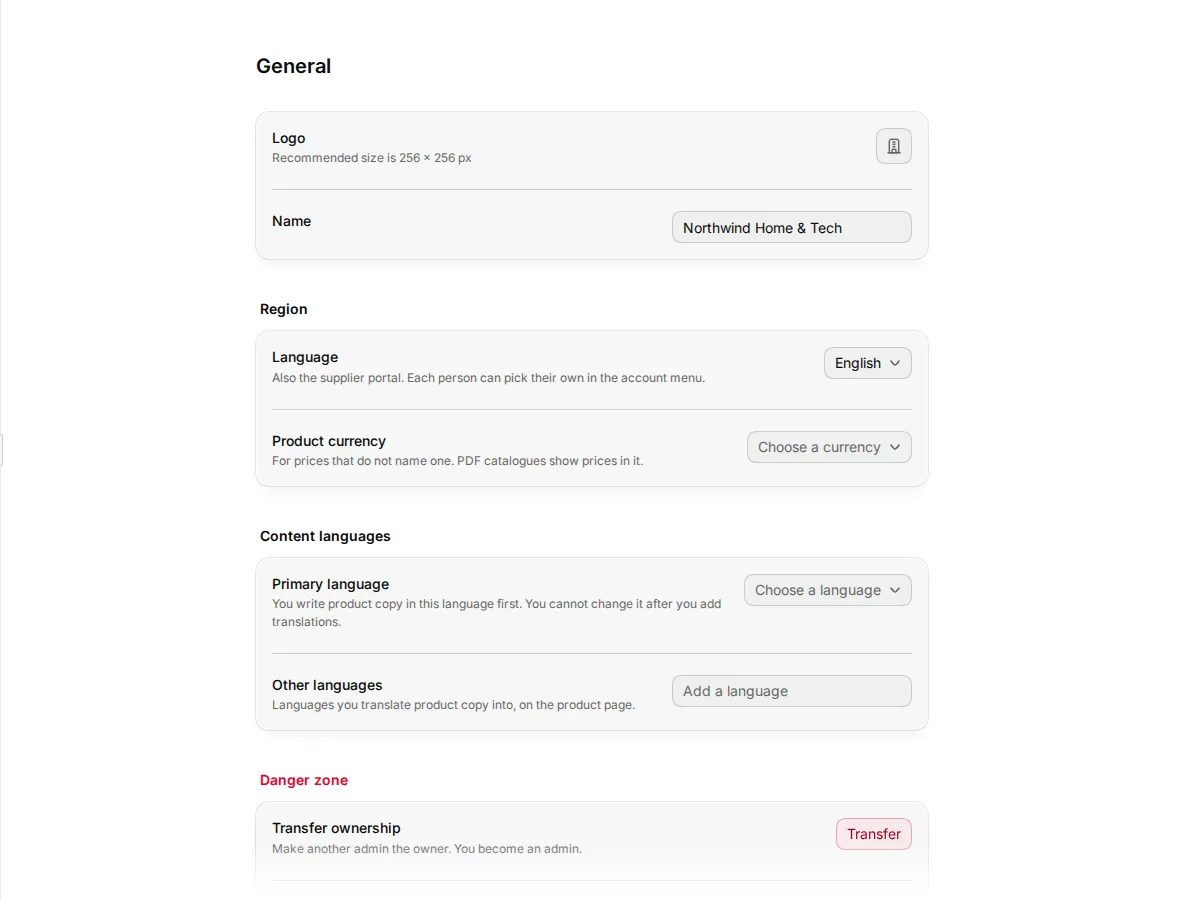
- Go to Settings > General.
- Type the new Name. It can be up to 100 characters.
- To change the Logo, click the logo button. Drop a JPG, PNG or WebP image of up to 10 MB, or choose a file. Studio keeps the centre square. Use Zoom to crop closer, then click Save logo. The recommended size is 256 × 256 px.
- Click Save in the bar at the bottom of the page.
To take the logo off, open the logo dialog and click Remove logo.
Set the language and currency
Under Region:
- Language is the language of Studio for everyone in the workspace, and of the supplier portal. Each person can still pick their own in the account menu. See Find your way around.
- Product currency is used for prices that do not name a currency. PDF catalogues show prices in it. Until you pick one, Studio uses the currency that goes with the workspace language.
Studio's interface is available in English and Español (Colombia).
Set the content languages
Content languages are the languages of your product copy, separate from the interface language.
- Primary language is the language you write product copy in first. You cannot change it after you add translations.
- Other languages are the languages you translate product copy into, on the product page. Click Add a language to add one, or remove one with its remove button.
Click Save to keep the changes. See Product page for how translations work.
Transfer ownership
A workspace has one Owner. The Owner can hand the workspace to another member.
- Go to Settings > General.
- Under Danger zone, next to Transfer ownership, click Transfer.
- Under Select new owner, pick a member.
- Type
TRANSFERto confirm, then click Transfer ownership.
The member becomes the Owner, and you become an Admin. If nobody else is in the workspace, the transfer row does not show. Invite someone first. See Team.
Close the workspace
Closing a workspace deletes it with its files, products and credits, for everyone. Members lose access at once. This cannot be undone.
- Go to Settings > General.
- Under Danger zone, click Close workspace.
- Type the workspace name to confirm, then click Close workspace.
Studio switches you to another of your workspaces before it deletes this one. You can close a workspace only if you have another workspace that is not a sample. If this is your only workspace, the row offers Delete account instead. See Account.
In this section
- Team: invite people, manage invitations, change roles and remove members.
- Roles and permissions: what each built-in role can do, custom roles and per-member exceptions.
- Single sign-on: let your team sign in with your OIDC identity provider.
- Activity and analytics: the activity feed, Updates and the Analytics tabs.
- Account: your profile, sign-in methods and deleting your account.
Plans and invoices are in Billing.