Edit a product
Edit a product's copy and attributes, link and order its images, manage variants, write copy in other languages and undo changes from its history.
The product page holds everything about one product: its name and status, its attributes, its images, its variants and a log of every change. Open it from the product list by clicking a row or pressing Enter.
Who can use this: everyone with access to products can open the page. Owners, Admins and Editors can edit it. Only Owners and Admins can delete a product. Changes to a Shopify product also need the right to publish to Shopify, which Owners, Admins and Editors have. Without it, your edits save in Studio and the page says Your role can't publish changes to Shopify.
Find your way around the page
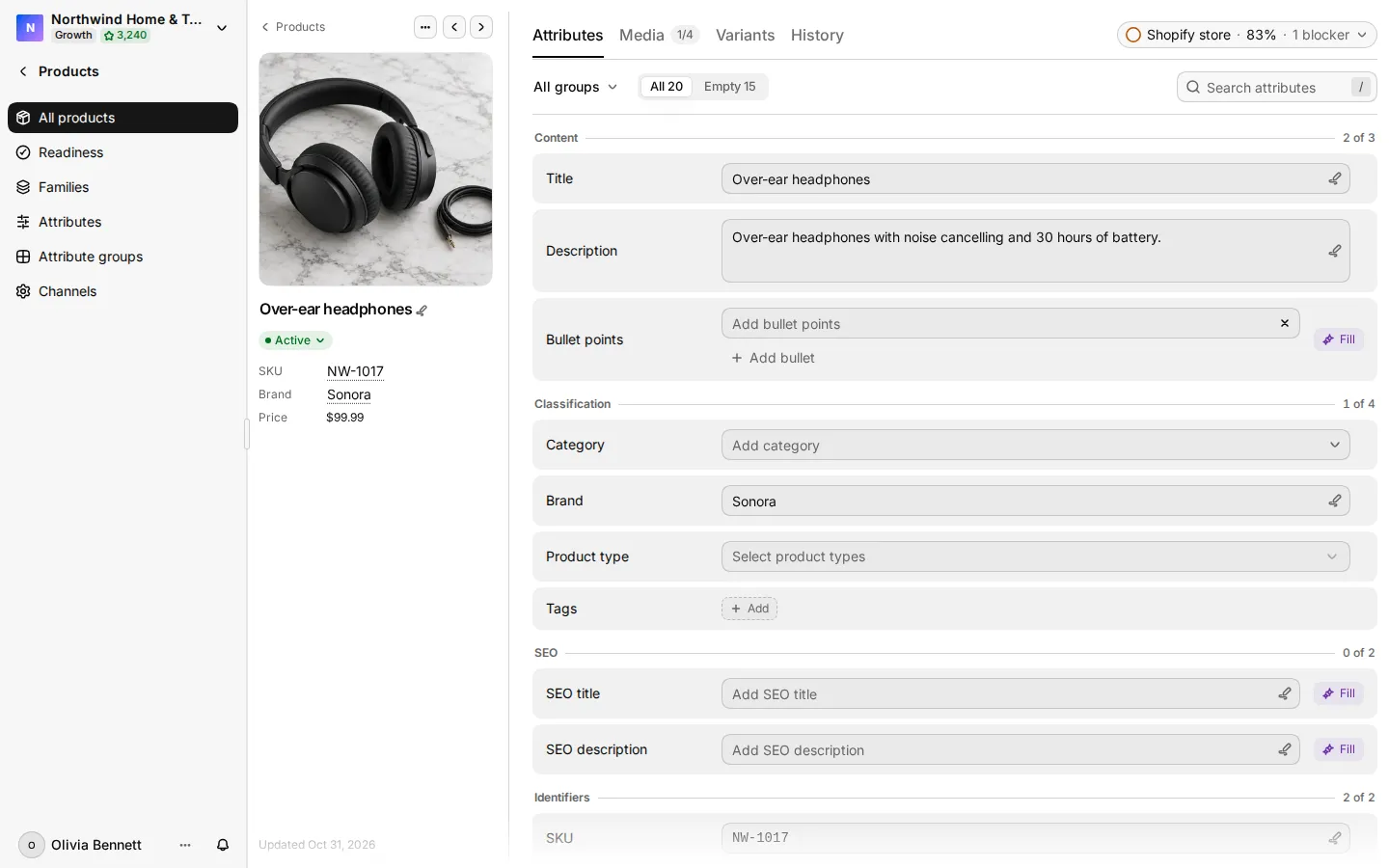
The left rail shows the product name, its status, its source (such as Shopify), the main image and, on a wide screen, the SKU, GTIN, brand, type and price. The rail also shows whether your last change saved: Saving…, Saved or Could not save with Retry.
The main area has four tabs: Attributes, Media, Variants and History. Media shows how many image slots are filled. Variants shows how many variants there are.
- To move to the next or previous product in the list you came from, use the arrows at the top of the rail, or press J (next) and K (previous). The order and filters of that list stay the same.
- To rename the product, click the name and type.
- Product actions (the ⋯ menu) has Link assets, Assign supplier, Make colour variants… and Delete product. Deleting a product also unlinks all its images.
Change the status
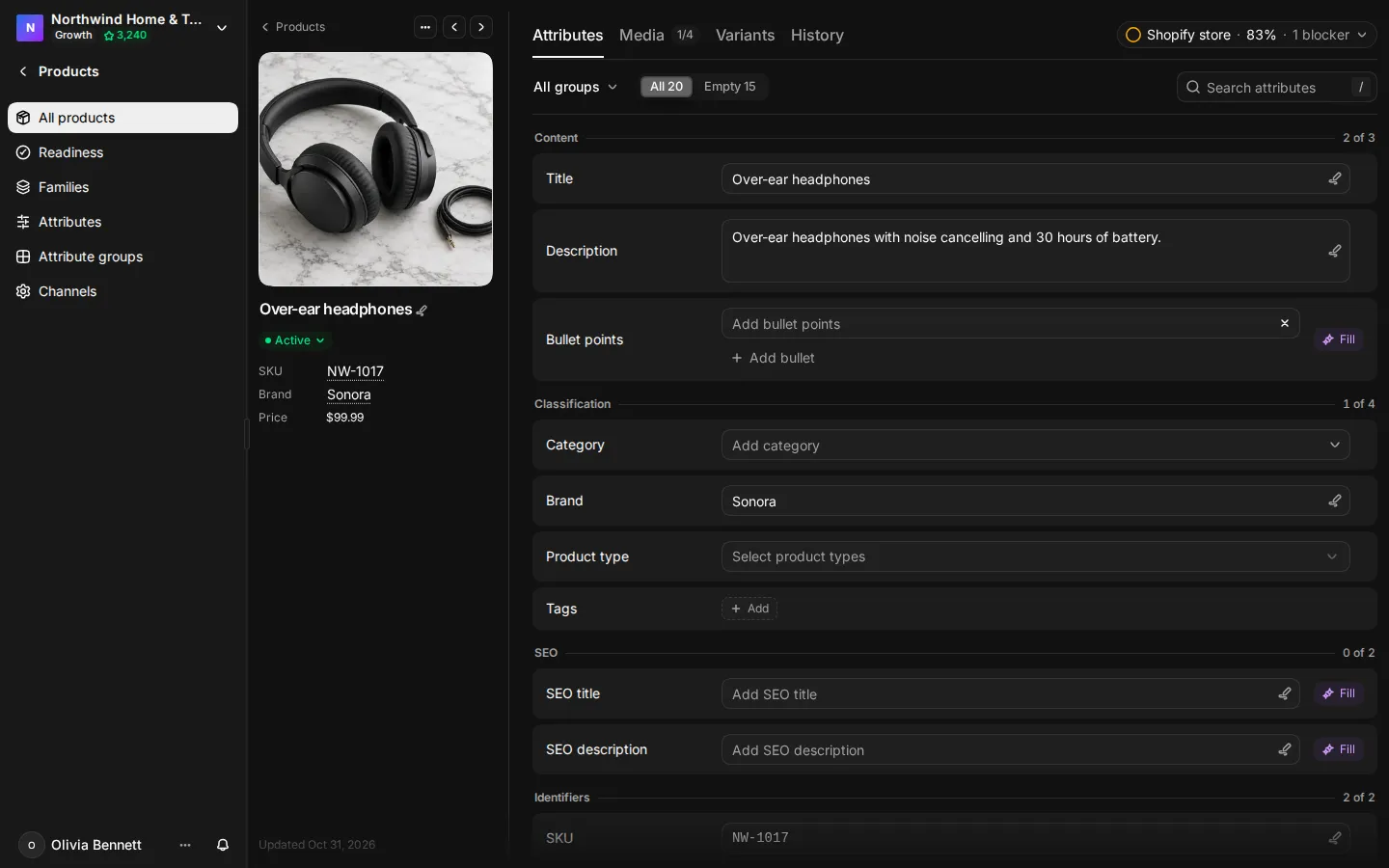
Select the status pill and pick Active, Draft or Archived. The change saves at once, and the message that confirms it has Undo. Shopify products take their status from Shopify, so the pill is read-only for them.
Edit attributes
The Attributes tab lists every field in groups. The built-in groups come first, in this order: Content (title and description), Classification (category, brand, product type, tags), SEO, Identifiers (SKU, GTIN, price) and Media details. Your own attribute groups follow in the order you set, then Other attributes. Each group shows how many of its fields are filled.
- Click a field and type.
- Press Enter or click away to save. Press Esc to cancel. In a box with several lines, Enter adds a new line.
Yes/no, date and choice fields save as soon as you pick a value. If a save fails, the row shows Save failed with Retry save. If you try to leave with an edit still saving or unsaved, Studio asks first.
To find a field fast:
- Pick a group from All groups.
- Use Show fields to see All, only Empty fields, or only empty Required fields.
- Type in Search attributes, or press / to jump to it.
Required fields say which channel needs them, for example Required for Shopify.
Some fields are locked:
- Price is read-only. It comes from your import or from Shopify. A variant can override it, see Variants.
- GTIN is read-only and shows From the import.
- For Shopify products, the SKU and the category come from Shopify.
To add a new field without leaving the product, select Add attribute. The field you create is reusable on every product. See Attributes.
Products imported from Shopify also show their Imported metafields in a table with the namespace, key, value and type. You can edit the values.
Rich text and bullet lists
A Rich text attribute opens an editor with Bold, Italic, Heading, Link, Bulleted list, Numbered list, Quote and Inline code. Studio stores the text as Markdown. HTML that comes in with an import becomes Markdown too.
An attribute with the key bullet_points shows one box per bullet. Press Enter to add the next bullet, or select Add bullet.
The built-in Description is plain text with no toolbar.
Fill a field with AI
Each attribute you created has an AI button: Fill when the field is empty, Rewrite when it has text. Studio writes a value from the product's name, brand, category, description, type, SKU and tags, and from your brand context. The value saves at once and you can undo it. Each fill uses credits (0.1 per fill) and needs the right to use generation tools. AI fill writes in the primary language only, so the button hides while you look at another language.
Write copy in other languages
A workspace has one primary content language and can add others. An Owner or Admin sets them in Settings > General under Content languages. You cannot change the primary language after products have translations.
When the workspace has more than one language, the Attributes tab shows a language menu.
- Open the language menu and pick a language.
- Fill in the Title, the Description and each attribute marked Translatable.
- Save each field as usual.
Fields that are not translatable show Same in every language. An empty translation shows the primary text after In and the language name, so you can see what to translate. Studio does not translate copy for you. To bring in many translations at once, import a spreadsheet with a column per language, see Import and export.
Channels read copy in their own language. A channel set to Spanish exports the Spanish title and leaves it empty when there is no translation. See Channels.
Link and order images
The Media tab shows the product's image slots. The slots come from the shot list the product uses, such as a main image, a back view and a detail. Optional slots fold away under More slots. Images that fit no slot get their own slots at the end.
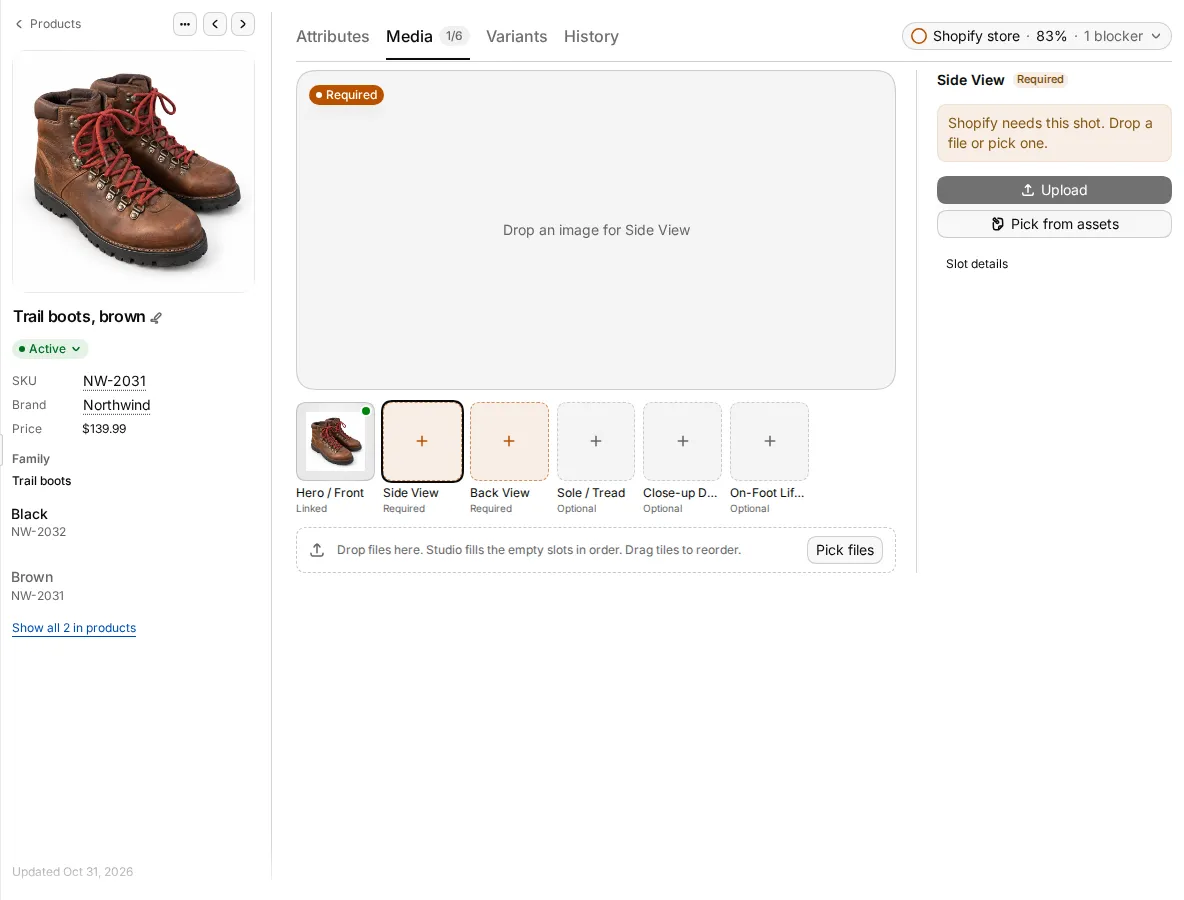
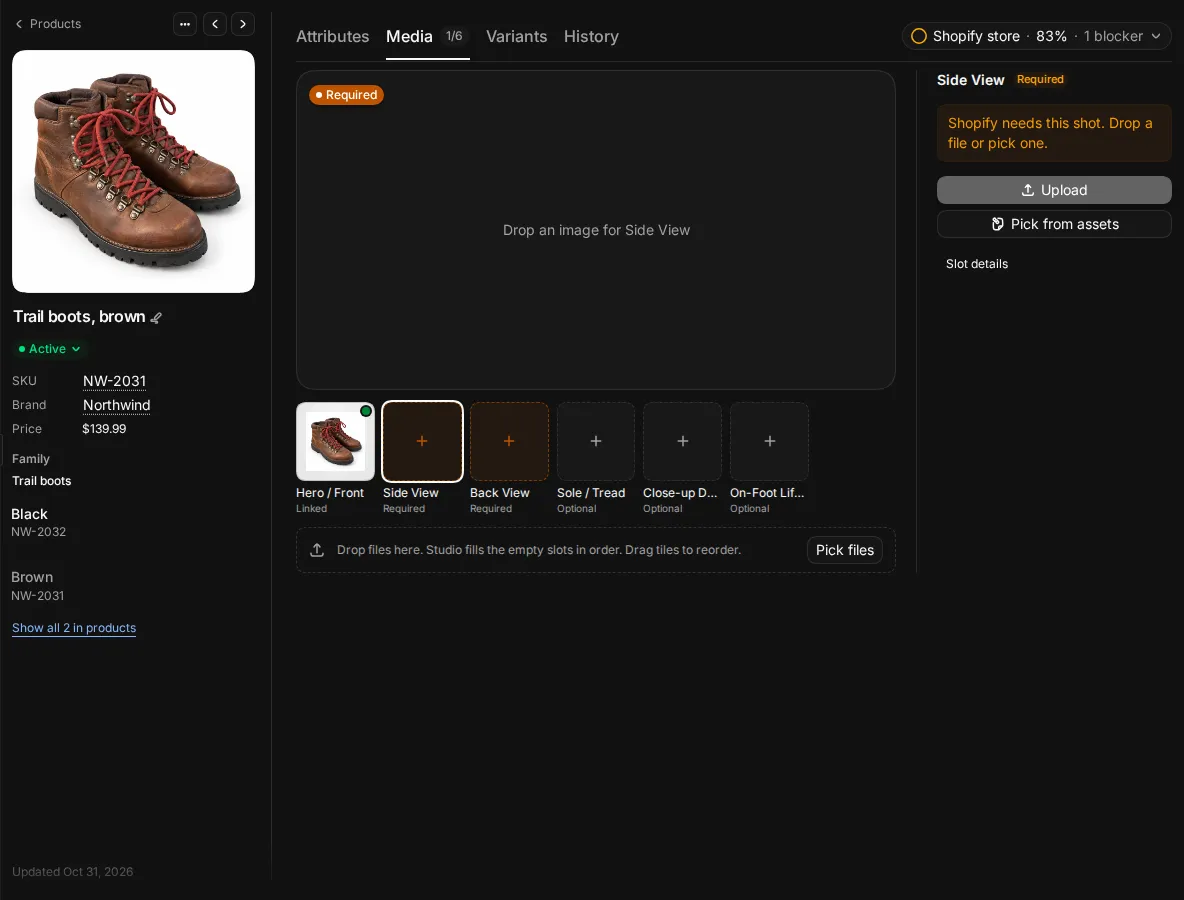
Each slot has a state:
| State | Meaning |
|---|---|
| Linked | An image is linked. Channels use it. |
| Imported, not linked | The import brought an image address, but no image from the library is linked yet. |
| In review | A supplier uploaded an image. Channels do not use it until someone approves it. |
| Rejected in review | The upload was rejected. |
| Required | Empty, and a channel needs it. |
| Optional | Empty, and no channel needs it. |
Select a slot to open its details. From there you can Upload, Pick from assets, Replace, Make main image, Move to another slot, Swap with another slot, or Remove. For an imported image, select Link as main image. For a supplier upload, select Open review.
To add many images, drop files on the tab. Studio fills the empty slots in order. Drag tiles to change the order. Select the star on a tile to make it the main image.
Alt text
Each image has an Alt text field. Alt text written here belongs to this product's image, not to the file in the library. Select Generate alt text with AI to write it from the picture. This uses credits (1 per image).
Image language
Some images only make sense in one language, such as a photo with printed text. When the workspace has more than one content language, each image has an Image language menu. It is All languages by default.
When you set a language, channels in other languages leave the image out. On Shopify, the Sirv media gallery theme block shows the image only on the storefront in that language. See Use Studio inside Shopify.
Generated images waiting for review
When AI tools made new images for the product, a Generated content to review card appears above the media. Select Compare to see the before and after, then Approve to link the result or Reject to remove it.
Manage variants
The Variants tab lists each variant with its options (such as colour and size), price, status and images. Click a row to see its details.
- Variants you added in Studio: select Add variant, Edit or Delete. A variant has a title, SKU, price, position, status and options. To delete a variant, remove its images first.
- Shopify variants: select Edit in Shopify. You can change the options and the SKU, and the change goes to Shopify. The title, status and price come from Shopify. You need the right to publish to Shopify.
- Variants from other sources are read-only.
Each variant either Uses the product price or is Overridden for this variant. Select Reset to go back to the product price. A product has one price in one currency.
For colour variants, the Fill … empty colours and Make from … links open the colour variants AI tool. See Product photos. For product families, see Families and variants.
Undo a change from the history
The History tab lists every change: edits by people, imports, Shopify syncs, supplier uploads and AI changes. Changes made at the same moment by the same person or source are grouped.
- Use Show changes by to filter by People, Imports, Suppliers or AI.
- Find the change and select Restore.
Select Load older changes to see more.
Fix a product for a channel
The readiness chip at the top shows the channel, the score and the number of blockers. Select it to open Readiness by channel. Pick a channel to see what it needs. Click a requirement to jump to the field or slot that fixes it. Select Fix for the channel to work through the missing fields only. See Readiness.