Set up attributes and categories
Create your own product fields, put them in groups in the order editors need, and keep a category tree with shot list rules.
Attributes are the fields on a product beyond the built-in ones, such as material, fit or care instructions. Define them once for the workspace, then fill them on each product, in imports and with AI. Attribute groups set where they appear on the product page. Categories and groups help you sort products and decide which shot list each product gets.
Who can use this:
| Page | See it | Change it |
|---|---|---|
| Attributes | Everyone with access to products | Owner, Admin, Editor |
| Attribute groups | Everyone with access to products | Owner, Admin, Editor |
| Categories | Owner, Admin, Editor | Owner, Admin, Editor |
| Groups | Owner, Admin, Editor, on a plan with the Supplier Portal (Growth or Enterprise) | Same |
People who can only view see Read-only access on the Attributes page.
Create an attribute
- Select Products > Attributes.
- Pick the tab for what the attribute describes: Product, Variant, Product media or Asset.
- Select Add attribute.
- Fill in the form:
- Attribute label: the name editors see. Up to 120 characters.
- Attribute key: the name imports, channel mappings and the API use. Lower-case letters, numbers and underscores, starting with a letter. Up to 80 characters. Two attributes cannot share a key.
- Data type: Text, Rich text, Number, Boolean, Date, Enum or JSON. For Text, choose Single line or Multi-line. For Enum, list the Options separated by commas, such as "Leather, Suede, Canvas".
- Description: optional help for editors.
- Turn on the rules you need:
- Required: the field must be filled for the product to be complete.
- Searchable: the field shows up in catalogue search.
- Translatable: the value can differ per language.
- Channel-scoped: the value can differ per sales channel.
- Select Create attribute.
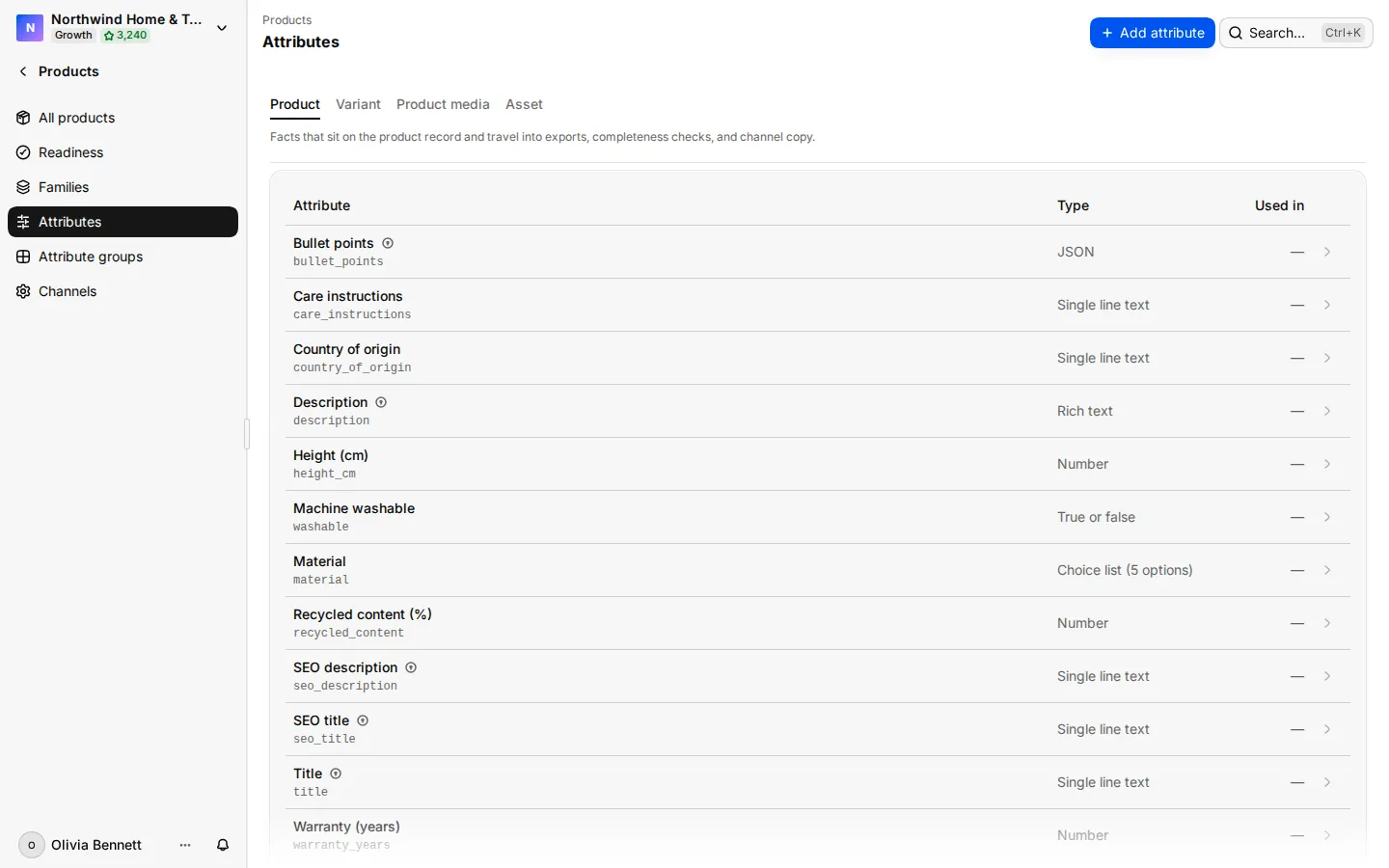
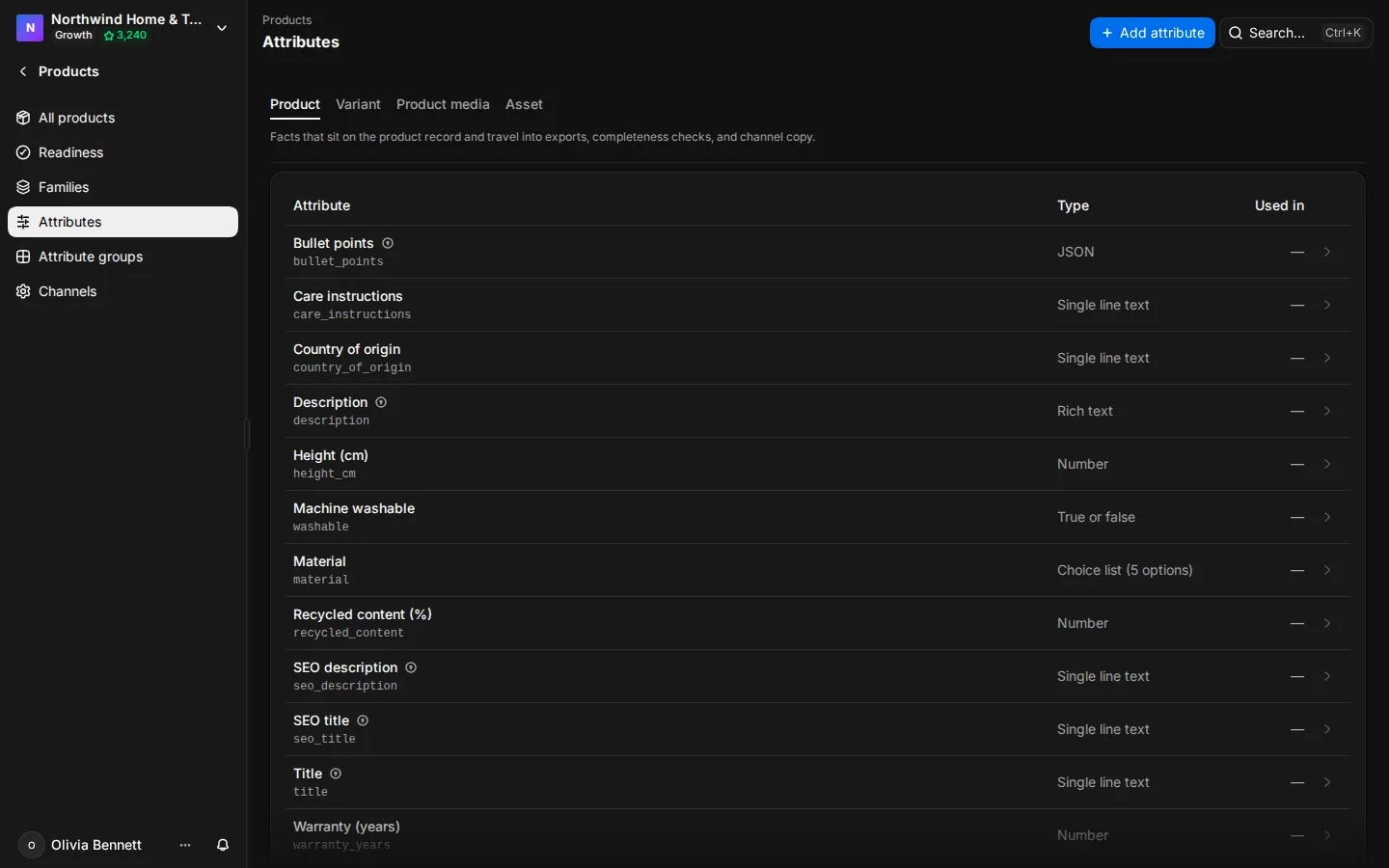
You can also create an attribute from a product with Add attribute, or let an import create them from extra columns. See Import and export.
Change or retire an attribute
Select an attribute to open its details. You see where it is used: how many products, variants and images have a value, and how many channel export fields, category requirements and metadata templates use it.
After you create an attribute, you can change its label, description, enum options and validation rules. Validation rules are a minimum and maximum length, a pattern, a minimum and maximum value or date, and the allowed options. The data type, key, Translatable and Channel-scoped cannot change.
You cannot remove an enum option that products still use.
Attributes are never deleted. To stop using one, select Deprecate, then Confirm deprecate. It disappears from new work, and its history stays readable. Select Restore to bring it back.
Attributes marked System attribute are built into Studio. AI tools, imports and sync fill them, and you cannot edit their setup.
Put attributes in groups
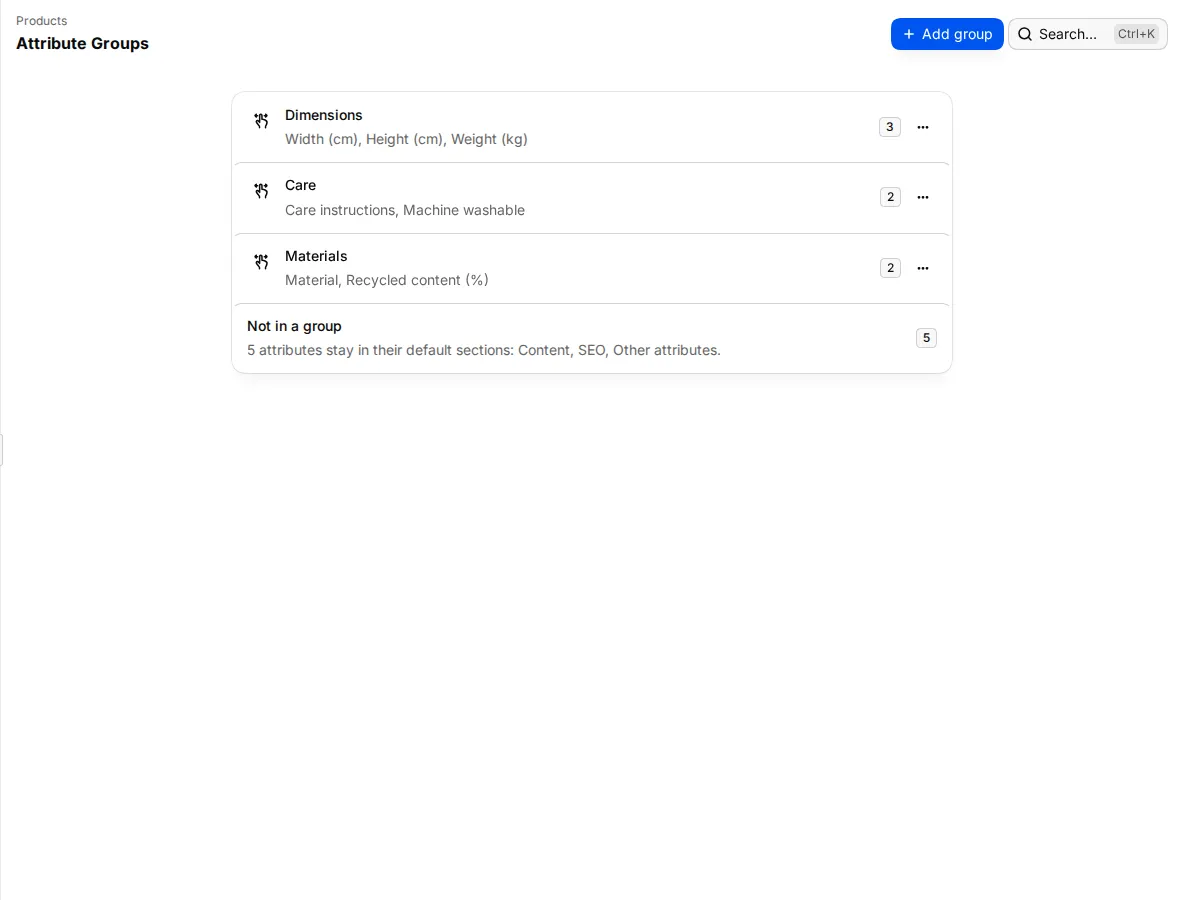
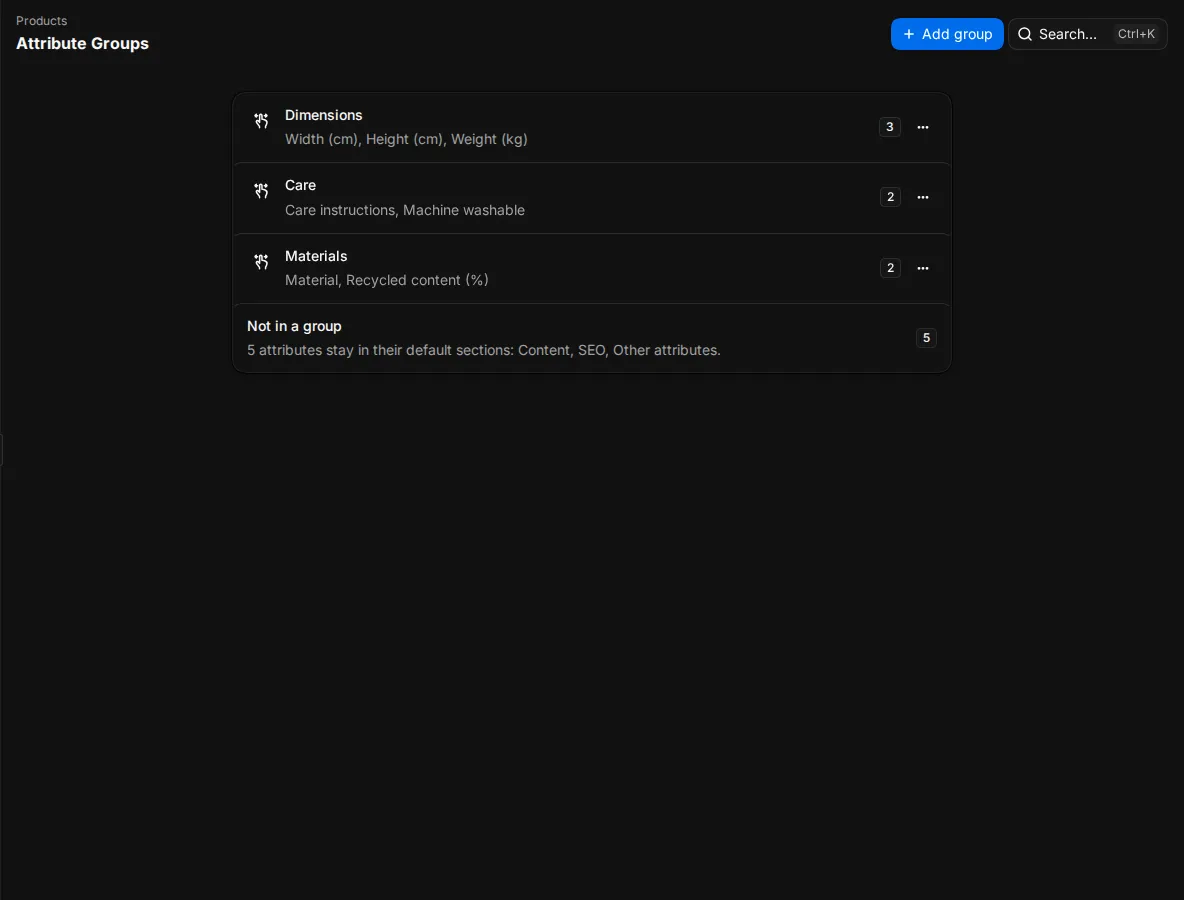
Attribute groups decide where product attributes sit on the product page. Without a group, an attribute stays in its default section: Content, Classification, SEO, Identifiers, Media details or Other attributes.
- Select Products > Attribute groups.
- Select Add group.
- Enter a Name, for example "Dimensions".
- Search for attributes and add them. An attribute that is in another group moves to this one.
- Select Save.
Groups take product attributes only. The title and description always lead the Content section and cannot join a group. The Not in a group list shows what is left.
Change the order
Drag a group by its handle to move it. You can also use the arrow keys, or Move up and Move down in the group's menu. The product page shows the groups in this order, after the built-in sections. Dragging is off on phones.
Delete a group
Select Delete group in its menu. Its attributes go back to their default sections and products keep their values. Each change shows Undo for a few seconds.
Keep a category tree
Categories are not in the sidebar. Open them from the search box: type "Categories".
The Catalog taxonomy page shows a Taxonomy tree. Built-in taxonomies carry a System badge and are read-only. Your workspace taxonomy is yours to edit.
- Select Add root category... for a top-level category, or Add child to a category for one below it. In an empty workspace, select Add the first workspace category....
- Select a category to open Category details. Rename it, add a description and choose a Default slot template, the shot list its products use.
The details also show the depth and how many products are in that branch. You cannot delete a category that has children. When you delete a category, its linked products lose it.
Route products to shot lists with groups
Groups are rules that decide which shot list each product gets. They are not product families. Open them from the search box: type "Groups". Groups need a plan with the Supplier Portal. Without it, the page offers an upgrade.
- Create a shot list first. See Shot lists and validation.
- Select New rule.
- Enter a Rule name and a Description.
- Under Match criteria, select Add condition. Pick a field (Product Type, Category, Brand or Tag), an operator (Equals, Contains, Starts with or Is one of) and a value. All conditions must match.
- Check Product preview to see which products match.
- Pick the Shot list and select Create routing rule.
Rules run from top to bottom, and the first rule that matches wins. Move rules up or down to change the order. Products that match no rule get the Shot list for everything else. When you delete a rule, its products fall back to that default.