Shot lists, checks and delivery
Decide which shots each product needs, which checks every supplier file must pass, how files are fixed and reviewed, and where approved files go.
These settings decide what suppliers upload and what happens to each file. A shot list says which photos and videos a product needs. Product matching picks the shot list for each product. Validation rules check every file, and delivery sends approved files to your store and your Sirv account.
Who can use this: Owners and Admins on the Growth or Enterprise plan (the vendor:manage permission). Reviewers and Editors work with the results in Review.
Build a shot list
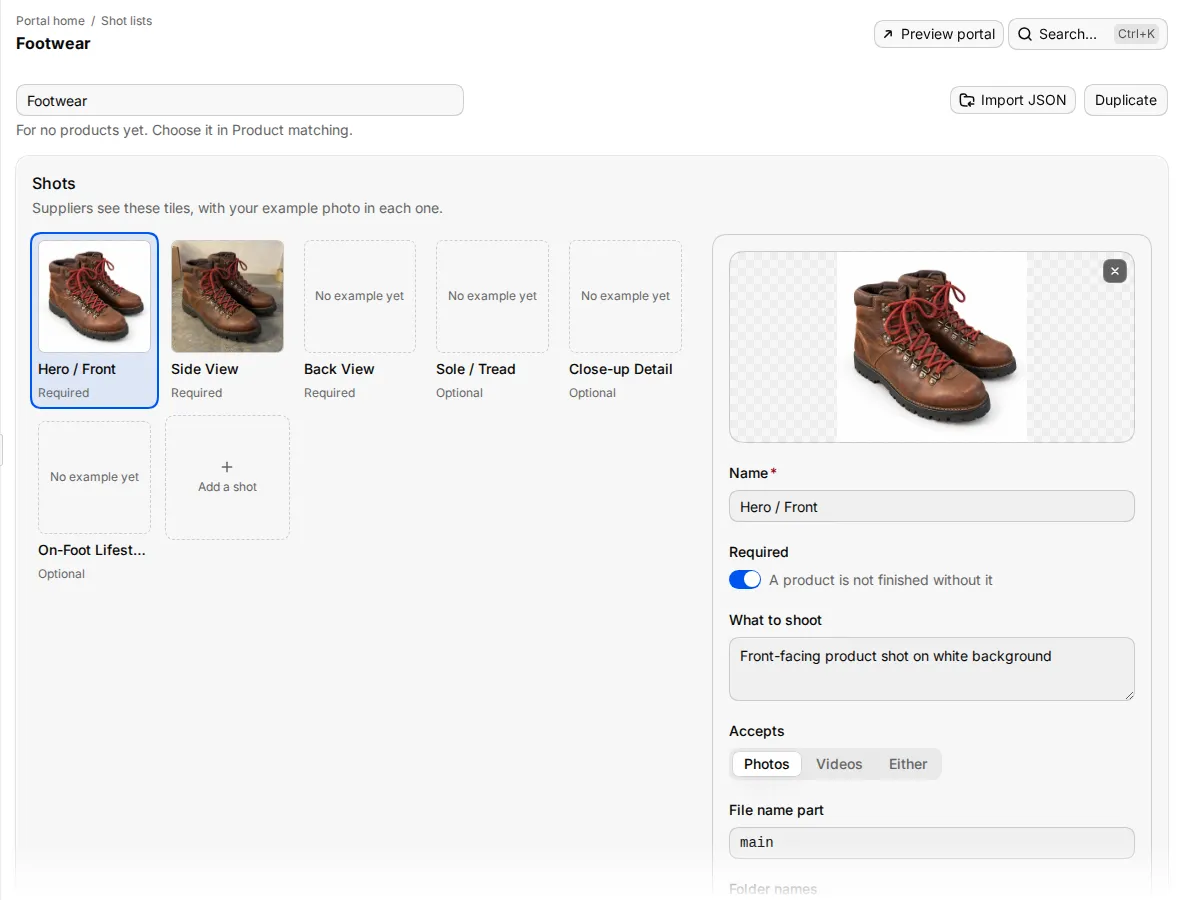
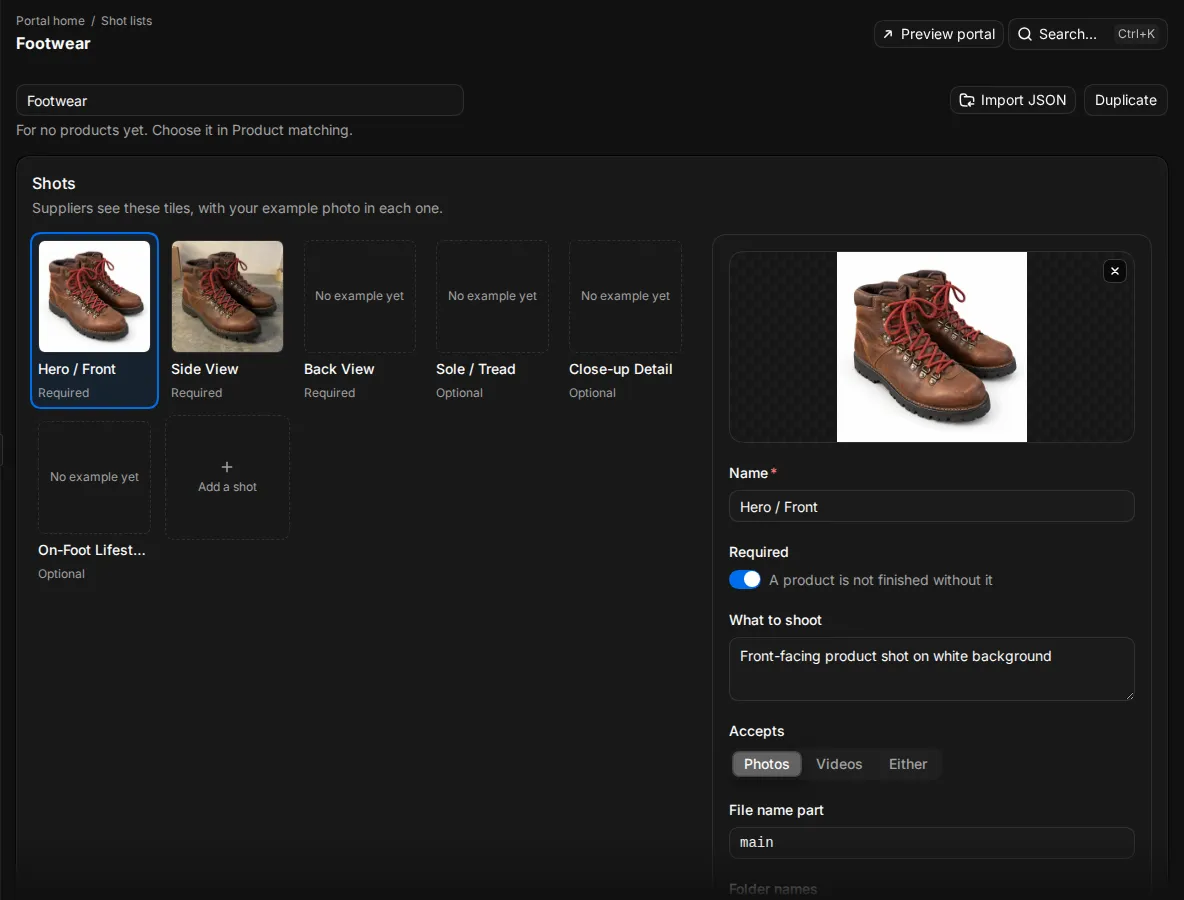
A shot list is the set of photos and videos a supplier sends for each product. Each item in it is a shot, such as "Front on white" or "Sole detail".
- Go to Supplier portal > Shot lists and select New shot list. Before your first shot list, the page also offers Start from a preset, with ready-made lists for shoes, apparel, jewellery, furniture and electronics, and Build from scratch.
- Enter the Shot list name.
- For each shot, fill in:
- Name: what the supplier sees, such as "Main image".
- Role: Main, Gallery, Lifestyle, Detail or Swatch.
- Required: turn it on if a product is not finished without this shot. Otherwise the shot is nice to have.
- What to shoot: a short brief for the supplier.
- Accepts: Photos, Videos or Either.
- Example photo: select Add an example photo to show the supplier what a good shot looks like.
- Select Add a shot for each further shot.
- Under Checks, choose the validation rule for files in this list. You can also set a Validation rule on a single shot.
- Under File names, choose how Studio names the files: by Shot name, by Number or by Your pattern. A pattern can use
{sku},{slot},{position},{padded}and{ext}. - Select Create shot list.
Turn on Use for everything else to make this the fallback shot list for products that no matching rule covers. The portal setup needs one fallback shot list.
File name part and Folder names on a shot help Studio recognise that shot from a file or folder name. For example, a shot with the file name part sole matches SKU-001_sole.jpg.
You can also Import JSON or Duplicate a shot list. A shot list that a matching rule uses cannot be deleted until you choose another shot list in that rule.
Give each product the right shot list
Product matching chooses which shot list each product gets. The first rule that matches wins.
- Go to Product matching and select New rule.
- Enter a Rule name.
- Under Match criteria, select Add condition. Choose a field (Product Type, Category, Brand or Tag), an operator (Equals, Contains, Starts with or Is one of) and a value. A product must match every condition.
- Choose the Shot list.
- Check the Product preview to see which products match, then save.
Products that no rule matches get the Shot list for everything else.
Product matching does not decide which product a file belongs to. Studio matches a file to a product by its SKU in the folder name or file name, or by a GTIN or EAN at the start of the file name. It only looks at the products assigned to that supplier.
Set the checks every file must pass
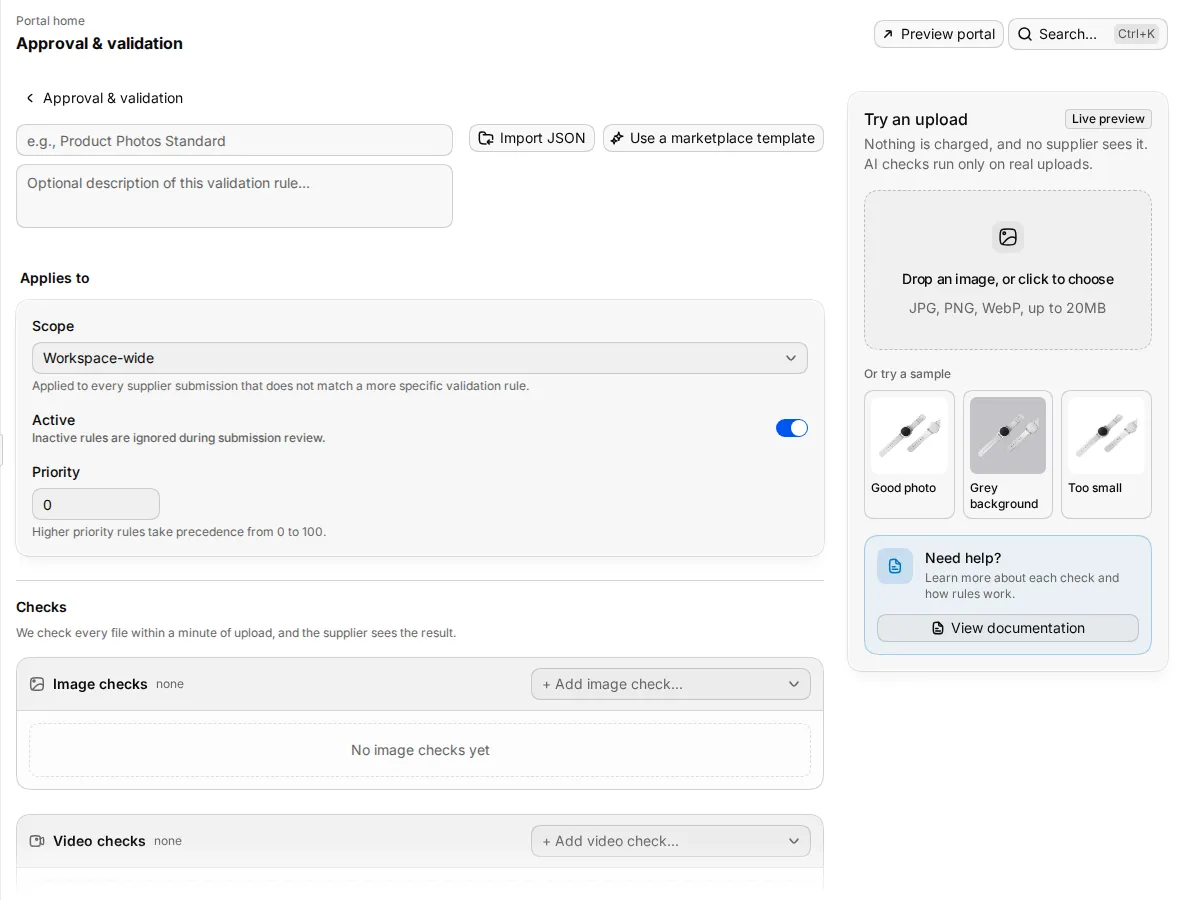
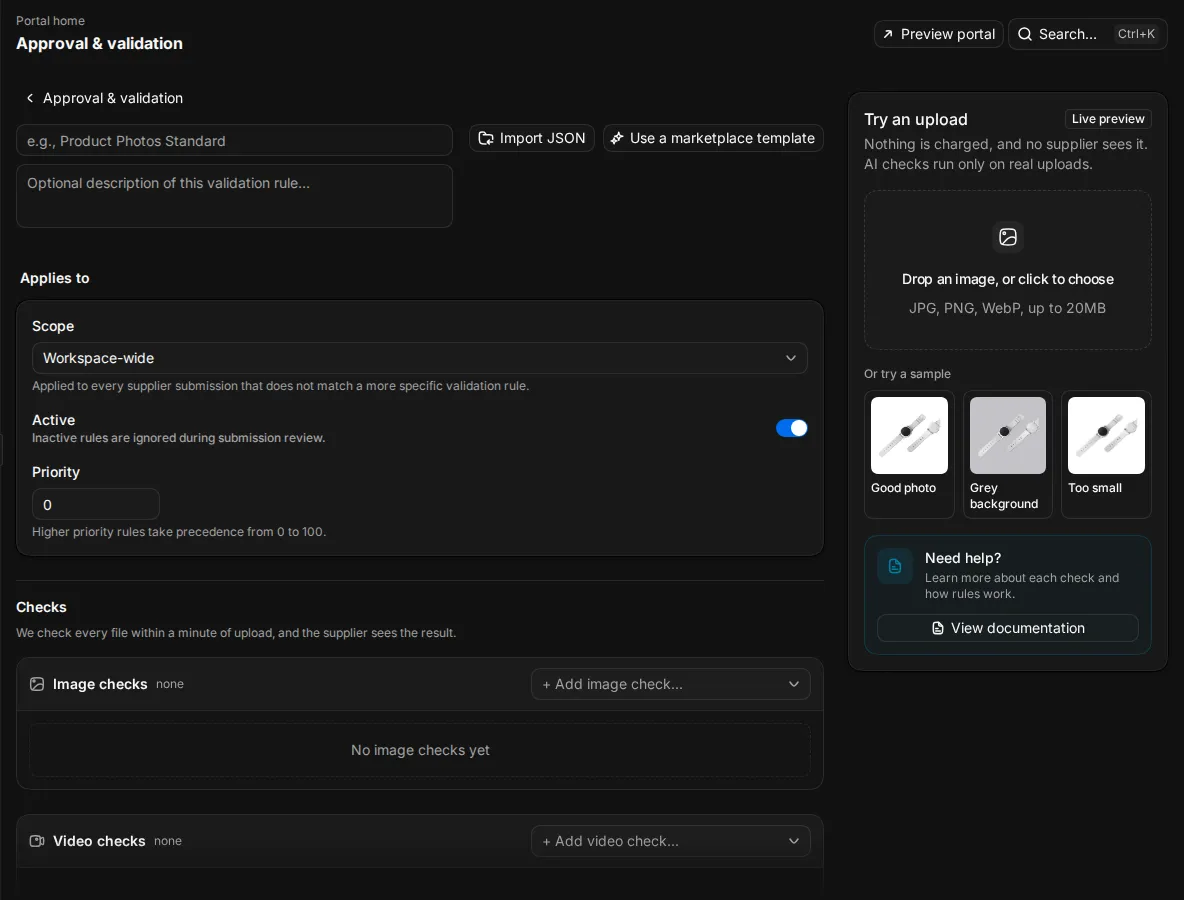
A validation rule lists the checks a file must pass and what happens next. Go to Approval & validation and select New rule. Your first rule can also come from Create default validation rule.
- Enter the Rule name.
- Under Applies to, choose Workspace-wide, Routing rules (the products of chosen matching rules) or Specific product.
- Optionally, select Use a marketplace template to start from the image requirements of a marketplace, such as Amazon, eBay, Shopify, Walmart, Etsy, Target, Wayfair, Google Shopping, YOOX or ABOUT YOU.
- Add the Checks you need. For each check, choose under If this rule fails whether to Block upload or Warn only.
- Choose what happens under Then.
- Select Create validation rule.
The portal setup needs one active rule that applies Workspace-wide.
Checks you can use
| Check | What it looks at |
|---|---|
| Minimum dimensions, Maximum dimensions | Width and height in pixels |
| Aspect ratio | The shape of the image, such as 1:1 |
| File size, File format | Size in bytes and allowed formats |
| Video codec | The codec of a video |
| Blur detection, Quality | Sharpness and detail |
| White background, Whitespace margins | The background colour and the space around the product |
| Product frame fill, Centered subject | How much of the frame the product fills and where it sits |
| No overexposure, White-on-white check | Blown-out areas and a white product on a white background |
| No watermarks, No shadows or reflections | Checked by AI |
| Colour profile | The colour profile of the uploaded file |
Turn off Strict mode to let a file pass when a share of the checks pass, set with Pass threshold. With strict mode on, all enabled checks must pass.
Decide what happens after the checks
Under Then, choose an outcome for each case:
| When | Options |
|---|---|
| Every check passes | Approve it or Wait for a reviewer |
| Only a warning fails | Same as when every check passes or Wait for a reviewer |
| A must-pass check fails | Send it back to the supplier, Accept it with a warning or Wait for a reviewer |
| No rule matches the file | Queue for manual review or Accept without validation |
When you send files back, you can enter a Rejection reason. Leave it empty and Studio writes the reason from the failed checks.
A new rule waits for a reviewer when every check passes and sends the file back when a must-pass check fails. When you change a rule, Studio shows how the change would have affected your last uploads, for example how many more files it would approve or send back.
Output file sets the format, size and file name of each approved file.
Fix files before they go back
Turn on Try an AI fix first under AI fix to repair a failing file before it goes back to the supplier. The original stays in the file history.
- During supplier-upload intake, Studio can convert the format (for example TIFF to WebP), compress a file to meet a size limit and crop it to fill the frame. These fixes are free and never start an AI job.
- During merchant review, a reviewer can also run upscaling, background removal and smart crop. These use credits, and the reviewer sees the price first.
Write rejection reasons
Rejection reasons holds the reasons reviewers choose from. Studio includes 10 standard reasons. Add up to 50 of your own under Custom reasons with Add reason.
Review uploads and fix images
Uploads that wait for a reviewer appear in Review under Submissions. Reviewers approve or reject each file, and a rejection goes back to the supplier with the reason. See Review.
When a designer can fix an image faster than the supplier can reshoot it, the reviewer selects Send to design. The image goes to the Design tab, the Design queue, where an editor fixes it. The fixed image comes back for approval: an editor never approves their own fix. Choose who works on the queue on the Editors page, see Set up the portal.
Deliver approved files
To Shopify. When a product is linked to Shopify, an approved image goes to that product in Shopify. This happens when the file was approved by a rule, or by a reviewer who can publish to Shopify. Videos are not sent to Shopify this way.
To Sirv. With a connected Sirv account, go to Delivery and set:
- Send each approved file to Sirv at once: turn it on to deliver every approved file. It is off by default, and approved files stay in Studio.
- Approved folder: the Sirv folder for approved files.
- Inside it: All in one folder, A folder per category or A folder per product.
- If the name exists: Save a copy, Rename the old one or Replace it.
Under Other files you can also:
- Keep rejected files in Sirv, in a Rejected folder with one subfolder for each rejection reason.
- Keep original TIFF files, in a TIFF folder, next to the converted file.
Replace it removes the old file. If you undo an approval later, Studio removes the delivered file, but it cannot bring back the file it replaced. Rename the old one keeps the old file and can restore it.
If Sirv is not connected, Delivery shows Not connected to Sirv with Connect Sirv.