Set up the supplier portal
Finish the portal setup list, write the supplier welcome page, invite suppliers, add reviewers and editors, and edit supplier emails.
This page takes you from an empty portal to your first invited supplier. You set up what suppliers see, who they are, who reviews their uploads and which emails they get. The rules for shots and checks are on Shot lists and validation.
Who can use this: Owners and Admins on the Growth or Enterprise plan (the vendor:manage permission). See Supplier portal for plans and add-ons.
Open Supplier portal in the sidebar. Its pages are in two groups. Operate holds Portal home, Suppliers, Reviewers and Editors. Pipeline setup holds Supplier information, Product matching, Shot lists, Approval & validation, Delivery and Emails.
Every page has Preview portal, which opens the portal as a supplier sees it, in a new tab.
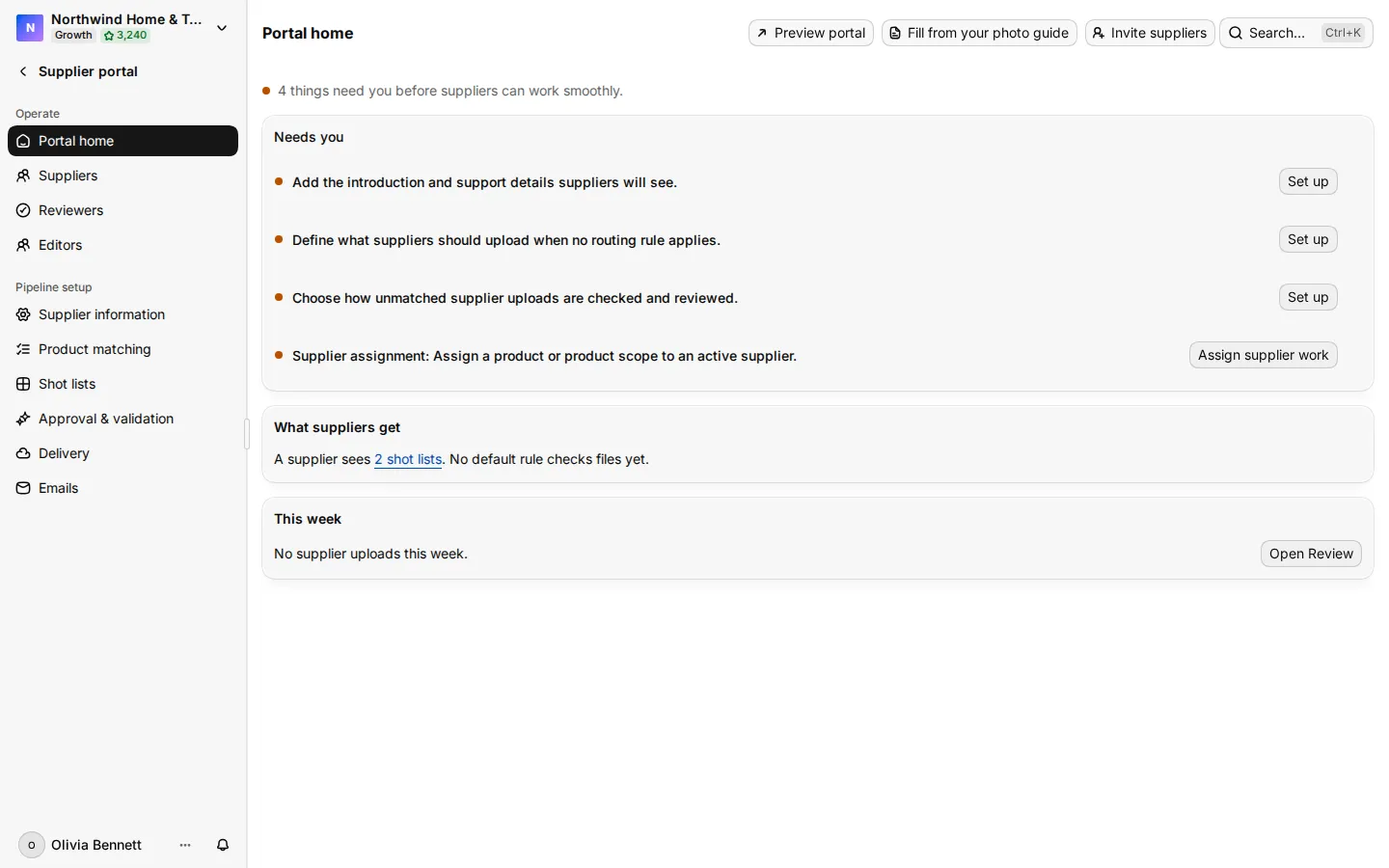
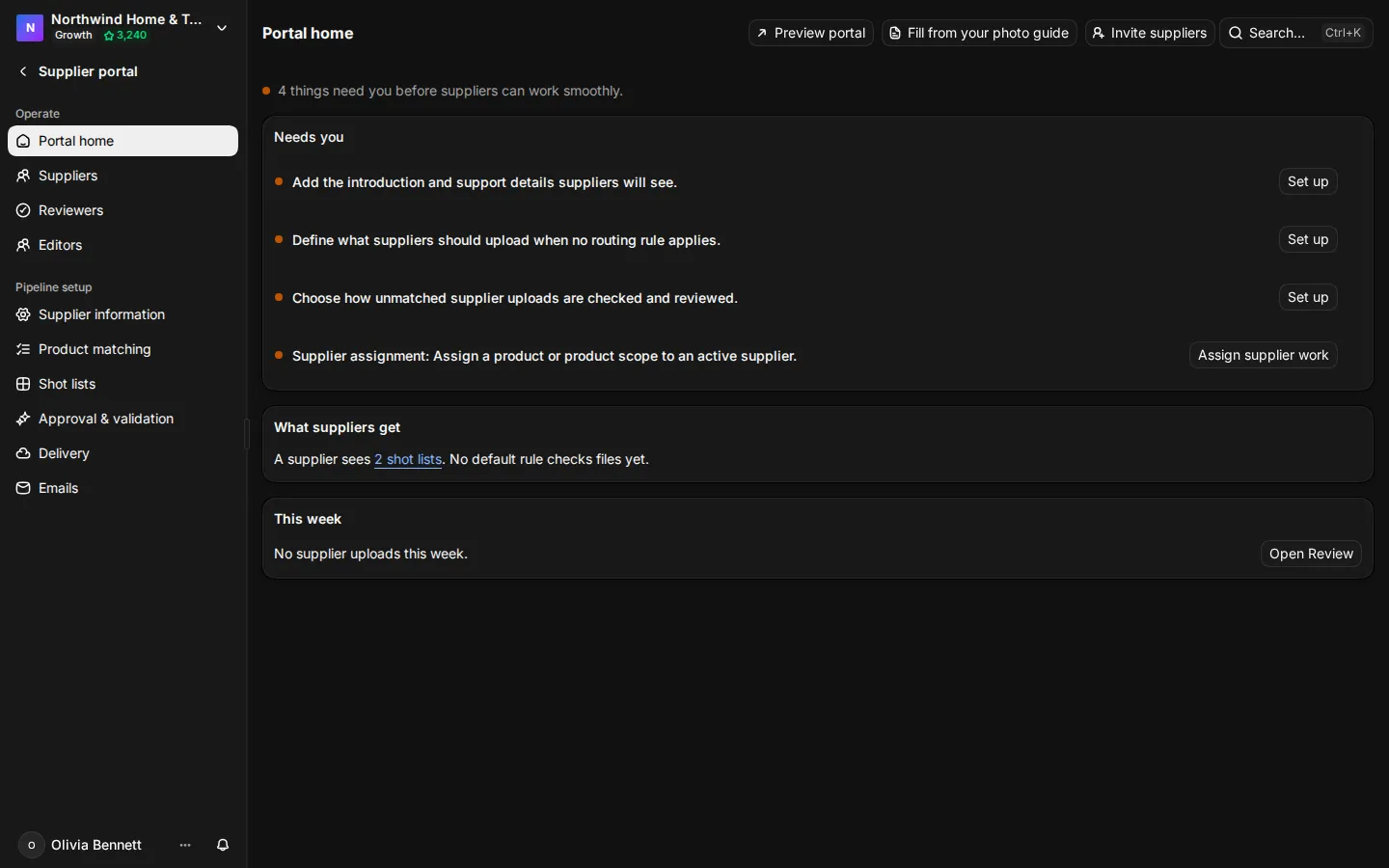
Finish the setup list
Portal home shows a setup list until three things are done. Each item has a Set up button that opens the page where you do it.
- Supplier information: add the introduction and support details suppliers will see. It is done when the title, the welcome text and a help email or help page are filled in.
- Fallback shot list: define what suppliers upload when no routing rule applies. It is done when one of your shot lists is set to Use for everything else.
- Default validation rule: choose how unmatched uploads are checked and reviewed. It is done when an active rule applies Workspace-wide.
The list disappears when all three are done. Product matching, delivery, SFTP and custom emails are optional.
Portal home also shows What suppliers get, a summary of your setup, and This week, with Open Review to go to the uploads that are waiting.
If you already have a photo guide as a PDF, select Fill from your photo guide on Portal home. Studio reads the guide and offers to use it as a new validation rule (Open as a new rule), a new shot list (Open as a new shot list) or the supplier welcome page (Use as the supplier welcome). You review each one before you save it.
Write the supplier welcome page
Supplier information is the first page a supplier sees.
- Optionally, choose a starting text under Start from an example: Your own store, Marketplace intake or Studio retouches it.
- Fill in the Title and the Welcome text.
- Add up to 10 Tips with Add a tip.
- Enter a Help email or a Help page address, so suppliers know where to ask.
- Save your changes.
Under Product list and SFTP you can choose the product fields and filters that suppliers see in their product list. You can also set the SFTP folder mode, which decides how SFTP folders map to products:
- SKU folders: a supplier puts files in a folder named after the SKU, such as
/SKU-001/hero.jpg. - Category folders: folders follow your categories, such as
/Category/Subcategory/123456_001.jpg. The file name starts with the SKU and ends with the shot number.
SFTP uploads need the Supplier Portal Pro add-on.
The portal shows your workspace logo and name. There are no other branding settings.
Invite suppliers
- Go to Suppliers and select Invite suppliers.
- Enter the supplier's Email address, then select Next.
- Under Assign products, choose what the supplier can see. Use Scope to give access by rule, or Specific Products to pick products one by one.
- Select Send invitation.
Scope options are All Products, By Product Type, By Category, By Brand and By Tag. The type, category, brand and tag options appear when your catalogue has those values.
If you select Send invitation without choosing any products, the supplier gets access to all products. Select Send without assignments in the first step to invite someone with no products yet.
If the setup list is not finished, Studio warns you first and lists what is missing. You can still invite the supplier after you confirm that they may see an incomplete portal.
The supplier gets an email with a link that works for 7 days. Your plan sets how many supplier accounts you can have. When the limit is reached, a new supplier cannot accept the invite.
You can also assign products from the Products list: select products and choose Assign supplier.
Manage a supplier
The Suppliers table shows each supplier, their products and their last upload, or No uploads yet. Select a row to open the supplier's details.
- Change the products with Add products, Edit assignment or remove an assignment.
- Change the Role. Another role moves the person out of Suppliers.
- Remove this supplier removes them from the workspace and revokes their product assignments. Their uploads stay.
For an invite that has not been accepted, select Send a reminder or Cancel the invitation.
Choose who reviews uploads
By default, every member who can review sees every upload in Review. Use Reviewers to send each product's uploads to the right people.
- Go to Reviewers and select Add reviewer.
- Pick a team member.
- Choose a scope, such as By Brand, and the value.
- Select Add the reviewer.
Give reviewers the Reviewer role. The Reviewer role can approve and reject uploads and comment, but it cannot change your settings. Owners and Admins can review too. If nobody is eligible, select Invite team member.
Choose who fixes images
When a reviewer finds an image that a designer can fix, they send it to the Design queue instead of back to the supplier. Use Editors to say who works on that queue, for which products.
- Go to Editors and select Add an editor.
- Pick a member with the Editor, Admin or Owner role.
- Choose the Products they fix, then select Add.
An editor never approves their own fix. A reviewer approves it, the same way as a supplier upload. Select Open the Design queue to go to the queue in Review.
Send retouching to Pixelz
If you have a Pixelz account, Pixelz can work on the Design queue as an outside editor. Pixelz bills your account for each image, and you still approve each result.
- On Editors, find Pixelz retouching.
- Enter your Pixelz account email, your API key and the Template id of the Pixelz specification to retouch to.
- Select Connect Pixelz.
Reviewers can then assign an image to Pixelz in the Design queue. The result comes back for approval like any other fix.
Edit the emails suppliers get
Emails lists what suppliers get by email, and when.
| Group | Emails |
|---|---|
| Welcome | Invitation, Welcome |
| Assignments | Product assigned, Products assigned, Products removed |
| Review | Photos approved, Photos sent back, Decision changed |
| Onboarding | Upload tips, How review works, Reminder |
- Under Suppliers read, choose the language your suppliers read: English or Español (Colombia).
- Select an email.
- Edit the Subject, the Preview text and the Message. Use the variable buttons to insert details such as the supplier's name. Some emails need certain variables, and Studio tells you which.
- Check the preview on the right, which uses sample details.
- Select Send me a test to get the email yourself.
- Save your changes.
Reset to the default brings back Studio's text. You cannot turn single emails off.
Give the portal its own address
With the Supplier Portal Branding add-on, your portal gets its own address on sirv.studio, for example yourbrand.sirv.studio. We set it up with you. On that address, only members of your portal can sign in. Your own domain is not available yet.