Group products into families
Group the colour and size versions of one product into a family, label each one, and see when variants belong inside one product instead.
Many catalogues sell one design in several versions, such as a jacket in four colours. Studio has two ways to hold those versions:
- A family groups separate products. Each version is its own product with its own SKU, images and copy, and a label such as "Navy" says what makes it different. Use families when your file or your supplier lists each colour as its own product.
- A variant lives inside one product, on its Variants tab. Shopify products come in with their variants. Use variants when one product record holds all its options.
This page covers families. For variants, see Manage variants.
Who can use this: everyone with access to products can see families. Owners, Admins and Editors can make, change and delete them.
See your families
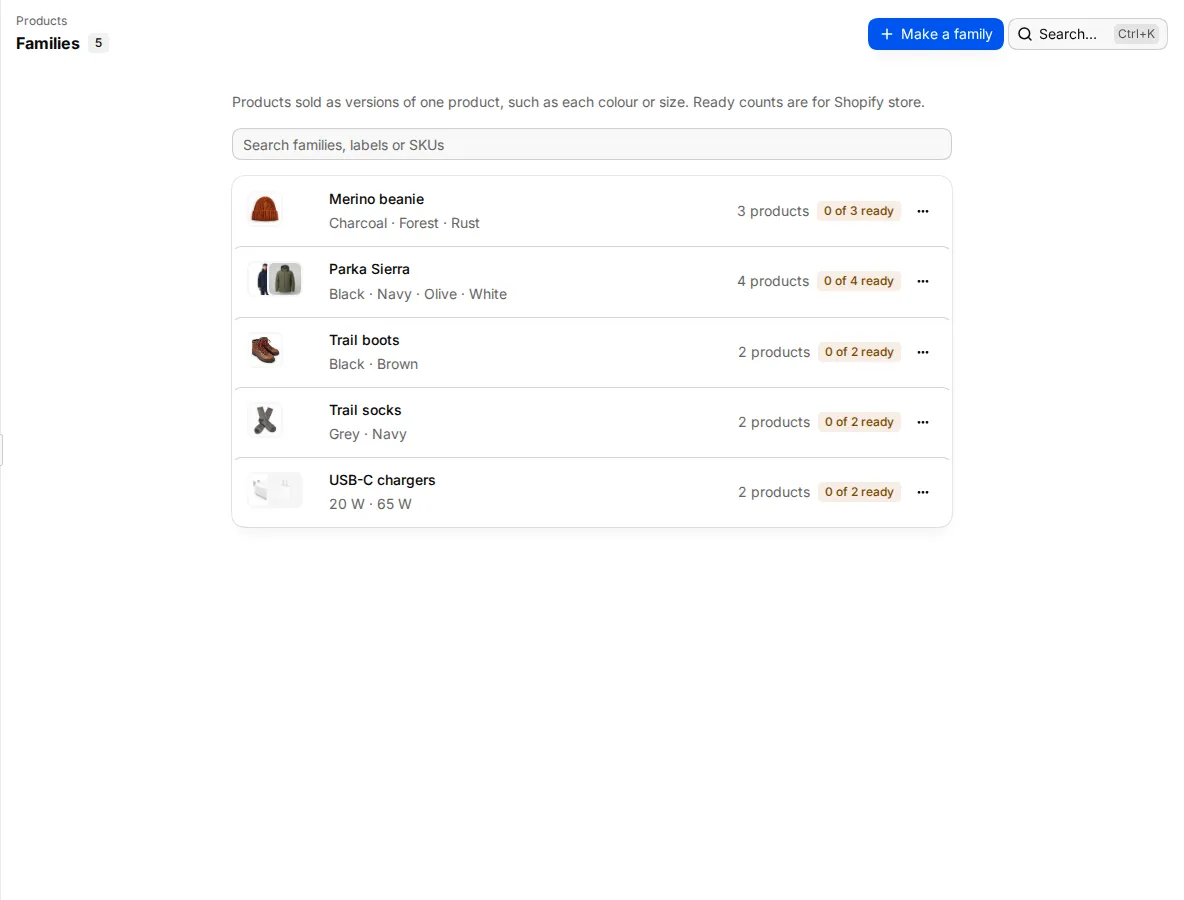
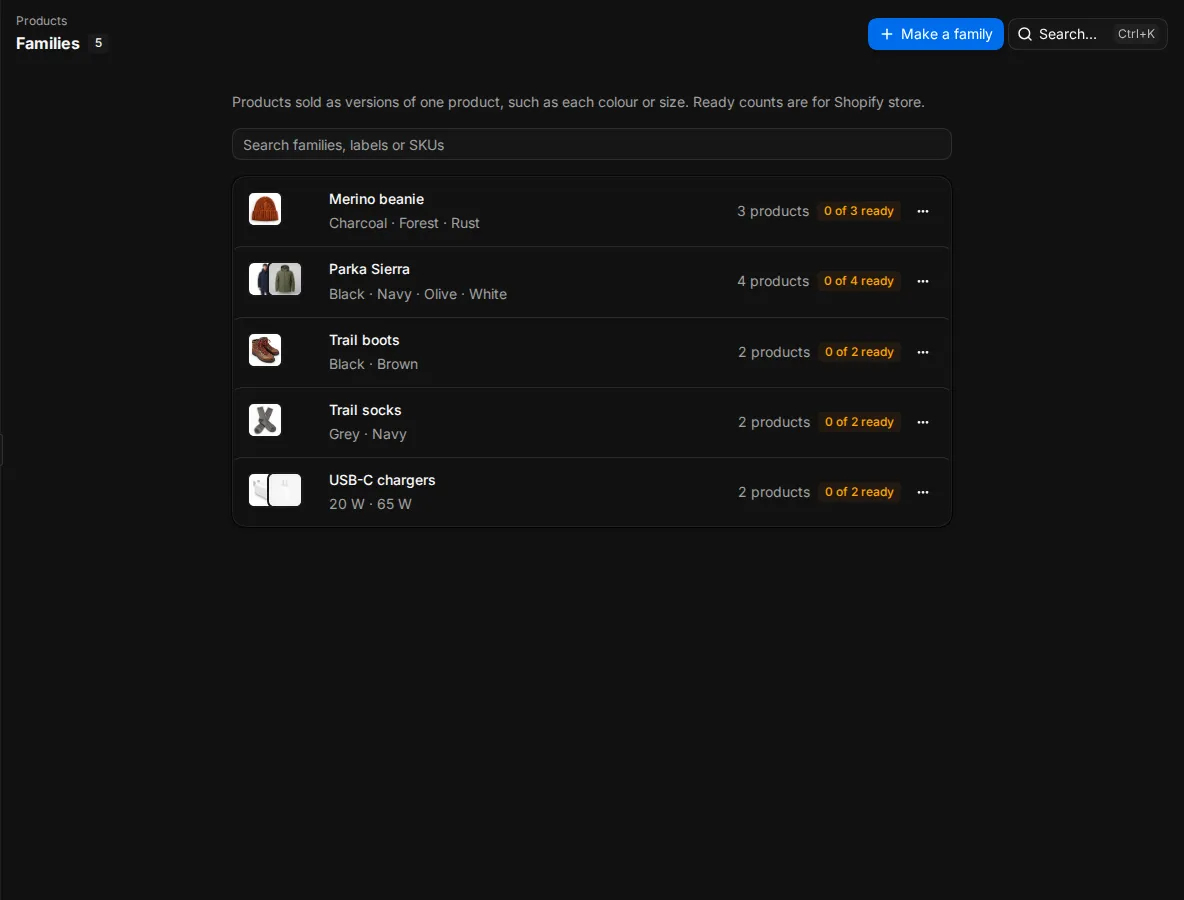
Select Products > Families. Each row shows up to three photos, the family name, its labels, the number of products and how many are ready for your main channel, for example 3 of 4 ready.
Type in Search families, labels or SKUs to find one. Select the name to open the family.
Make a family
- Select Make a family.
- Enter a Name, for example "Hooded rain parka".
- Pick at least two products. The list shows the 40 most recently changed products. Search to find others.
- Select Make family.
Studio opens the new family. A product can be in one family only. If you pick a product from another family, it moves to the new one, and the picker shows In and the family it is in now.
Studio sets each label from the product name: the text after the last comma. "Parka, navy" gets the label "Navy". Change it later if it is wrong.
A family can hold up to 200 products. Two families cannot have the same name.
You can also make families with an import. Map a column to Family and another to Family label. See Import and export.
Change a family
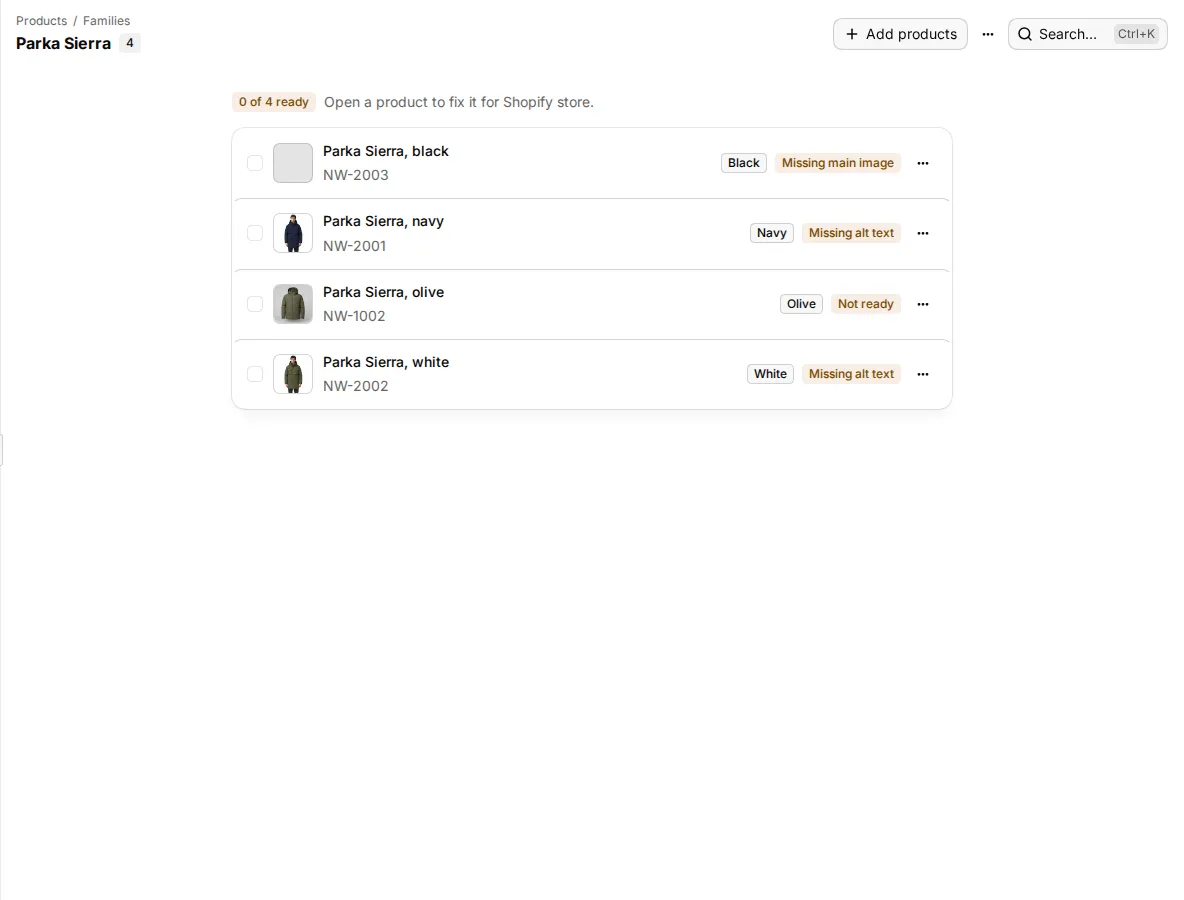
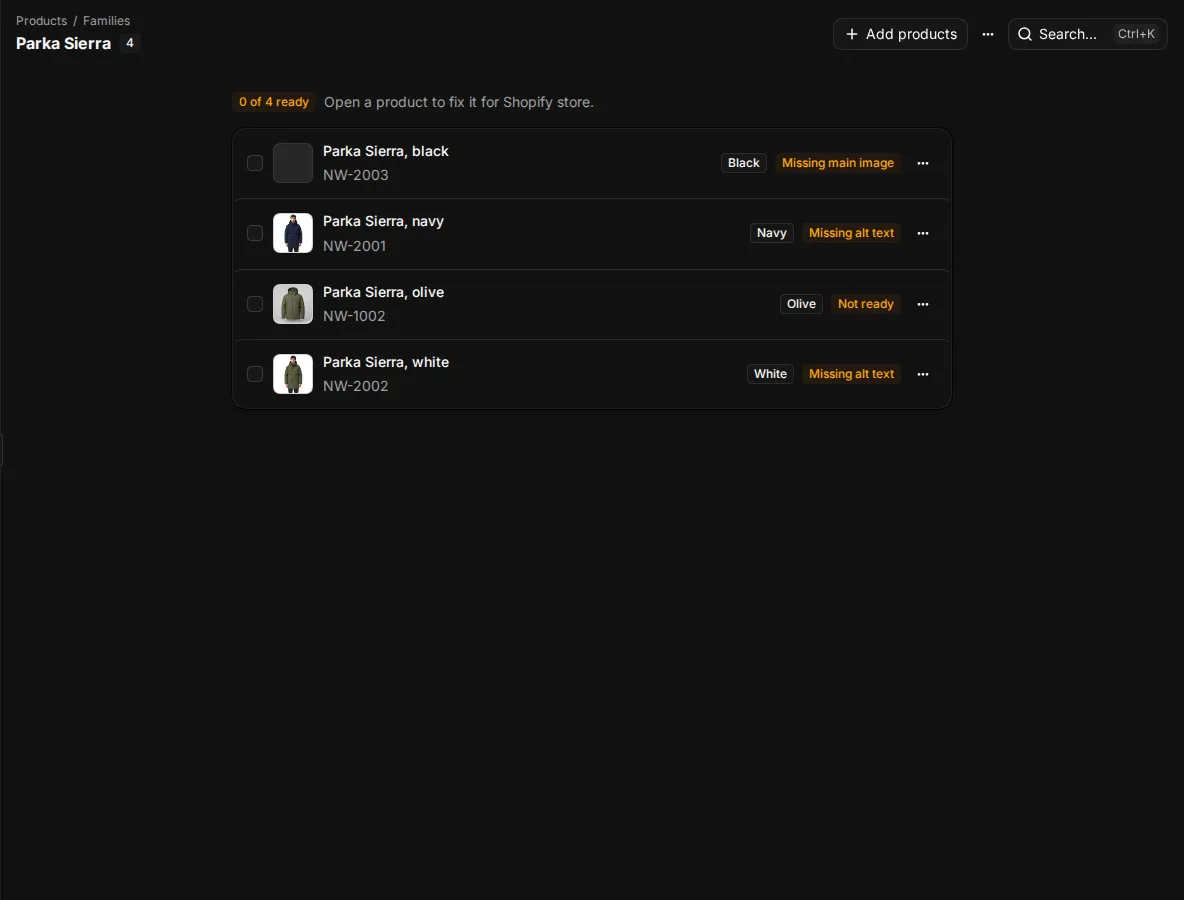
Open the family. Each member shows its name, SKU, label and whether it is ready, or the first thing that blocks it.
- To add products, select Add products.
- To change a label, open the member's menu and select Change label. The label is what tells this product apart in its family, such as its colour or size.
- To take a product out, select Remove from family in its menu. To take out several, tick them and use Remove from family in the bar that opens.
- To rename the family, open Family actions and select Rename family.
- To see the members in the product list, select Open in the products list.
If only one product is left, the family ends and Studio takes you back to the list.
Delete a family
Open Family actions and select Delete family. The products stay. They only lose the family and their labels.
Every family change shows a message with Undo for a few seconds.
Where families show up
- The product page shows a Family section in the left rail with the other members and their labels.
- The product list has a Family column, and the Query builder can filter by family.
- Exports include the family, and a CSV feed channel can send Family and Family label columns. See Marketplaces and feeds.