Get products ready for a channel
See which products pass each channel's checks, what blocks the rest, and fix gaps one by one or in bulk, with AI where it helps.
Readiness tells you whether a product is ready for a channel, such as your Shopify store or an Amazon export. Each channel has its own checks. A product that passes every blocking check is ready. Use the readiness tools to find what blocks your products and fix it, by hand or with AI.
Who can use this: everyone with access to products can see readiness. Owners, Admins and Editors can fix products and run AI fixes. Changing a channel's checks needs an Owner or Admin, see Channels.
How checks work
Each channel has a list of checks, such as "Main image present" or "SKU present". For each check, the channel decides what happens when a product fails it:
- Block product: the product is not ready and the channel does not take it.
- Show warning: the product is still ready, but the warning shows.
A product is Ready, Ready with warnings or Blocked for each channel. It also gets a score from 0 to 100%. Checks with High impact count more in the score.
Some checks are about the channel, not the product, such as a missing SAP catalogue. They show once as a notice, for example Export to … is off, with Open channel settings. They do not lower product scores.
These are the most common things a check finds:
| Gap | What to do |
|---|---|
| Missing main image | Link a main image on the Media tab. |
| Missing alt text | Write alt text, or let AI write it. |
| Missing lifestyle image, Missing detail image | Add the photo, or generate a lifestyle photo with AI. |
| Missing required attribute, Missing category attribute | Fill the field on the Attributes tab. |
| Missing required shot | Fill the empty shot list slot, or ask a supplier. |
| Pending review, Rejected content | Approve or replace the image in Review. |
| Image fails the image spec | Fix the image to meet the channel's image spec. |
| Shopify not connected, Shopify product not linked, No publishable Shopify image, Shopify sync stale | Connect or re-sync the store, see Shopify. |
Open the Readiness page
Select Products > Readiness. The page checks your products against your main channel: your Shopify store if you have one, otherwise your first ready channel.
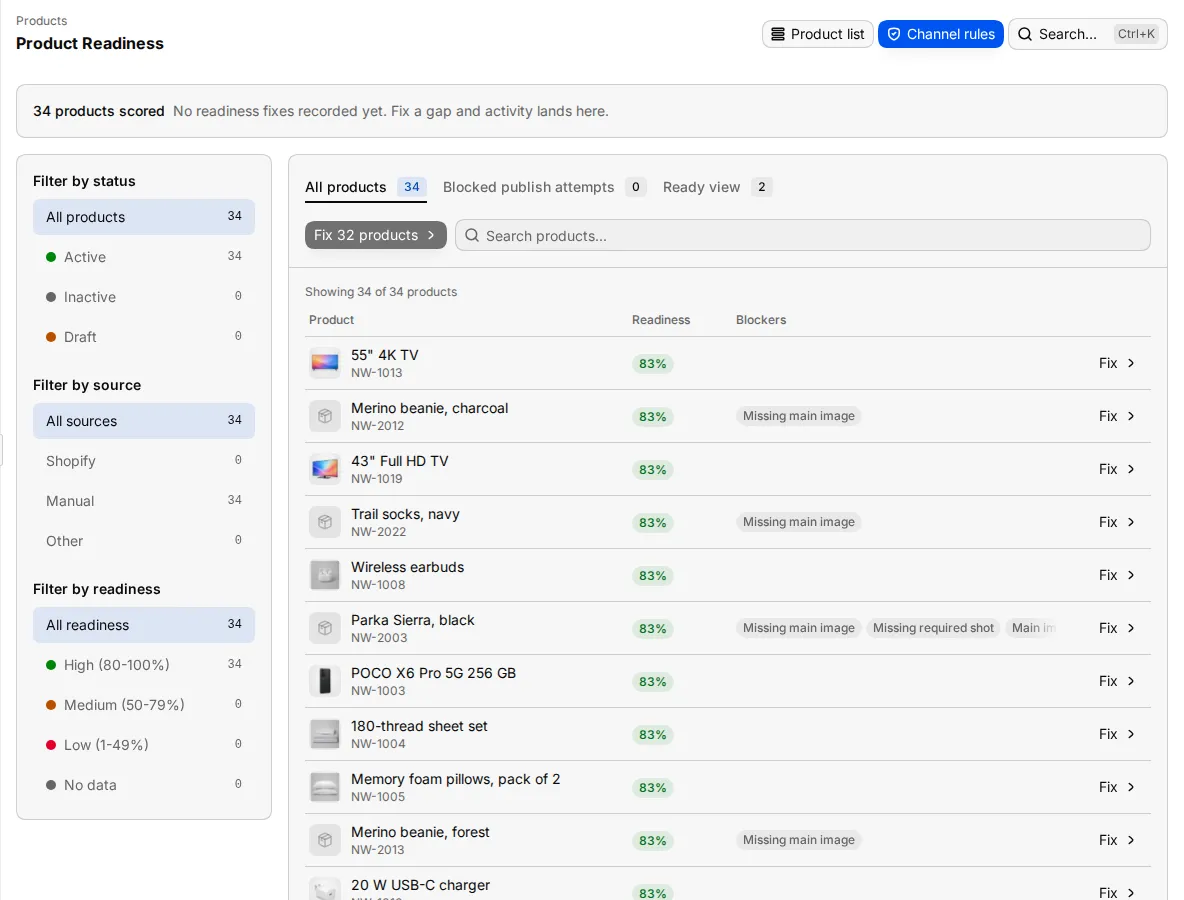
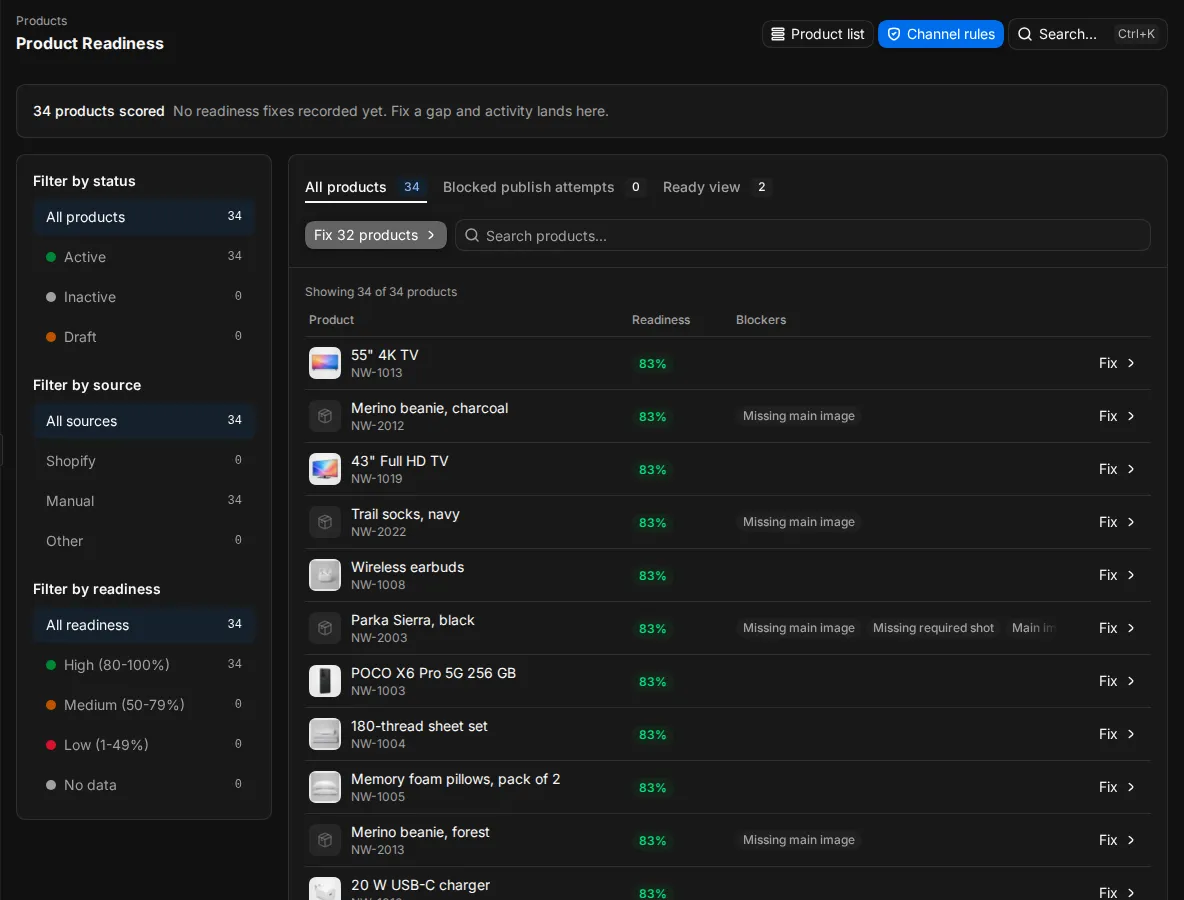
At the top, the page sums up recent work: Products fixed, Products improved, Gaps closed, Ready to publish and Publish blocks.
Below, the list shows each product with its score and up to three blockers. Hover over the blockers to see all of them.
- Use the tabs to see All products, Blocked publish attempts or the Ready view.
- Filter by status, by source and by score: High (80-100%), Medium (50-79%), Low (1-49%) or No data.
- Search by name with Search products....
- Select Channel rules to change the checks, or Product list to go back to all products.
To check against another channel, pick that channel in the readiness menu on the product list. Scores in the list and on each product follow that choice.
Fix products one by one
Select Fix on a row, or Fix n products above the list to start with the first product that is not ready. The product opens in Fix mode.
Fix mode shows only what the channel still needs. It counts your progress, for example "3 of 12 fixed".
- When the product is ready, press Enter to go to the next one.
- Press S to skip a product.
- Select Show all fields to see every field, or Open full page for the normal product page.
- Press Esc or select Exit fix mode to stop.
On any product page, the readiness chip shows the score per channel. Select Fix for a channel to start fix mode for that channel.
Fix many products with AI
AI can fill some gaps for many products at once: alt text, lifestyle photos, descriptions and required attributes.
- On the product list, select the products. You can start from a readiness link, for example from Today or Analytics. The list then shows only products with one gap, and a banner offers Select all n.
- Open AI and select Fix missing content….
- Read the preview. It lists each gap Studio can fix and how many products have it, and how many products have nothing Studio can fix.
- Select Run AI fixes.
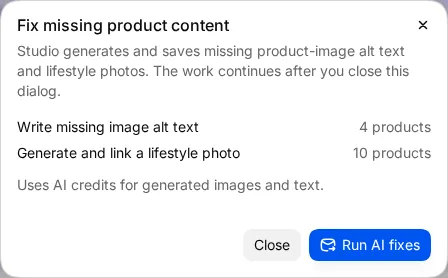
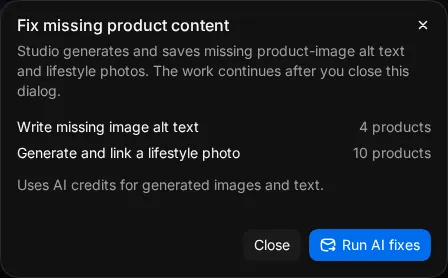
The run goes on after you close the dialog. When it ends, the dialog says what happened for each gap:
- Alt text and lifestyle photos are saved and linked to the products.
- Descriptions and required attributes become drafts. Approve them in Review before they change the product.
A product is skipped when it has no usable source image, has a draft already waiting, or when credits run out. The dialog lists these reasons.
You can run AI fixes on up to 500 products at a time. Generated images and text use credits. Lifestyle photos need the right to use advanced tools, which Editors do not have by default.
See the price before you run
The launch path on Today fixes the gaps that block your first products, and shows the price before anything runs.
- Each fix button names the work and its cost in credits, such as Write 12 alt texts followed by the price.
- Before a paid run, a dialog shows the credits per image, the credits you have and what will be left. Select Spend n credits to run it. If you do not have enough, it offers Buy credits, or Ask an owner for credits.
- A new workspace gets free setup fixes until its first publish, export or download. The fix shows free, and Today shows how many free fixes are left.
- Select Try on a few products first to check the result before you pay for the rest.
Nothing changes in your store until you publish. See Quick start and Credits.
Other bulk actions
When the list is filtered to one gap, more actions appear:
- AI > Run saved workflow…: run one of your saved workflows on the products. See Workflows.
- Request supplier: ask a supplier to upload what is missing. Needs the Supplier Portal, see Supplier Portal.
- More actions > Validate channel readiness: check the products against the channel again and record the result.
- More actions > Export channel package: export the products for a marketplace. See Marketplaces and feeds.
- More actions > Queue readiness review: send the products to review.
Request supplier, Validate channel readiness and Export channel package need an Owner or Admin. Queue readiness review needs the right to approve assets.
Each of these opens a dialog with a preview first. After the run starts, it shows the run number and how many products were accepted, skipped or rejected, with the reason for each.