Quick start
Create an account, answer the setup question, bring products in, fix what blocks them and publish or export your first ready products.
This page takes a new workspace from sign-up to its first ready products. It follows the launch path on Today: bring products in, fix what blocks them, then publish, export or download. Most people finish it in one sitting.
Who can use this: anyone who creates an account. The owner adds the Shopify app and picks the sales channel. An Editor or Admin can bring products in, run fixes and publish. A Viewer sees the path but cannot act on it.
Create your account
- Go to the sign-up page. Create an account with your name, email and a password of at least 8 characters, or click Continue with Google, Continue with GitHub or Continue with Sirv.
- If you picked Core or Growth on the pricing page, Studio opens Stripe Checkout for that plan when you finish setup. You can also start on Free and change plan later.
Answer the setup question
Setup asks one question: Where are your products now? Pick the answer that matches your catalogue. You can add the other sources later.
| Answer | What it means |
|---|---|
| Shopify store | Add the app from the Shopify App Store. Your products come in by themselves. |
| A spreadsheet | A CSV, Excel file or Google Sheet from your ERP or old PIM. |
| Product photos | Upload photos now. Put them on products later. |
| A sample workspace | Try 48 sample products with real gaps, in a separate workspace. |
- Pick an answer.
- Optional: open Tell us about your team (optional). It asks what describes you, how big your team is, how you heard about Studio and what else Studio should help with.
- Click Continue. To go straight to the app without an answer, click Skip setup.
Follow the launch path on Today
After setup, Today opens with a card called Get your first products ready (or Get your photos ready if you picked photos). The card has three steps and a count of how many products are ready for your channel.
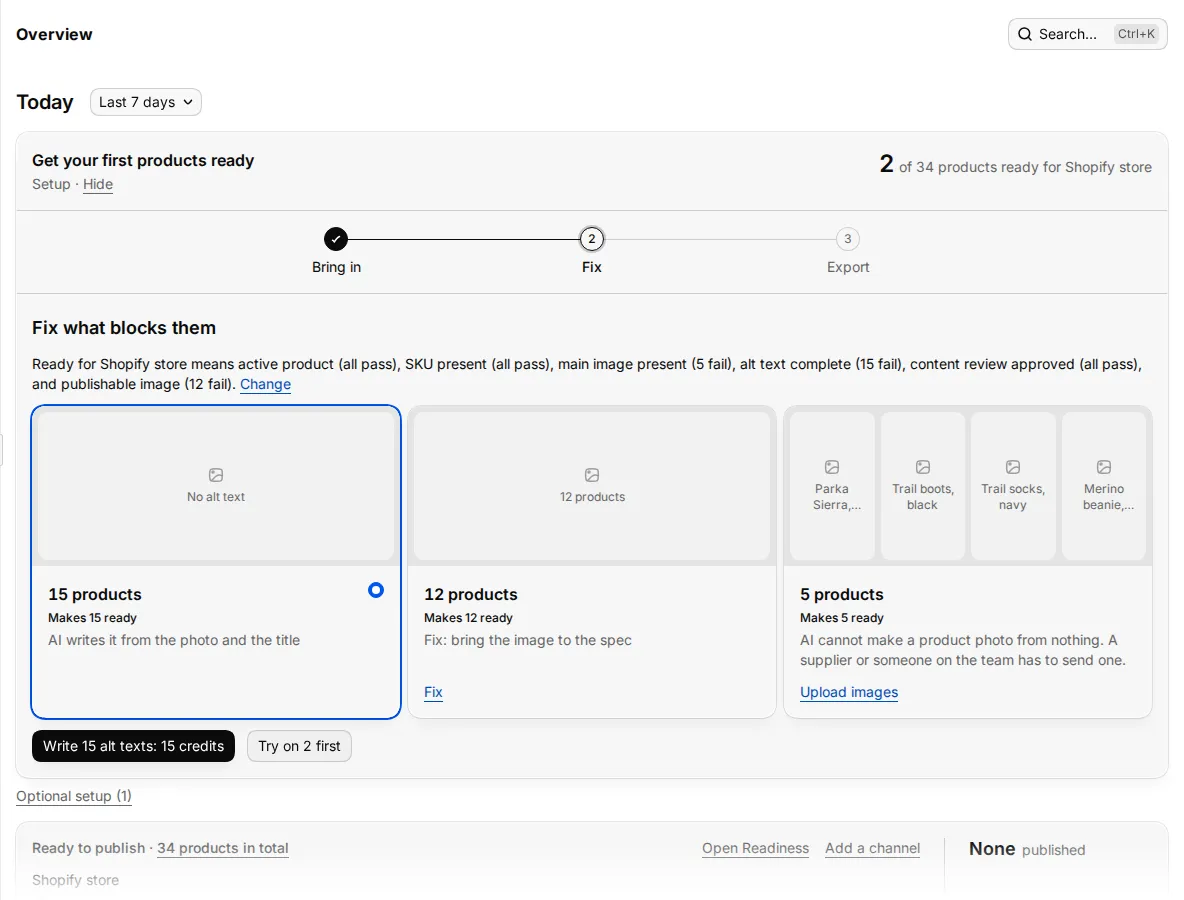
Click Hide to fold the card into one line. Click Show to open it again.
Step 1: Bring your products in
What this step asks for depends on your answer:
- Shopify store: the owner clicks Add from the Shopify App Store. Importing does not change your store. Once the store is connected, the step goes on by itself while products arrive.
- A spreadsheet: paste a Google Sheet URL, a link to a file or CSV data, then click Load. You can also drop a CSV or Excel file on the step. Studio suggests a field for each column. Check the mapping, then save it.
- Product photos: click Upload photos. The photos go to Assets. You put them on products later.
- A sample workspace: click Open the sample workspace. See Sample workspace.
The step shows progress while an import runs. You can leave the page. The import goes on in the background.
To change your answer, use the Or start from links under the step.
Step 2: Fix what blocks them
If the workspace has no channel yet, the owner picks one first under Pick where you sell: Shopify, Amazon, eBay, SAP Commerce or ABOUT YOU. The channel's checks say what ready means. Shopify checks work before your store is connected.
The step then lists the checks that block, with how many products fail each one. Click Change to edit the channel's checks. Gaps that AI can fix appear as cards:
| Gap | What AI does |
|---|---|
| Missing alt text | Writes it from the photo and the product title. |
| No usable main image | Cleans, crops and upscales the main image. |
| No lifestyle image | Puts the main image in a scene. |
- Pick a gap card.
- Click the fix button, for example Fix 9 main images. The button shows what is free and what costs credits.
- To check the quality first, click Try on 2 first.
- When the results arrive, compare each before and after. Untick any result you do not want.
- Click Save N to Studio. The ready count goes up. To throw the results away, click Discard.
Studio fixes up to 25 products in one run. Gaps that AI cannot fix stay on the list with a link to fix them by hand.
Saved fixes do not reach your store yet. They reach Shopify only when you publish.
Step 3: Publish, export or download
The last step depends on where your products came from:
- Publish to Shopify: click Publish N products. Publish sends the new main images to your store. Titles, prices, stock and status stay as they are. Products that still fail a check that blocks are held back. If no store is connected yet, the owner clicks Connect your Shopify store.
- Export your products: your source file does not change. Click Export N ready products as CSV.
- Use your photos: click Download your photos.
When the step is done, the card shows what went out. Today's work list takes over below it. Use Fix the next gap to keep going.
Your 25 free setup fixes
A new account's first workspace gets 25 free AI fixes while the launch path is open. Studio shows how many are left next to the fix button, for example "16 of 25 free fixes left, until your first publish".
- One fix is one image in a fix run, or one product's text draft, such as a description or alt text.
- A fix that costs more than 6 credits for each item always costs credits. Video and 3D fall in this group.
- A text request that does not fit in the free fixes left costs credits in full.
- Single tool runs in AI Tools always cost credits.
- The free fixes end when you first publish to Shopify. Before you publish, Studio tells you how many are still unused.
- Later workspaces of the same account do not get free fixes.
See Credits for what tools cost after that.
Optional setup
Under the card, the owner sees Optional setup. It links to steps that never block a product: invite your team, connect Sirv CDN, create a workflow and try batch processing. See Team, Workflows and Batches.
What next
- Learn the screens in Find your way around.
- Bring in more products with Import and export.
- Set up channel checks in Readiness.