Sample workspace
Try Studio on 48 invented products with real gaps, fix some with ready-made results and spend no credits.
The sample workspace lets you see how Studio finds and fixes gaps before you bring in your own catalogue. It is a separate workspace called Sample store, with 48 invented products from an electronics and home store. Nothing in it publishes, and nothing mixes with your own products.
Who can use this: anyone with a Studio account, on any plan. It costs nothing. Supplier accounts cannot open a sample workspace.
What is in the sample
- 48 products with SKUs, prices and descriptions.
- Photos with grey backgrounds or low resolution.
- Images without alt text, products without a description and products without a photo.
- A channel called Shopify (sample). No store sits behind it, so it never publishes. Its checks block a product when a photo has no alt text, or when the main photo is not on white or is blurry.
Open the sample workspace
Use any of these:
- During setup, answer A sample workspace to Where are your products now?
- On Today, in step 1 of the launch path, click Open the sample workspace.
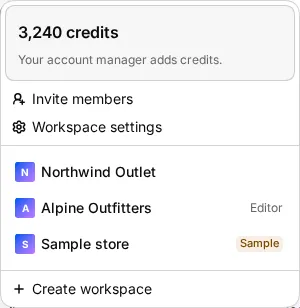
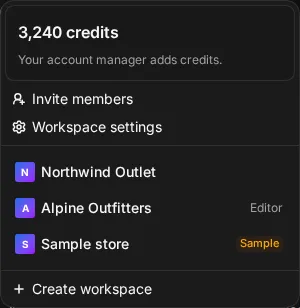
- Once you have opened it, it stays in the workspace menu at the top of the sidebar, with a Sample badge.
The first time, Studio creates the sample. This can take a moment. After that, you open the same sample each time.
Fix gaps with ready-made results
The sample uses the same launch path as a real workspace. The difference is that every fixable gap has a prepared result, so you see a fix land without spending credits.
- Open Today in the sample workspace.
- In step 2, pick a gap card, such as photos with a grey background or images without alt text.
- Click the fix button, for example Fix 6 photos or Write 9 alt texts. The line next to it says Sample results are ready-made. No credits.
- Compare the results and save them.
Readiness updates after each fix, and the ready count on the card goes up.
What you cannot do in the sample
The sample has no store connection, no billing and no team. In the sample you cannot:
- buy credits, change plan or see billing,
- invite people or change roles,
- connect Shopify, Sirv or other integrations,
- set up the supplier portal,
- publish or sync products,
- run AI tools, batch jobs or workflows.
You can browse products, assets and readiness, review results and try the launch path.
Bring in your own products
When you are ready, click Bring in your own products on the last step of the path, or on the banner at the top of Today in the sample. Studio opens the workspace you came from at step 1 of its launch path. If you have no workspace of your own yet, Studio creates one for you.
Delete the sample
The owner can close the sample like any other workspace, as long as they have another workspace to switch to:
- Switch to the sample workspace.
- Go to Settings > General.
- Under Danger zone, click Close workspace and type the workspace name to confirm.
If you open the sample again later, Studio creates a fresh one.