Find your way around
The sidebar, search, Today, Activity, Updates, the workspace menu, new workspaces and how to change the language.
This page explains where things are in Studio: the sidebar, the search box, the pages you open most and the menus at the top and bottom of the sidebar. It is for everyone who works in a workspace.
Who can use this: every member. The sidebar shows only the pages your role allows, so some items on this page may be missing for you.
The sidebar
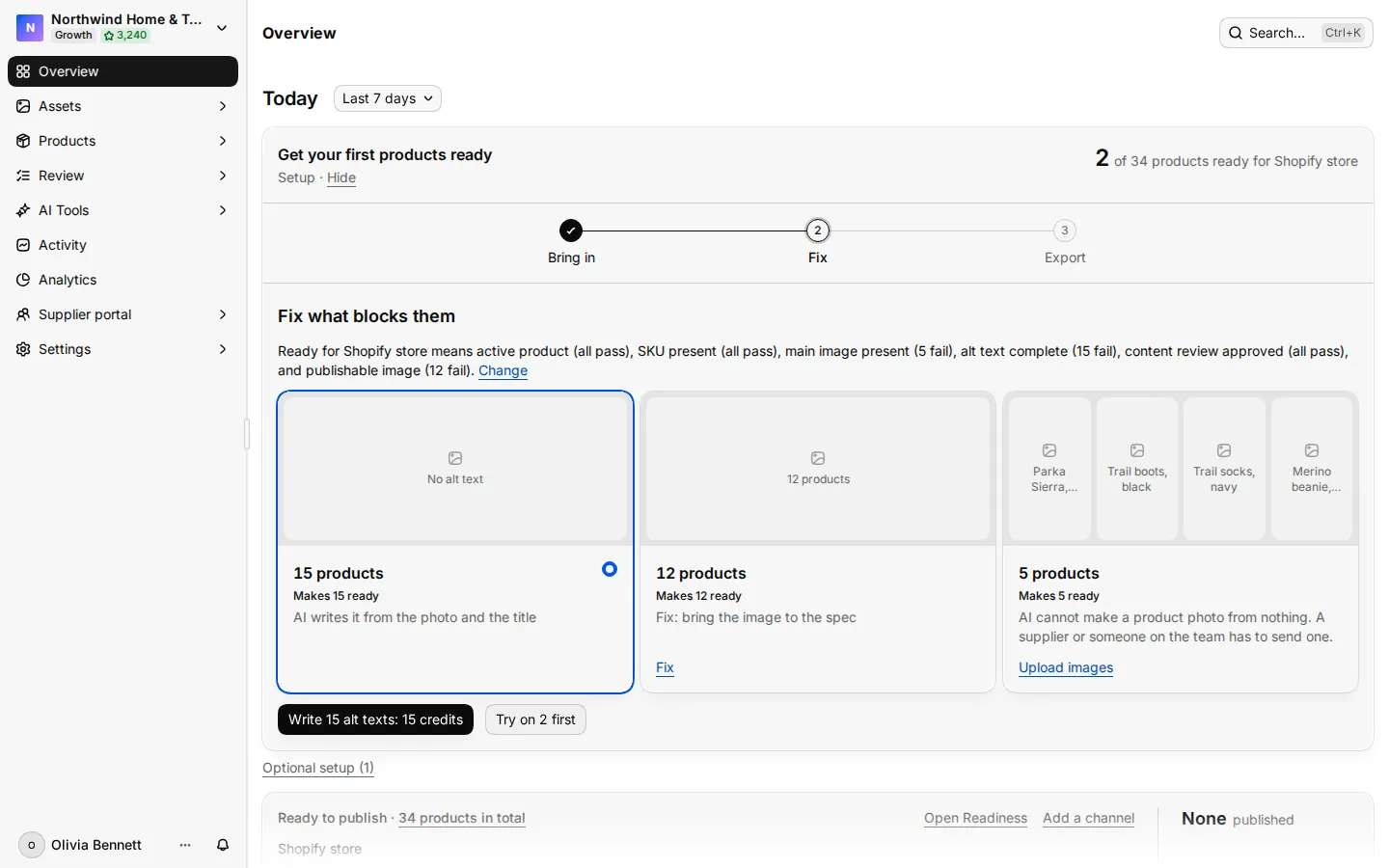
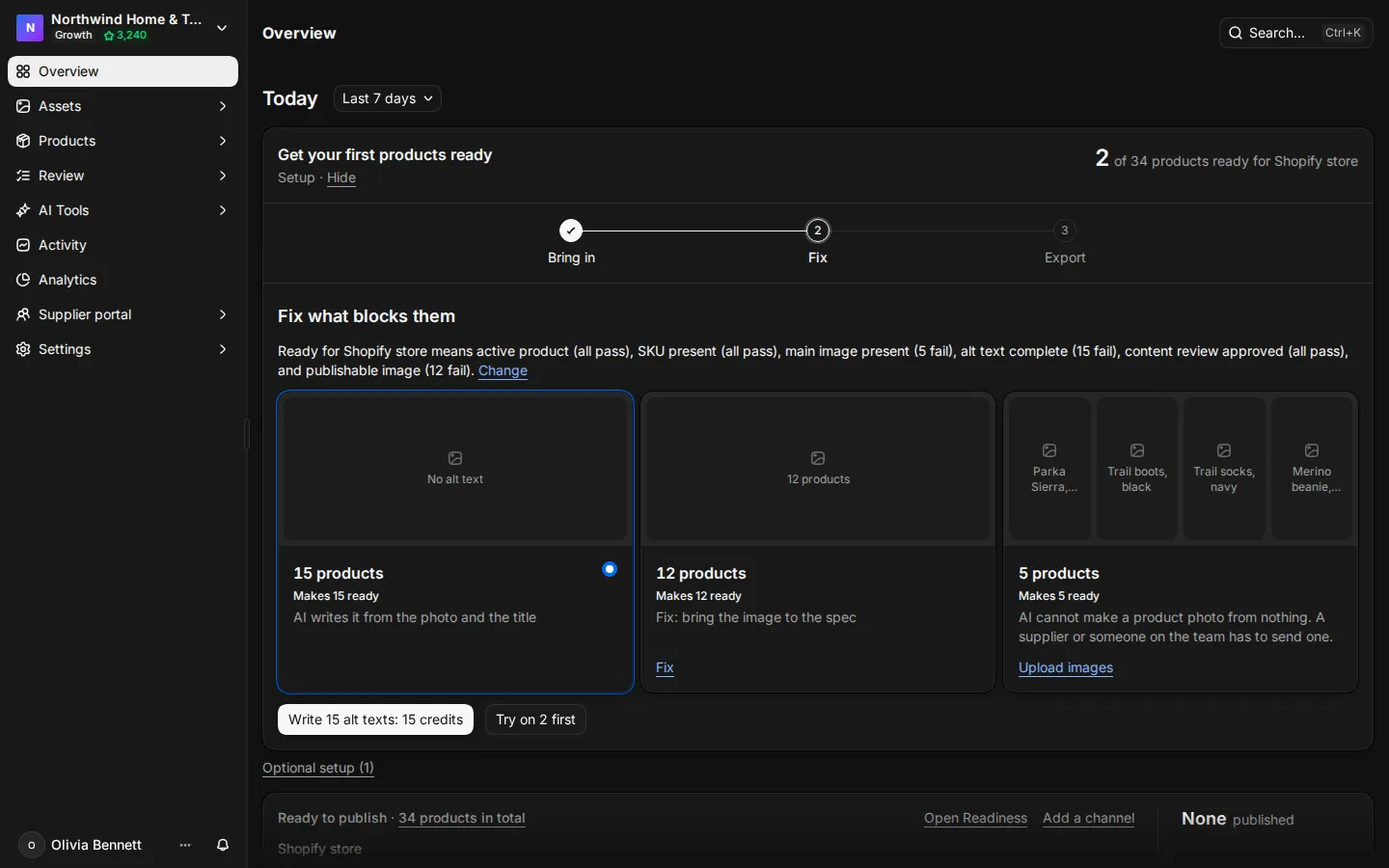
The sidebar has three parts: the workspace menu at the top, the pages in the middle and your account menu with the Updates bell at the bottom.
| Item | What it opens |
|---|---|
| Overview | Today: the launch path for a new workspace, then the work that needs you. |
| Assets | The file library, with Favorites, Collections and Trash under it. |
| Products | All products, Readiness, Families, Attributes, Attribute groups and Channels. |
| Review | Supplier uploads and AI results that wait for approval. |
| AI Tools | The image, video and text tools. |
| Activity | Everything that happened in the workspace. |
| Analytics | Credit use, asset views, searches and product readiness. |
| Supplier portal | Supplier setup and intake, on Growth and Enterprise. |
| Settings | Your profile and the workspace settings. |
Search everything
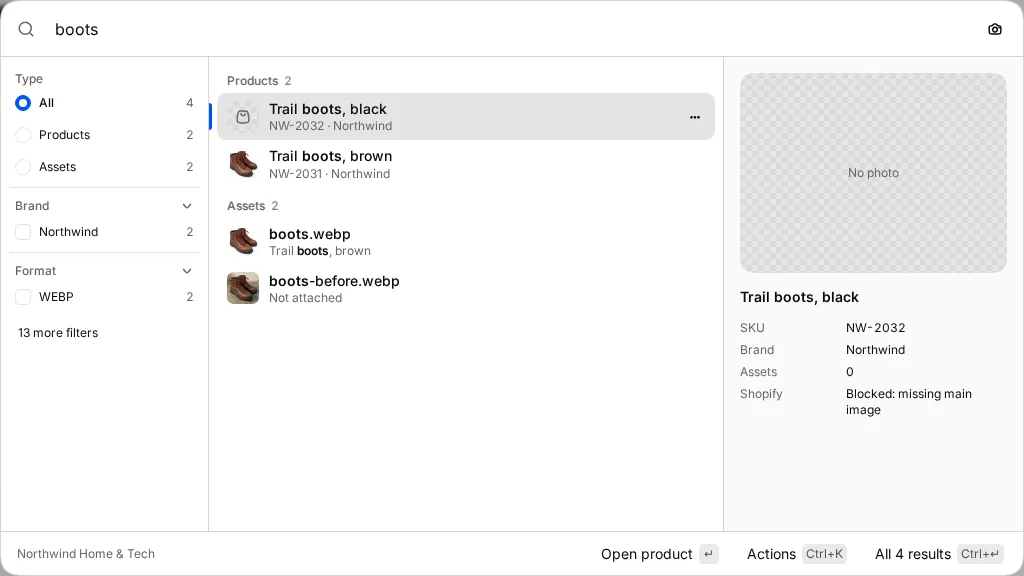
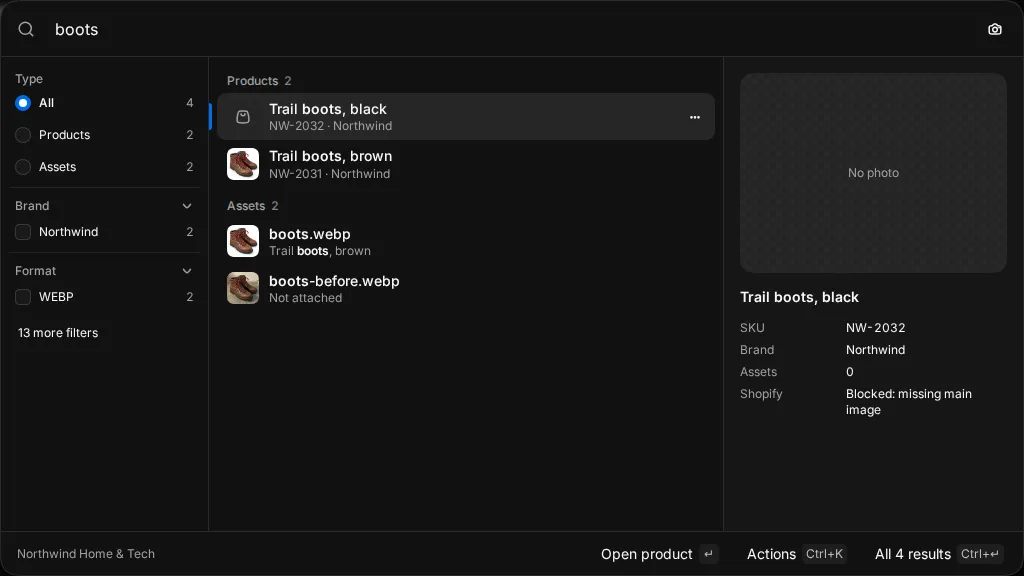
Press ⌘ K (Mac) or Ctrl K, or press /, from any page. One box searches products, assets, folders, collections, pages, tools, actions and suppliers.
- Type a SKU, a product name or words from a file name.
- Pick an action, such as Upload assets, Import products, Invite a supplier, Switch theme or Switch workspace.
- Click Search by image to find products and photos that look like a photo you drop in. This needs visual similarity, which comes with Growth.
On the products list and the asset table, ⌘ F finds a row on the page. For filters, image search and saved views, see Search.
Today
Today is the first page in a workspace. A new workspace shows the launch path at the top. See Quick start.
Below it, What needs you lists the work for your role. Each row says who can do it:
- AI does it: Studio can fix it with an AI tool. The row shows the credit cost.
- Needs a person: someone has to fix it by hand.
- Needs a supplier: a supplier has to send a file, for example a missing main image.
- Waiting on suppliers: you already asked and the supplier has not sent it yet.
Use the More actions menu on a row to Snooze until tomorrow or Snooze for a week. Use the channel and period filters at the top to narrow the list. The page also shows how many products are ready to publish on each channel, with Open Readiness, and the review queue, with Open Review. Press J and K to move between rows.
Activity
Activity is one feed for uploads, reviews, publishes, AI runs, batch jobs and admin changes, with day headers.
- Filter by type: All, AI Ops, Batch, Assets, Reviews or Admin.
- Filter by date: Today, Last 7 days, Last 30 days, All time or Custom range…
- Filter by person with All members.
- Switch to Process log to see queued, running and finished jobs with their credits.
Updates
The bell at the bottom of the sidebar opens Updates: your jobs and notifications in this workspace. It lists what Needs attention, what is Running now and what is Recent. Click Mark all read to clear the count. Click View all updates for the full page, with Notifications and Runs tabs and filters.
The workspace menu
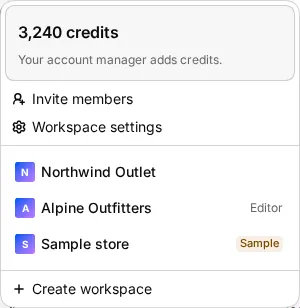
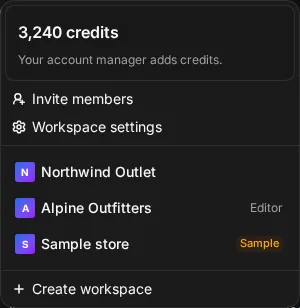
Click the workspace name at the top of the sidebar. The menu shows:
- the credit balance, split into plan credits and pack credits, with Add credits if you manage billing,
- Invite members (or Members) and Workspace settings,
- your other workspaces, with a search box when you have many,
- Invitations to other workspaces, each with Join and Decline,
- Create workspace.
Click a workspace to switch to it. A sample workspace shows a Sample badge.
Create a workspace
Each workspace has its own plan, credits, members and integrations. Create one for another brand, client or team.
- Open the workspace menu and click Create workspace.
- Type a Workspace name.
- Under Choose a plan, pick Free, Core or Growth. Pick Monthly or Annual billing. The Annual option shows how much you save.
- Click Create workspace. For a paid plan, the button says Continue with Core or Continue with Growth and opens checkout.
Change the language and theme
Studio's interface is in English and Spanish (Colombia).
- Click your name at the bottom of the sidebar.
- Open Language and pick English or Español (Colombia).
Your choice applies to you only and is kept in this browser. The workspace language, which Owners and Admins set in Settings > General, is the default for everyone else and for the supplier portal.
The same menu has Theme (light, dark or system), Help and docs, Changelog and Sign out. Click your name and email at the top of the menu to open your profile.
Settings
Settings groups its pages in three parts:
- You: Profile. See Account.
- Workspace: General, Billing, Team, Roles, API keys, Single sign-on, Brand context, Shared links and Metadata templates.
- Integrations: Channels, Shopify and Sirv.
Each page shows only if your role allows it.