Activity and analytics
See what happened in your workspace, follow running jobs and notifications in Updates, and read the Analytics tabs.
Studio keeps a record of the work in your workspace in three places. Activity is the feed of everything that happened. Updates follows your running jobs and notifications. Analytics turns credit use, asset views, searches and product readiness into charts and counts.
Who can use this:
| Page | Who |
|---|---|
| Activity | Every member |
| Updates | Every member, for their own jobs and the workspace notifications they can see |
| Analytics | Shows in the sidebar for members with View credit balance and usage. The data needs View workspace analytics: Owner, Admin, Editor and Viewer by default |
Activity
Open Activity in the sidebar. The feed shows uploads, supplier submissions, validation, reviews, publishes, AI runs, batch jobs and admin changes, newest first, under day headers. Each entry shows who did it and, for AI work, the credits it used.
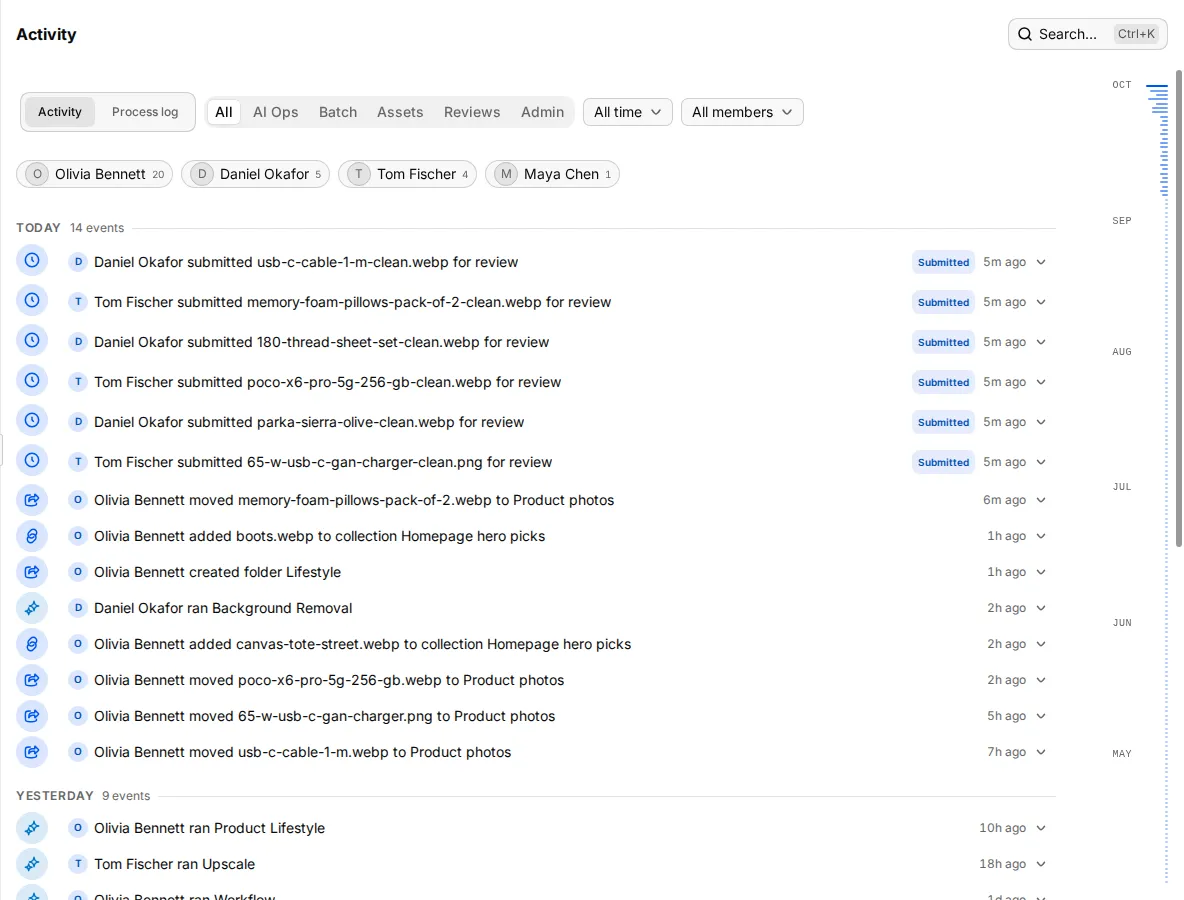
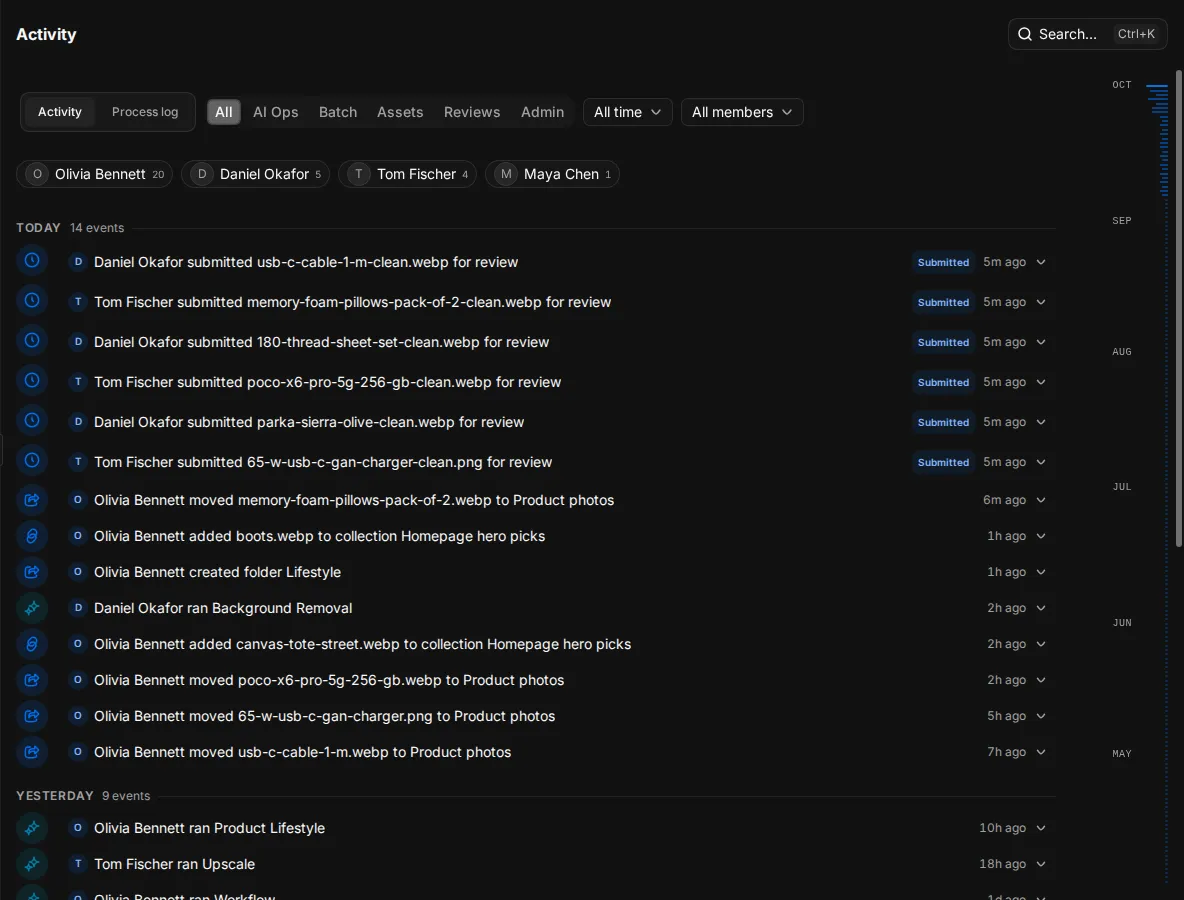
Narrow the feed:
- By type: All, AI Ops, Batch, Assets, Reviews or Admin.
- By date: Today, Last 7 days, Last 30 days, All time, or Custom range… to pick dates.
- By person: pick a name in All members, or click a person in People in this view.
Click Load more at the bottom for older entries. Entries for files have Preview, Open and Download. A large import shows as one entry with a sample file and the total count.
Undo a review decision
Approvals and rejections in the feed can be undone. Select the review entries, then click Undo N approvals or Undo N rejections. An entry that has already changed again says there is nothing to undo.
Process log
Click Process log to see jobs instead of events. Queue lists queued and running batch jobs and AI operations. Completed lists finished ones. Open a process to see its run ID, status, who started it, start and finish times, the items it handled and the credits it used.
Updates
The bell at the bottom of the sidebar shows how many jobs are running and how many notifications you have not read. Click it to open Updates:
- Needs attention: failed work and anything waiting on you.
- Running now: batch jobs and readiness work in progress, with a progress bar.
- Recent: finished work and workspace changes.
Click Mark all read to clear the count. Archive a notification with its archive button.
Click View all updates to open the full page. It has two tabs:
- Notifications: filter by All, Unread or Archived. Restore an archived notification with its restore button.
- Runs: filter by Scope (Mine or Workspace), Kind (All, Batch or Readiness) and State (All, Running or Needs attention).
Analytics
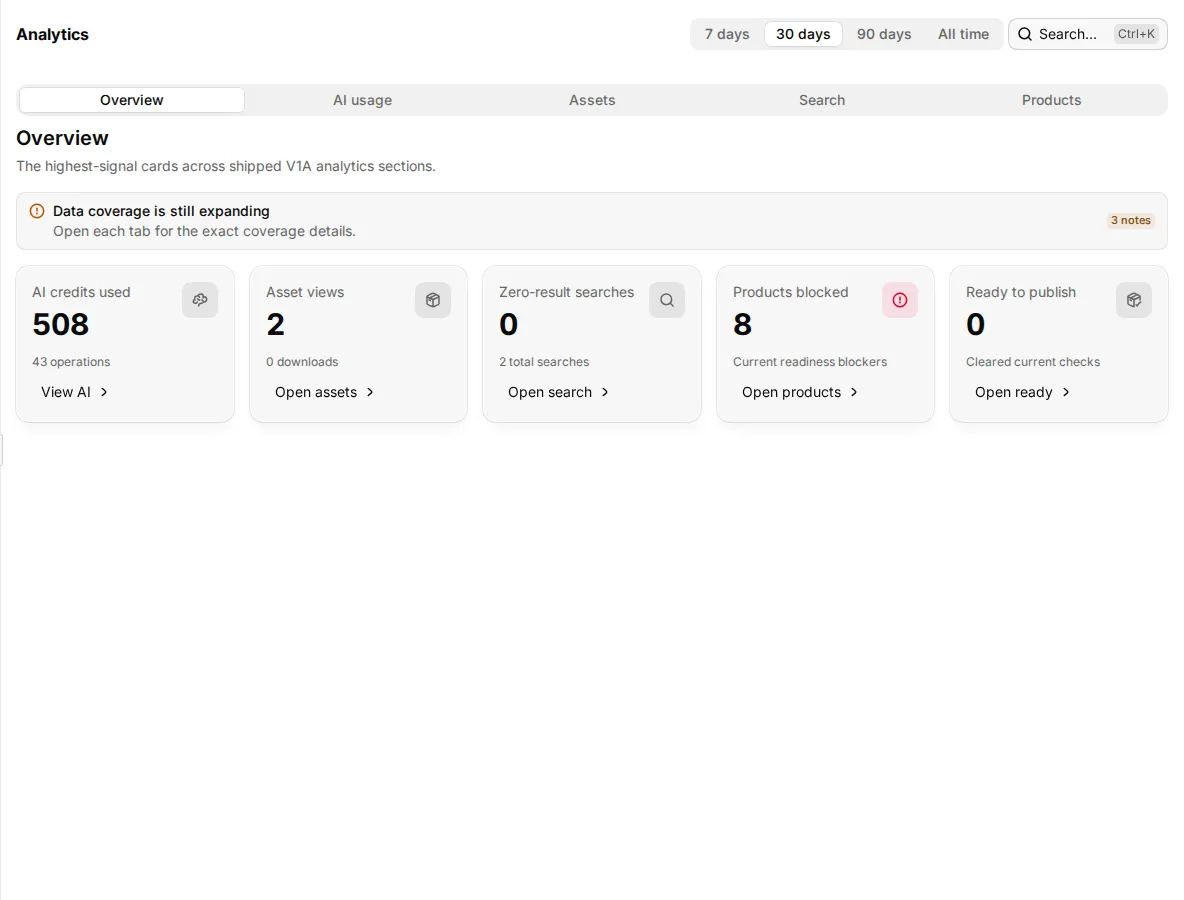
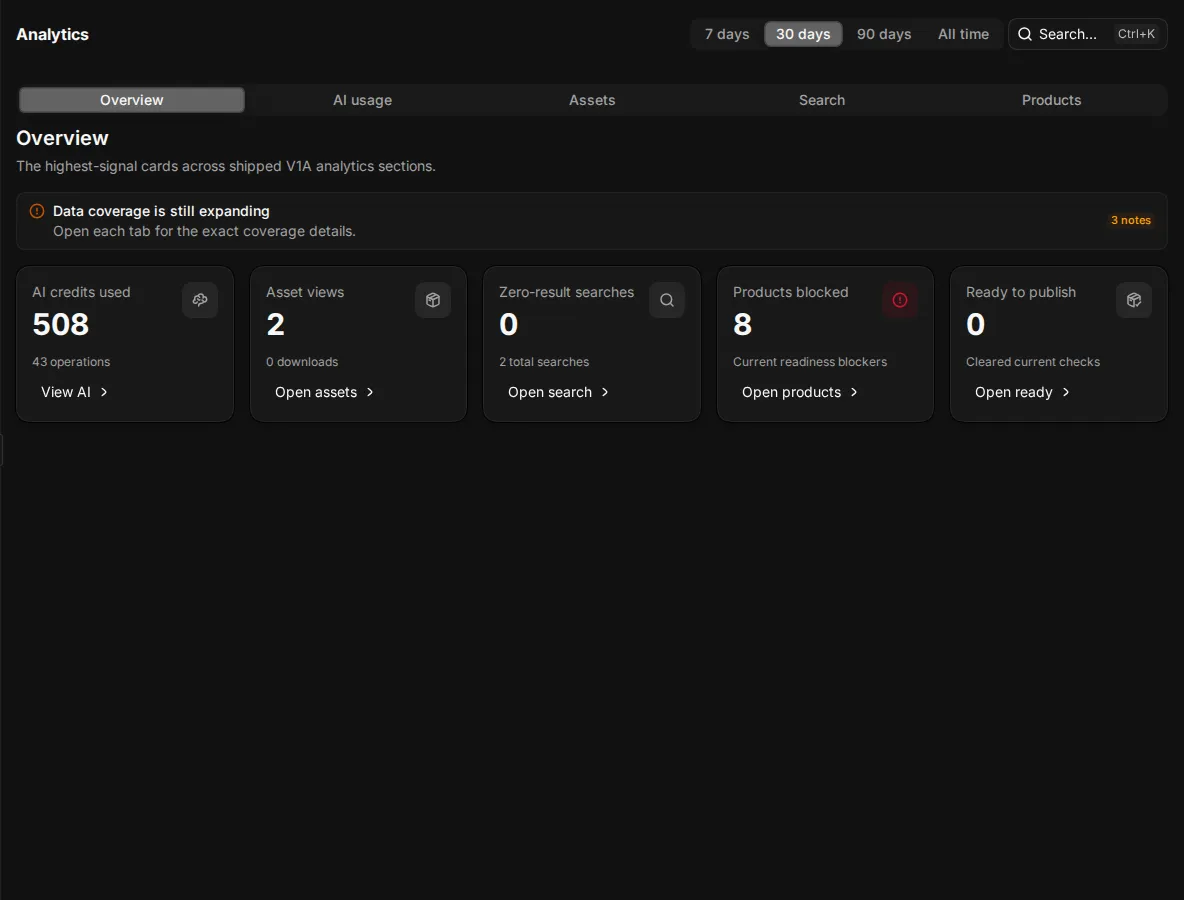
Open Analytics in the sidebar. Pick a time range at the top: 7 days, 30 days, 90 days or All time. Each card links to the page behind its number.
| Tab | What it shows |
|---|---|
| Overview | AI credits used, asset views, zero-result searches, products blocked and products ready to publish. |
| AI usage | Credits used, total operations, average credits for each operation and tools used. Charts of credits and operations over time, activity by hour and by day, and credits by tool. Insights names the most used tool, the busiest day and the peak hour. |
| Assets | Views, downloads, share views and bundle exports, with the top viewed and top downloaded assets. |
| Search | Searches, zero-result searches, facet selections and the share of searches with no result. Lists the top searches, the zero-result searches and facet use. |
| Products | Products, missing content, products that need review, products blocked for Shopify and products ready to publish. Lists the top readiness gaps, smart views and work queues. |
The Products tab shows the current state only. It does not change with the time range.
Some cards show Partial data while Studio collects more history for them.
Use the Search tab to find what people look for and do not find. Each zero-result search links to the search, so you can add the missing tags or alt text.
Related
- Credits: the credit history on the Billing page lists every charge.
- Find your way around
- Readiness