Team
Invite people to your workspace, manage pending invitations, change roles, remove members and import Shopify staff.
Add the people who work on your products and images, give each a role, and take access away when they leave. Everything on this page happens in Settings > Team, except Shopify staff import, which lives on the Shopify settings page.
Who can use this:
| Task | Permission | Built-in roles |
|---|---|---|
| See the team | View team members | Every role |
| Invite people and resend invitations | Invite new members | Owner, Admin |
| Cancel invitations | Owner or Admin role | Owner, Admin |
| Change a member's role or permissions | Manage roles and permissions | Owner, Admin |
| Remove a member, or give someone the Admin role | Remove members from workspace | Owner |
| Turn on Shopify staff import | Connect and disconnect integrations | Owner, Admin |
Core and Growth include unlimited internal workspace users. Suppliers you invite to the supplier portal count against the plan's supplier users instead. See Supplier portal setup.
Invite a teammate
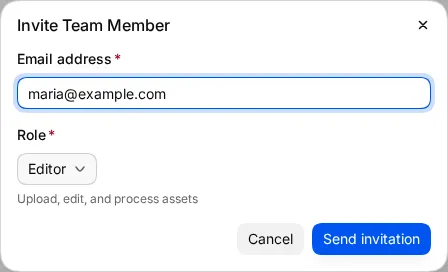
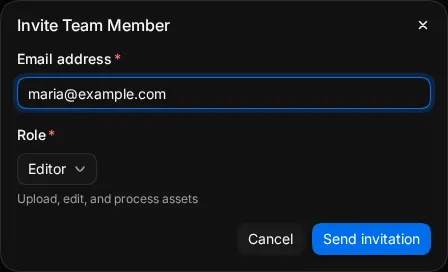
- Go to Settings > Team and click Invite. You can also click Invite members in the workspace menu.
- Type the person's Email address.
- Pick a Role. The dialog shows what the role does. Editor is picked by default.
- Click Send invitation.
Studio emails the invitation. It stays valid for 7 days.
You can give only a role whose permissions you have yourself. Only someone with Remove members from workspace, which is the Owner by default, can invite a person as Admin or with a custom role that can manage roles. Nobody can invite a second Owner. To hand over the workspace, see Transfer ownership.
Manage pending invitations
Invitations that nobody has accepted yet show under Pending invitations, with the email, the role and who sent them.
- Click Resend to send the email again. This gives the invitation another 7 days. You can resend each invitation once an hour.
- Click the cross to cancel an invitation, then confirm with Cancel Invitation. The person can no longer join with that link.
Accept an invitation
When someone invites you:
- Open the link in the invitation email.
- If you have no account, create a password of at least 8 characters and click Join workspace.
- If you already have an account, sign in with the email the invitation was sent to and click Accept invitation.
If you are already signed in, the workspace menu shows the invitation under Invitations. Click Join to accept it or Decline to refuse it.
An expired invitation shows Invitation expired. Ask the person who invited you to send a new one.
Find a member
The Members list shows each person's name, email and role. (you) marks your own row. A member whose permissions differ from their role shows Custom permissions. A member with permissions that end on a date shows Temporary.
- Type in Find a member to search by name or email.
- Use Filter by role to show one role.
Change a member's role
- Click the role button on the member's row.
- Pick the new role.
The change saves at once. The message that confirms it has Undo, which puts the old role back. You cannot change the Owner's role here. To change who owns the workspace, transfer ownership. An Admin cannot change another Admin's role. Only the Owner can, by default.
To give one member more or less than their role allows, open More for [name] (the ⋮ button) and click Change permissions…. See Roles and permissions.
Remove a member
- Click the ⋮ button on the member's row.
- Click Remove [name].
- Confirm with Remove.
The member loses access to the workspace at once.
To leave a workspace yourself, click the ⋮ button on your own row and click Leave workspace. The Owner cannot leave. Transfer ownership first.
Import staff from Shopify
If your workspace is connected to a Shopify store, you can add your Shopify staff as members, with roles that follow their Shopify access.
- Go to Settings > Shopify.
- Under Team, next to Staff import, click Turn on staff import.
- Click Continue to Shopify. Shopify asks you to let Studio read your staff list.
- Back in Studio, click Import staff from Shopify or Sync Now.
Staff join with these roles:
| In Shopify | Role in Studio |
|---|---|
| Store owner who connected Studio | Owner |
| Other store owners | Admin |
| Staff with full or staff access | Admin |
| Staff with product access | Editor |
| Other staff | Viewer |
The Shopify Staff list shows each person, when they last synced and their role in Studio. Change a role with the role menu on the row, or click Unlink to stop the sync for that person. Click Sync Now to pick up staff changes from Shopify.
Related
- Roles and permissions
- Single sign-on: add people automatically when they sign in with your identity provider.
- Shopify app