Search
Find files, products, pages and actions from one search box. Type words that work as filters, search one folder or search with a photo.
One search box finds files, folders, collections, products, suppliers, pages, tools and actions. Some words you type turn into filters, so a short phrase can find exactly the files you need. On the Growth and Enterprise plans, you can also search with a photo.
Who can use this: everyone in the workspace can search. Results show only what your role lets you open. Search by image and similar photos need the Growth or Enterprise plan, or the Visual similarity expansion add-on.
Open search
Press ⌘ K (Mac) or Ctrl K, or press /. You can also select the search box at the top of the page: Search products, assets, pages, and actions.
Results are grouped into Products, Assets, Folders, Collections, Pages, Tools, Actions and Suppliers. Use the arrow keys to move through them and Enter to open one. Actions run straight from the box, for example New folder.
Type words that work as filters
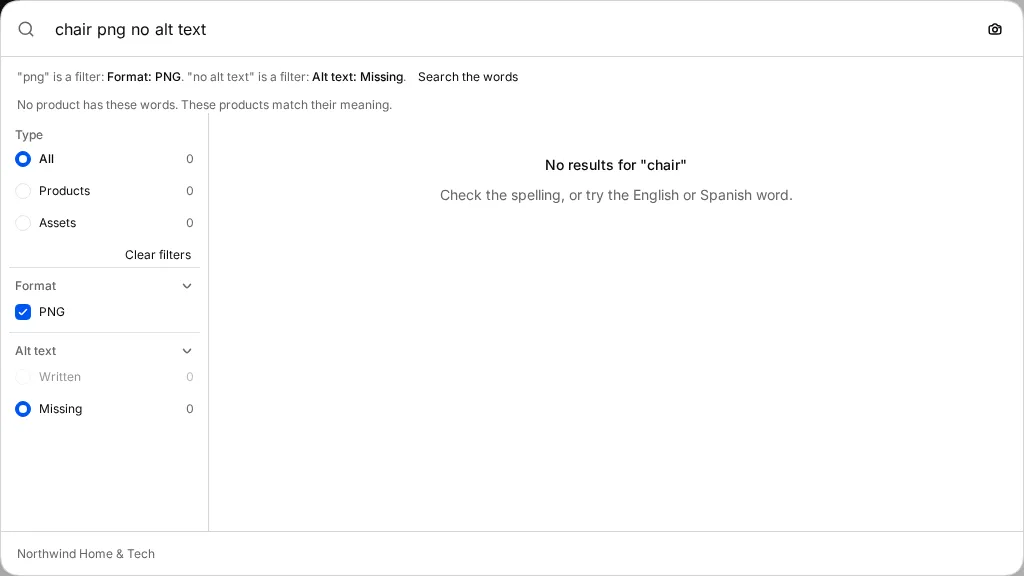
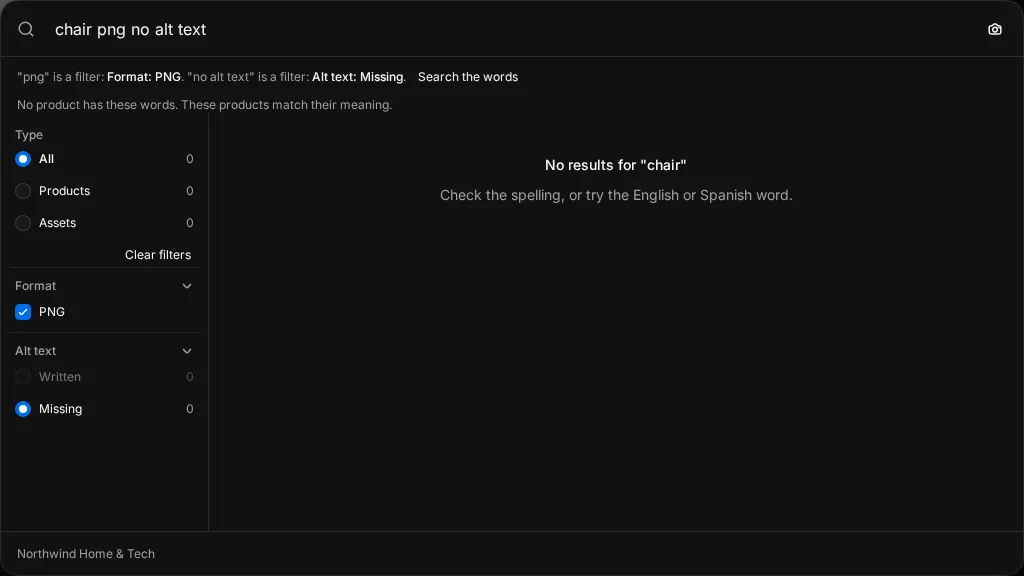
Studio reads some words as filters instead of search text. When it does, a line under the box names the filter, for example "png" is a filter: Format.
| You type | Studio filters by |
|---|---|
jpg, jpeg, png, webp, avif, gif |
File format |
no alt text, without alt, missing alt text |
Files with no alt text |
no photos, without photos |
Products with no store photo |
with photos |
Products with a store photo |
archived |
Archived products |
For example, chair png no alt text finds PNG files about chairs that have no alt text. The Spanish words work too, such as sin foto and sin texto alternativo.
If you meant the words, not the filter, select Search the words.
Search one folder
- In the library, right-click a folder and select Search in folder.
- Type your search. The box shows which folder it searches.
The search covers the folder and its subfolders. To search everywhere again, remove the Folder filter.
Search with a photo
Find files that look like a photo you have, such as a supplier's image or a shot from a competitor's page.
- Open search.
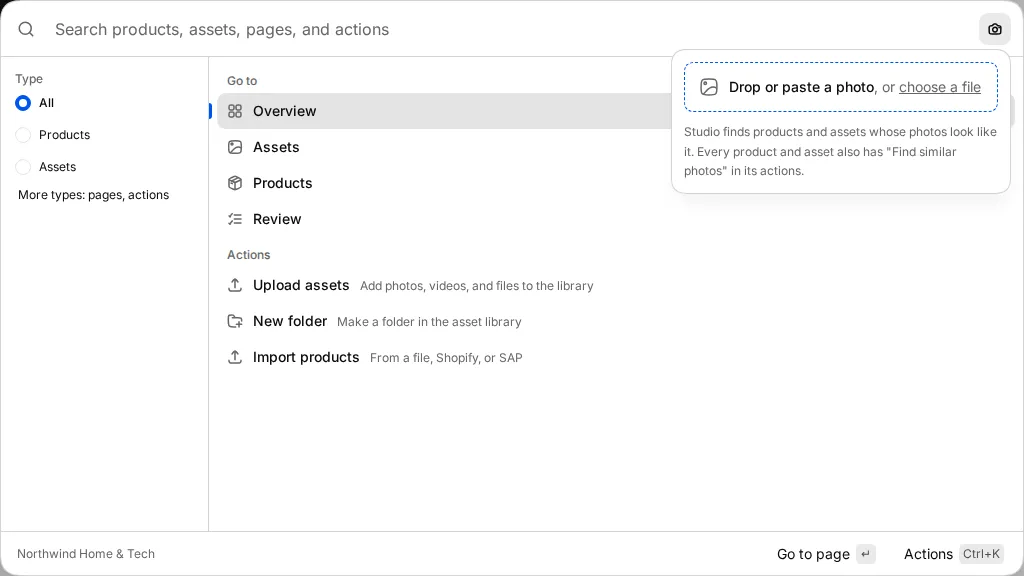
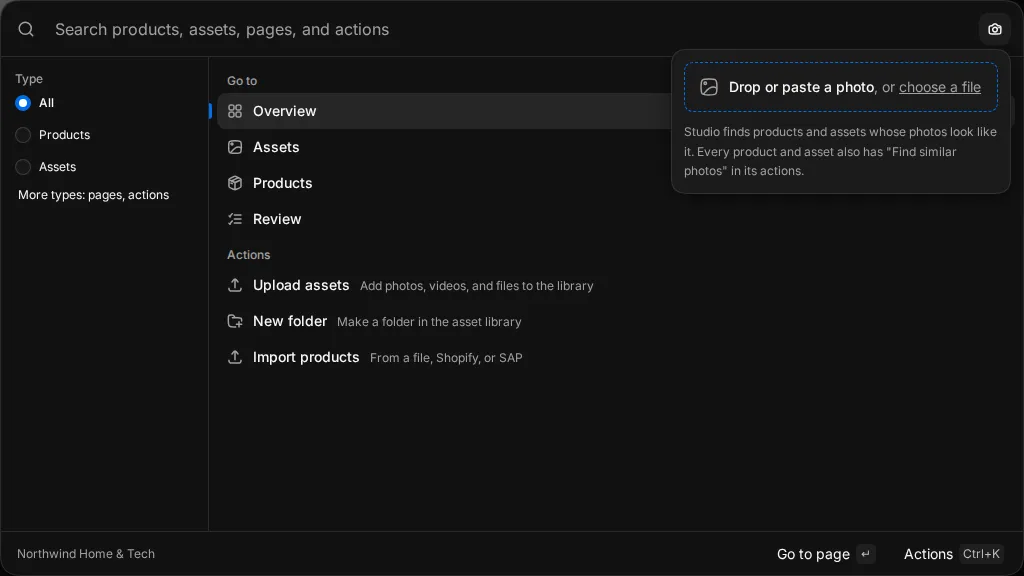
- Select Search by image (the camera button).
- Drop a photo into the box, paste one, or select choose a file. JPEG, PNG and WebP files up to 10 MB work.
Results show the files that look most alike. A chip, Like followed by the file name, shows which photo you searched with. Remove the chip to go back to a text search.
Find similar photos
To find files that look like one already in the library:
- Right-click a file and select Find similar. The details panel opens on the Similar tab.
- Or in search results, select Find similar photos on a file.
Use this to find alternative shots, older edits or near-duplicates. See Organise files to merge exact copies.
Plans for search by image
Search by image and similar photos compare pictures, not words. Studio must index each image first. Each plan indexes a set number of images.
| Plan | Images indexed for visual search |
|---|---|
| Free, Core | Not included |
| Growth | 25,000 |
| Enterprise | Custom |
On Growth or Enterprise, the Visual similarity expansion add-on indexes 25,000 more images for $199 a month. If your plan does not include it, Studio shows Search by image is not in your plan. See pricing.
Filter the library itself
The search box finds things across the workspace. To narrow the file list you are looking at, use Filters in the library toolbar. You can filter by Filename, File type, Review status, Source, Alt text, Tags, Product link, Modified, Created, Collection and Favorites. Save a set of filters as a view so you can come back to it. See Assets.