Metadata, alt text and tags
Add alt text, tags, licence details and custom fields to files, one at a time or in bulk, and let AI write alt text and tags.
Metadata is the information stored with a file: alt text for accessibility and search, tags for finding files, licence details for rights, and any custom fields your team needs. Channels check some of it, such as alt text, before a product counts as ready.
Who can use this: editing metadata needs the assets:write permission (Owner, Admin, Editor, Uploader). The AI buttons also need tools:basic (Owner, Admin, Editor, Uploader) and cost credits. Managing metadata templates needs assets:write, and deleting a template needs assets:delete (Owner, Admin).
Edit a file's details
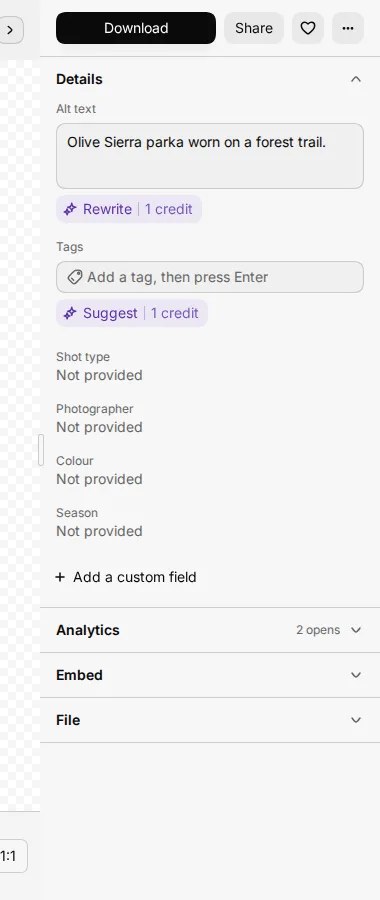
Open the file. The Details section of the record holds the fields most files need:
| Field | What to put in it |
|---|---|
| Alt text | A short description of the image for screen readers and search engines. |
| Tags | Words to find the file by. Type a tag, then press Enter. |
| Shot type | For example packshot, lifestyle or detail. |
| Photographer | Who took the photo. |
| Colour | The product colour shown. |
| Season | For example SS26 or Autumn. |
| Licence, Usage rights, Expiry | Who owns the image, where you may use it and the date the rights end. |
Studio saves each field when you leave it. Licence, Usage rights and Expiry appear once one of them has a value, or when Readiness asks for them. See Fix readiness in place.
Select Add a custom field to add a field that only this file needs.
Write alt text and tags with AI
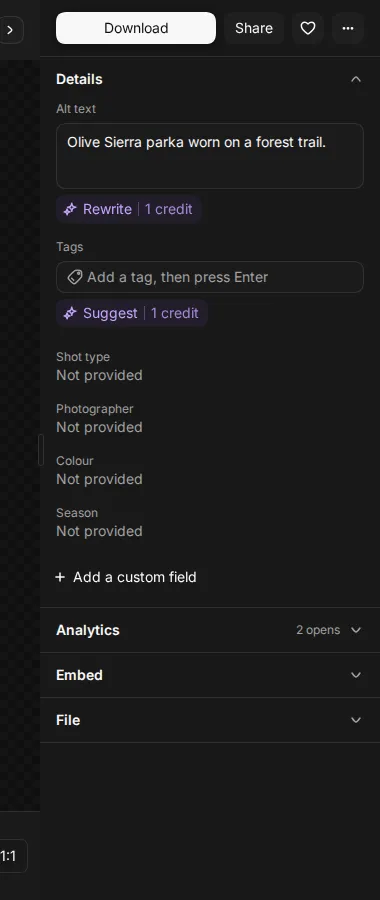
Next to Alt text, select Write (or Rewrite if the field has text). Next to Tags, select Suggest. Each button shows its price before you select it.
| Action | Credits |
|---|---|
| Write alt text | 1 |
| Suggest tags | 1 |
| Fill template fields with AI Fill Metadata | 1 |
If the AI step fails, Studio returns the credits. On the file's own page and for files that are not images, the buttons read Write with AI and Suggest tags.
To write alt text for many images at once, open the No alt text view in the library and select Write alt text. See Assets.
Use a metadata template
A metadata template is a set of fields for one kind of file, for example product photos with fields for SKU, colour and model name. When a file uses a template, the Metadata section shows its fields.
- Open the file and go to Metadata.
- Choose a Template.
- Fill in the fields and select Save Changes.
On an image, AI Fill Metadata reads the image and suggests values for the template's fields. Check them, then select Accept All or change them first.
Change metadata on many files
- Select the files in the library.
- Select AI actions > Edit metadata…. You can also right-click the selection and select Edit metadata.
- In Edit Metadata, choose a template.
- Under Fields to Apply, tick the fields to change and enter the values.
- Choose the Update Mode. Merge writes the new values and leaves the other fields as they are. Replace clears all existing metadata on the files and keeps only the new values.
- Select Apply to … Assets. The button shows how many files change.
To add the same tags to many files, select More actions > Add tags instead.
Manage metadata templates
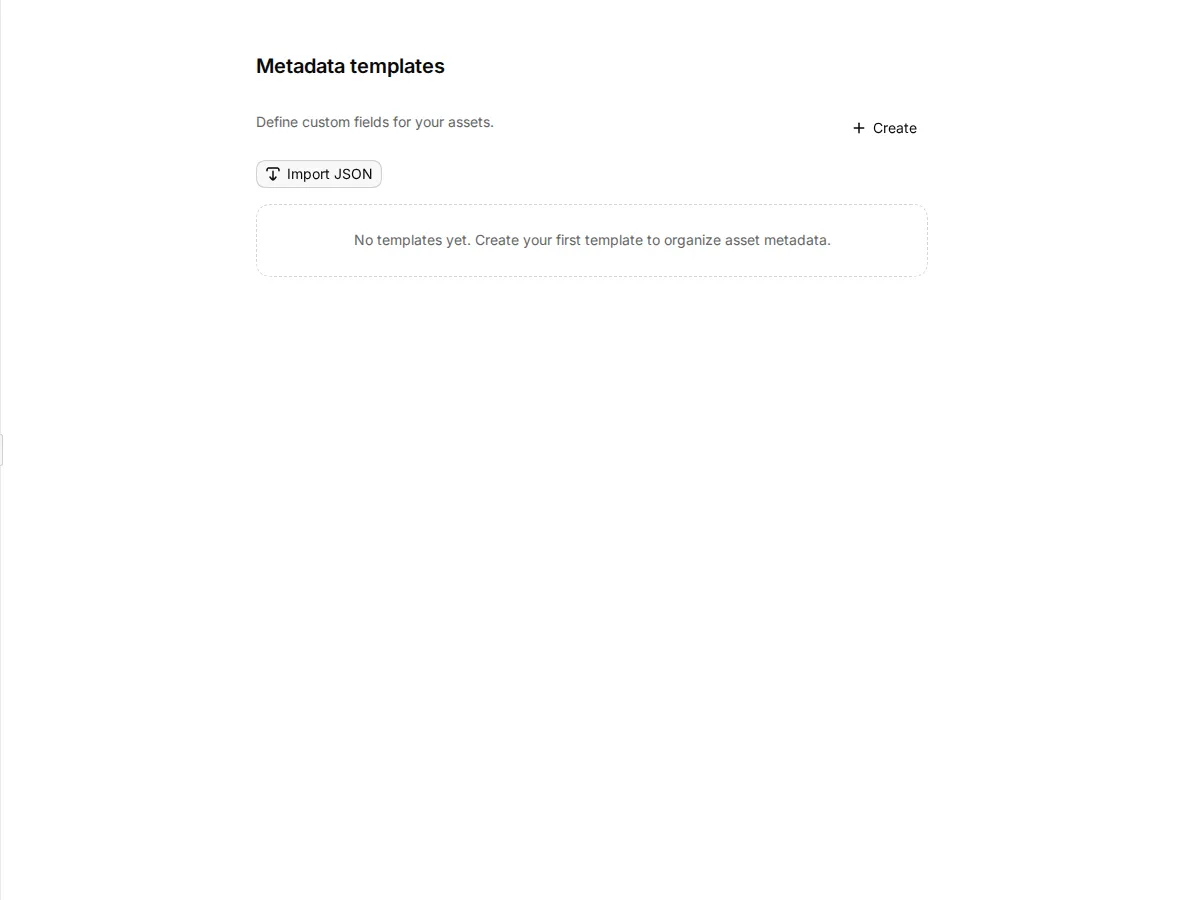
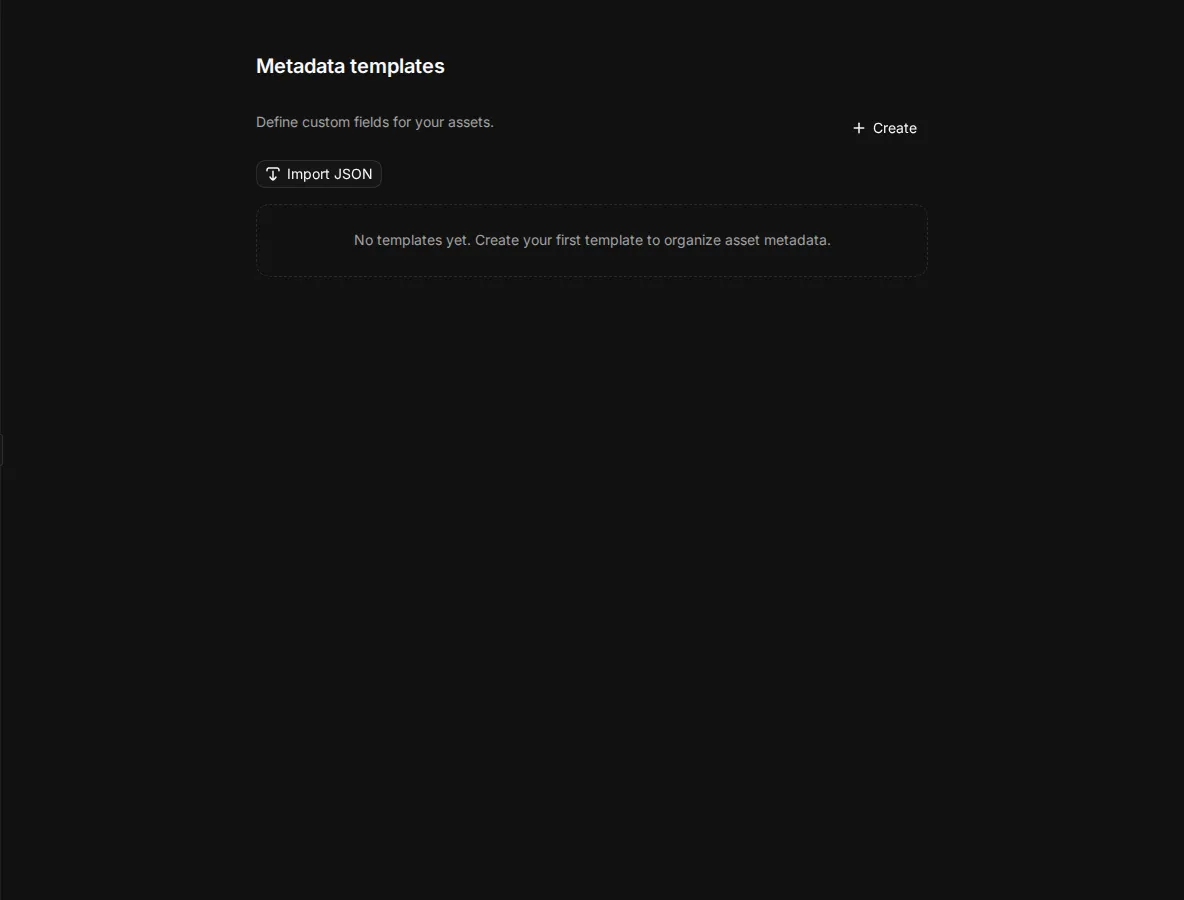
Go to Settings > Metadata templates.
- Create starts a new template. Give it a name and add fields.
- Import JSON loads a template from a file. Export saves one as JSON.
- Create from Shopify builds a template from the metafields of a Shopify product you choose. It shows only when a Shopify store is connected.
- Each template has View, Edit, Duplicate, Export and Delete.
Templates are grouped by category: E-commerce, Photography, Publishing and Custom.
Field types
| Type | Use it for |
|---|---|
| Text | Free text. Turn on multiline text for long values. Add a validation pattern to check the format. |
| Number | A number. Set a minimum and a maximum. |
| Boolean | Yes or no. |
| Date | A date. |
| Select | One value from a list. Enter the options separated by commas. |
Any field can be Required, and can have a placeholder and a default value.
Every workspace also has a built-in Asset details template with Shot type, Photographer, Colour and Season. These are the fields in the Details section.