The asset view
Open one file to see its details and readiness, fix gaps in place, preview it for a channel, download it at the right size and send a new version to Shopify.
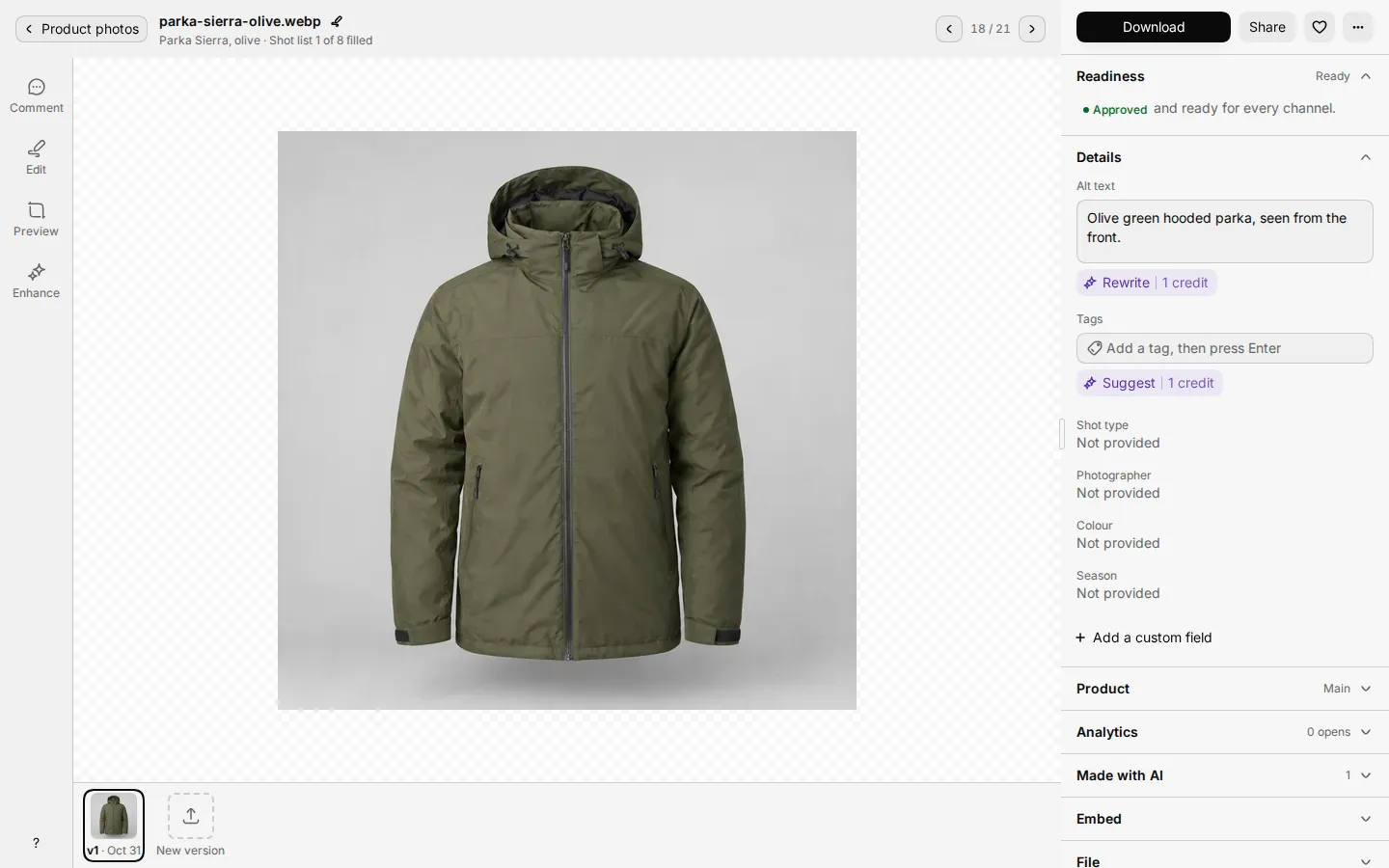
Open any file in the library to see everything about it in one place: its details, the product it belongs to, what still blocks it for a channel and how often people open it. You can fix most gaps without leaving the file.
Who can use this: everyone who can see the library can open a file. Changing details needs the assets:write permission (Owner, Admin, Editor, Uploader). Downloading needs assets:download (Owner, Admin, Editor, Viewer). Sending a version to Shopify needs products:push (Owner, Admin, Editor).
Open a file
Double-click a file in the library, or focus it and press Enter. The file opens over the library.
- Press ← or →, or use the arrows in the title bar, to move to the previous or next file. The title bar shows where you are in the list.
- Click the image to zoom in. Use Zoom in, Zoom out and Fit under the image.
- Press Esc to close the open panel, then the file. Or select the back button.
- Press ? to see the Keyboard shortcuts for this view.
The title bar also shows the product the file belongs to. If it has none, select Link it to choose a product.
Read the record
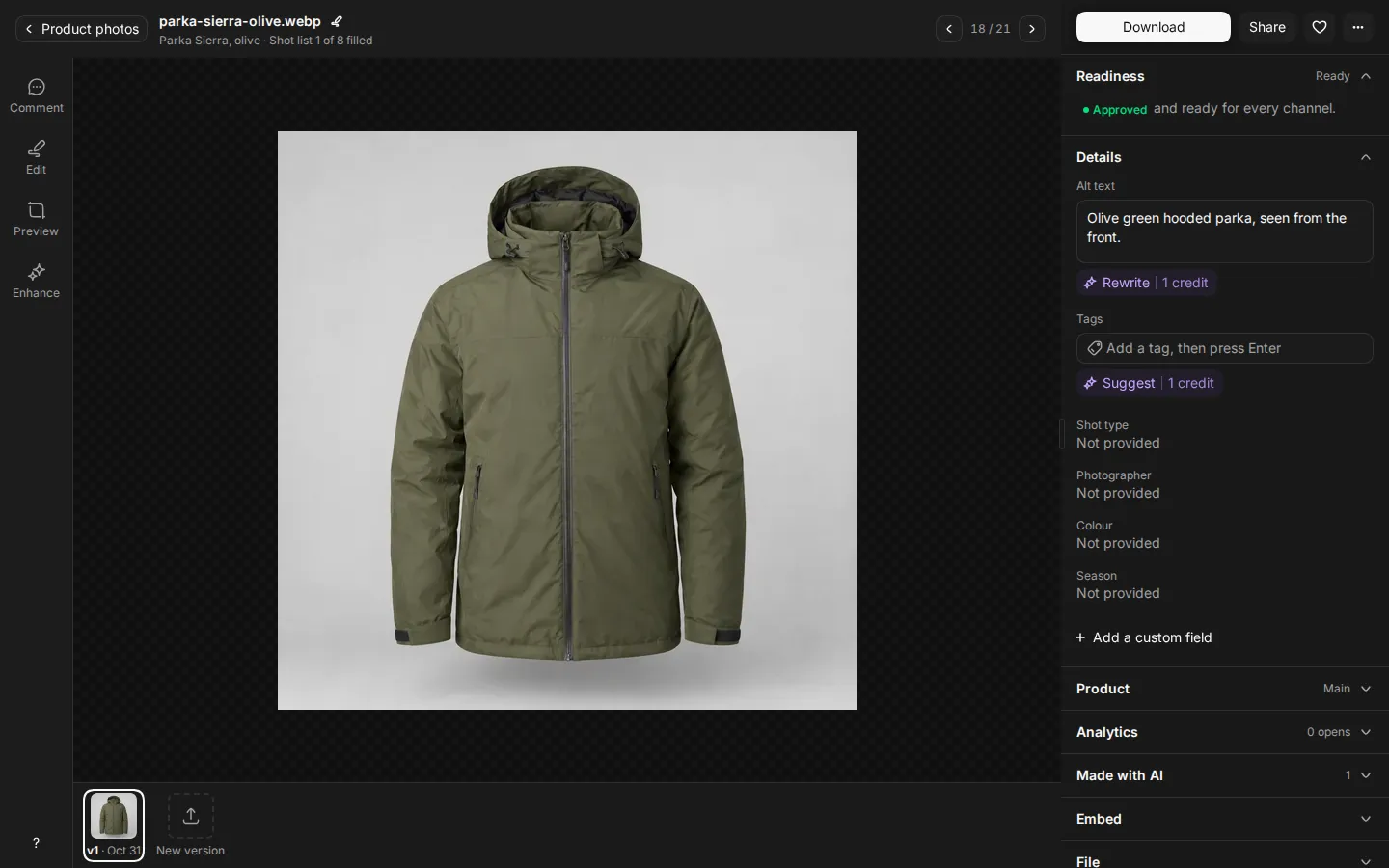
The panel on the right is the file's record. It shows only the sections that apply to the file.
| Section | What it shows |
|---|---|
| Source | For a file made from another one, such as an AI result: which file and version it came from. Select Open the source to go there. |
| Readiness | What still blocks this file for your channels, and how to fix it. |
| Details | Alt text, Tags, licence fields, and Shot type, Photographer, Colour and Season. |
| Metadata | Fields from a metadata template and custom fields. |
| Product | The linked product, the file's role in it, and which version each channel shows. |
| Analytics | Opens and downloads over the last 30 days. |
| Made with AI | Files made from this one with AI tools. Select Make one with AI to start another. |
| Embed | Code to place the file on a web page. |
| File | Format, dimensions, size, upload date and where the file is hosted. Select Find similar to look for files like it. |
See Metadata for the details and metadata fields.
Use the main buttons
Most people see Download and Share at the top. Share copies a link to the file. When you view an older version, the button reads Download v2 (or the version you view) and downloads that version.
If the file waits for review and you have the assets:approve permission (Owner, Admin, Reviewer), you see Approve and Reject instead. Reject asks for a reason. See Review.
More actions holds actions that apply to some files, such as Web versions for PSD and TIFF masters, Convert to GLB for 3D files, and Delete.
Use the tools beside the image
A rail of tool buttons sits next to the image. Each has a key.
| Button | Key | What it does |
|---|---|---|
| Comment | C | Mark up the image and leave comments. See Versions and comments. |
| Compare | \ | Compare this version with the one before it. |
| Edit | E | Open the image editor. |
| Preview | P | Preview the image for a channel. |
| Enhance | A | Run an AI tool on the image. See Edit images with AI. |
| Hotspots | Add hotspots to a 360 spin. See Spins, 3D, video and PDF. |
You see only the tools that apply to the file and your role.
Fix readiness in place
Readiness lists each check that blocks the file and the channels it blocks. It reads Ready when nothing is left, or shows how many items are left to fix. Select a row to fix it:
- Licence, usage rights or expiry missing: a short form opens in place. Fill in Licence, Usage rights and Expiry, then select Save.
- Alt text or tags missing: Studio takes you to the field in Details. Fix with AI writes alt text and tags for every such row at once. It shows the number of fixes and costs credits.
- Near-duplicates: select Resolve near-duplicates to compare the file with its look-alikes. Select Not a duplicate if both should stay.
- No product link: Studio takes you to Product.
Some rows cannot be fixed on the file. The row tells you why, for example Set up once in the channel settings, not per product.
Fill an empty slot in the product's shot list
If the product has a shot list, the title bar shows how many shots are filled. Select it to open the shot list. Select + on an empty slot to upload a file into it. This needs the products:write and assets:write permissions.
Preview the image for a channel
Select Preview or press P. Choose Shopify or Amazon under Preview for.
- Studio draws the channel's frame on the image. For Shopify, the bright square is what the product grid keeps. For Amazon, the dashed line shows where the product should fill at least 85% of the frame.
- Below, Studio checks the image against the channel's guidelines: size, zoom size, white background and how much of the frame the product fills. It shows Meets Shopify's guidelines., or lists what to change.
- To fix the image, select Make it ready for Amazon (or the channel you chose) to run AI fixes, or Upload a larger version.
Download for a purpose
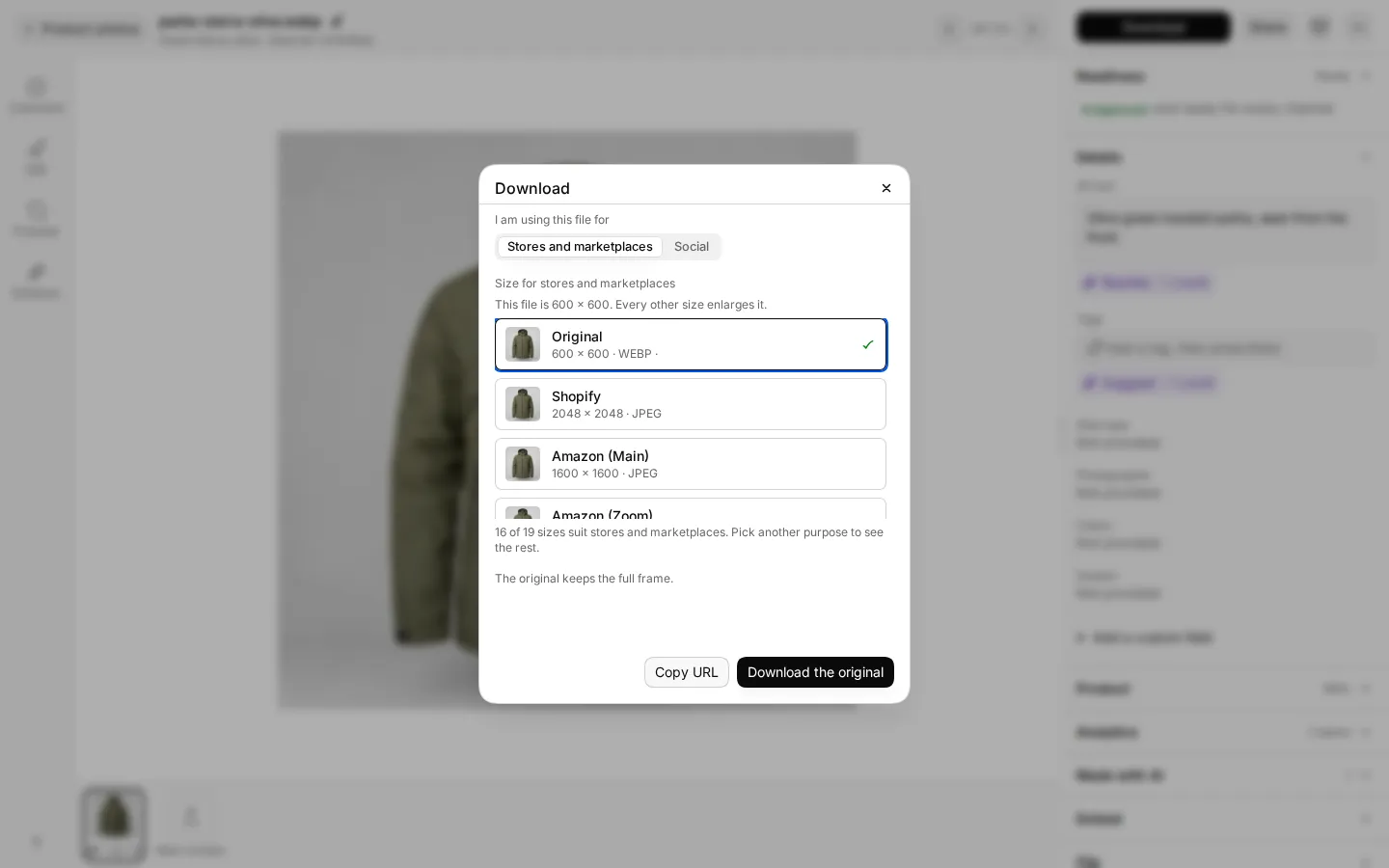
Select Download to get the image at the size a channel or social network expects.
- Under I am using this file for, choose Stores and marketplaces or Social.
- Choose a size. Your own channels are listed first. Options include Amazon (Main), Shopify, eBay, Walmart, Etsy, Google Shopping, Instagram and Pinterest. Original downloads the file as it is.
- If the shape differs from the image, choose Crop to fill or Pad with white.
- With Crop to fill, click the preview to set the focal point: the part of the picture the crop keeps. You can also use the arrow keys. Studio saves the focal point on the file for the next download.
- Select Download followed by the size name.
Sized downloads are JPEG files. If a size is larger than the image, Studio marks it Enlarged from followed by the original size.
Send a new version to Shopify
The Product section lists the product's channels and which version of the file each one shows. A channel that has the file reads Live: followed by the version and the date. One that does not reads Not sent.
When you have a newer version and it is approved, select Update to v3 (or the version you have). Studio replaces the image on Shopify with the new version. If the image is not on Shopify yet, the button reads Publish and adds it. Other channels are sent from the product page. See Shopify.
See how a file is used
Analytics covers the last 30 days:
- Opens, Downloads and People in total.
- Opens each day, as a chart.
- Downloads by format.
- Who opened it: the top five people. You see names only with the
team:viewpermission.
Open a file on its own page
A link from a notification or an update opens the file on its own page instead of over the library. The page has the same details in tabs, such as Details, History and Comments. Approve, Reject, the channel preview and the download sizes are only in the view over the library.