Channels
Set up the places your products go, such as Shopify, Amazon or a CSV feed, choose which products each one gets and what ready means there.
A channel is a place your products go: your Shopify store, a marketplace such as Amazon or eBay, or a file feed. Each channel has its own checks, its own set of products and its own content language. Studio uses them to tell you which products are ready for that place, and to publish or export them.
Who can use this: Owners and Admins can add, change and delete channels. Other members can open the channel pages to look. Publishing to Shopify needs the right to publish, which Owners, Admins and Editors have.
Channels Studio supports
| Channel | What Studio does |
|---|---|
| Shopify | Publishes images and product changes straight to your store. See Shopify. |
| Amazon | Checks products and builds a listings export package. Preview |
| eBay | Checks products and builds an inventory export package. Preview |
| ABOUT YOU | Checks products and builds a Seller Center upload package. Preview |
| SAP Commerce | Checks products and builds an ImpEx media package. |
| CSV feed | Builds a CSV file with your own columns, for any marketplace that takes a file upload. |
Only Shopify gets your products directly. For the others, Studio builds a file that you upload to the marketplace yourself. See Marketplaces and feeds.
Preview channels use one fixed set of requirements: Amazon US apparel, eBay Motors and ABOUT YOU fashion.
Add a channel
Go to Settings > Channels, or Products > Channels. The Destinations list shows each channel with its products and its checks.
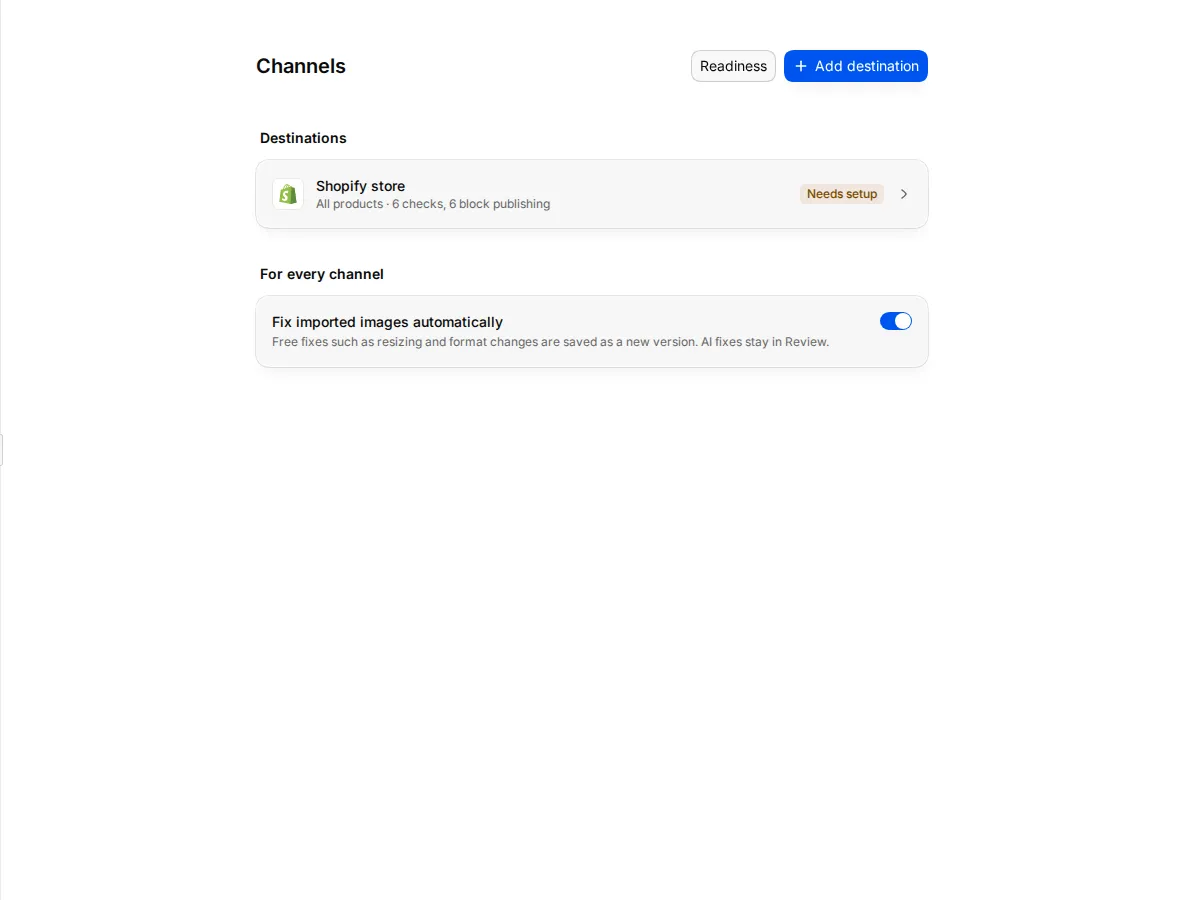
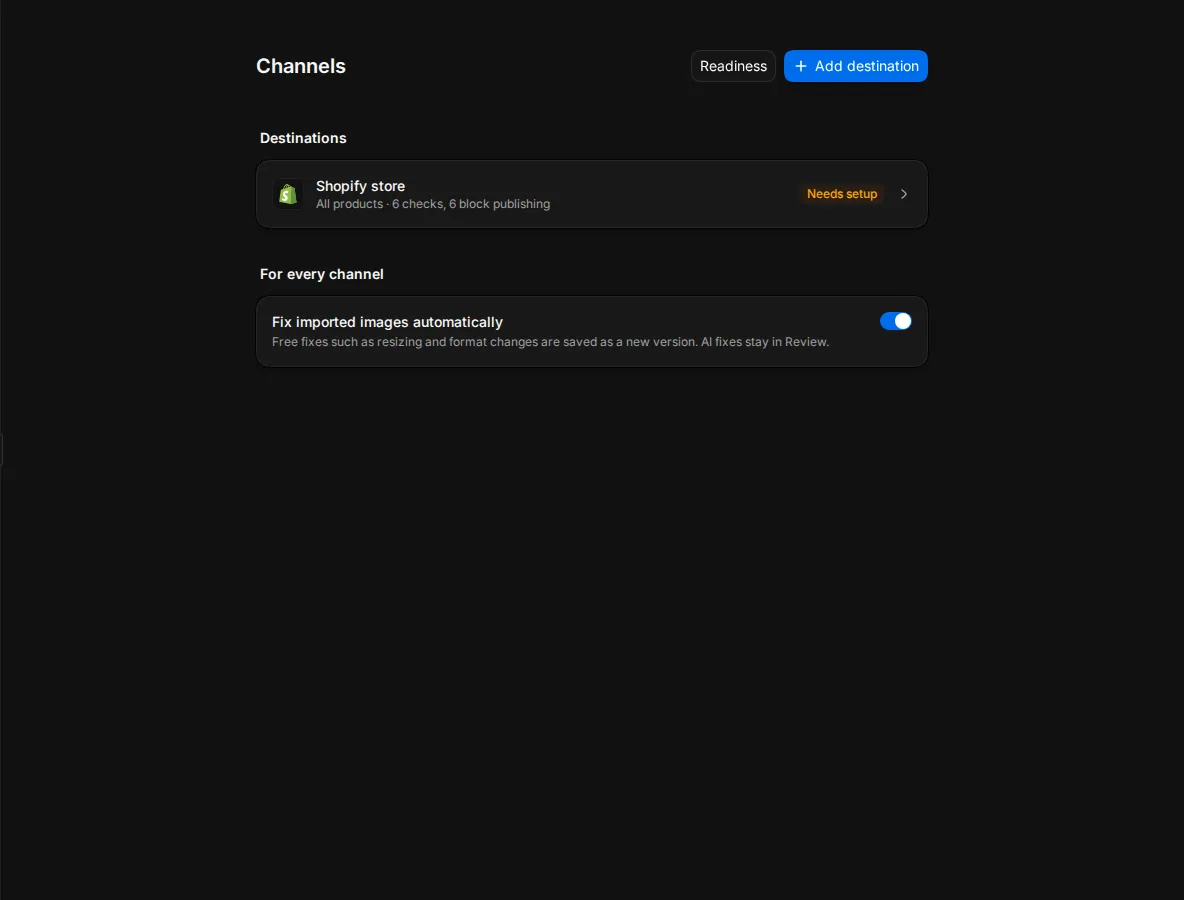
- Select Add destination. The Add a destination dialog opens.
- Pick the channel.
- For a CSV feed, enter a Feed name, such as the marketplace it is for. Add one feed per marketplace.
- Select Add.
A connected Shopify store shows up in the list on its own. You do not add it here. See Shopify.
On a new workspace, the Today page also asks Pick where you sell. The channel you pick there is free on every plan. Shopify checks work there before you connect a store.
Next, the channel page walks you through its setup steps: Finish destination setup, Choose products for this channel and Set up readiness checks.
Channel limits
A connected Shopify store and the first channel from Pick where you sell do not count toward the limit. Other channels do:
| Plan | Extra channels |
|---|---|
| Free | 0 |
| Core | 1 |
| Growth | 3 |
| Enterprise | Custom |
When the plan has no room left, Studio says Your plan has no room for another channel. Add a channel pack in Billing. with Open Billing.
Core and Growth workspaces can buy channel packs in Settings > Billing:
- Simple feed channel pack: one more export channel, $99 a month.
- Commerce API or extra-store channel pack: one extra Shopify store, after a setup review, $149 a month.
Enterprise plans agree custom channels with us. See Billing and the pricing page.
See how a channel is doing
Select a channel in the list. The top of the page shows Publish readiness: how many targeted products are ready, blocked or have warnings, and the last run.
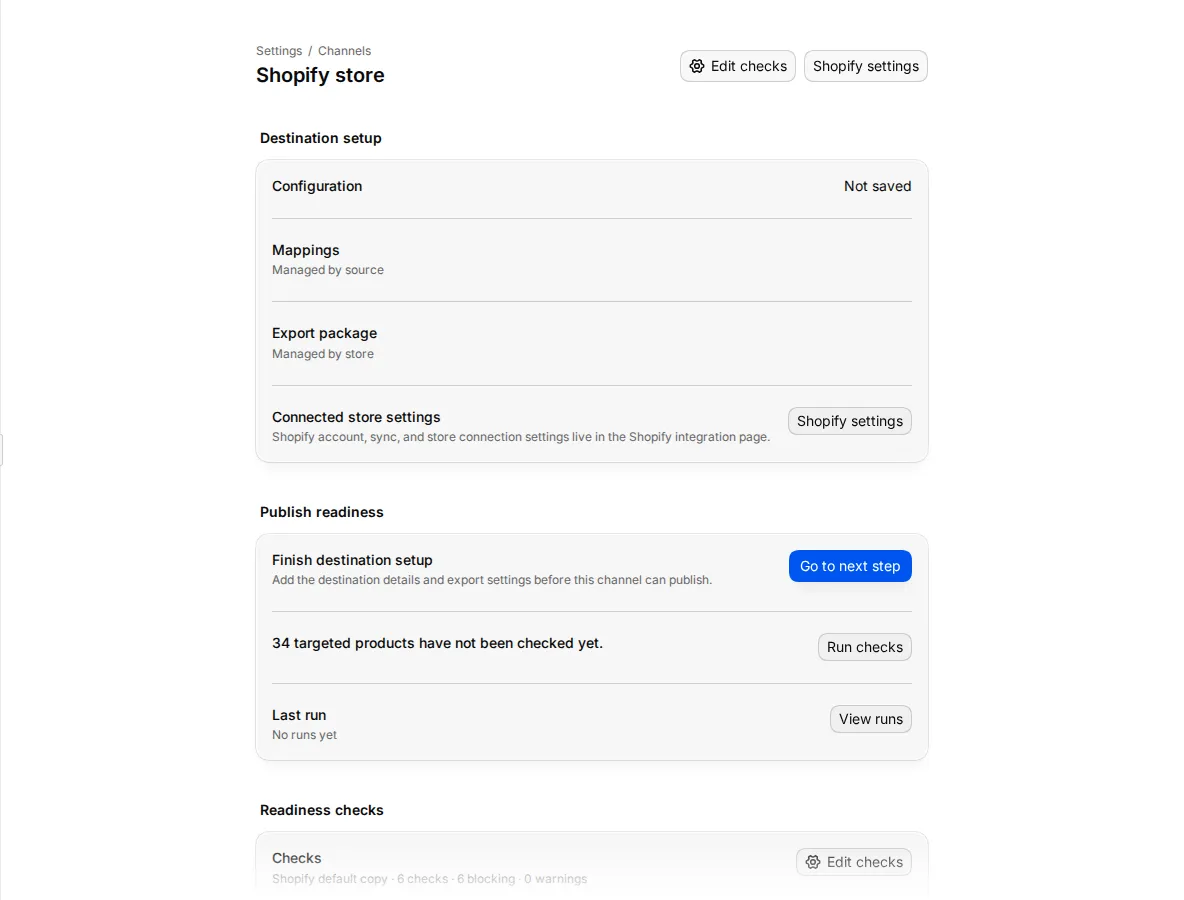
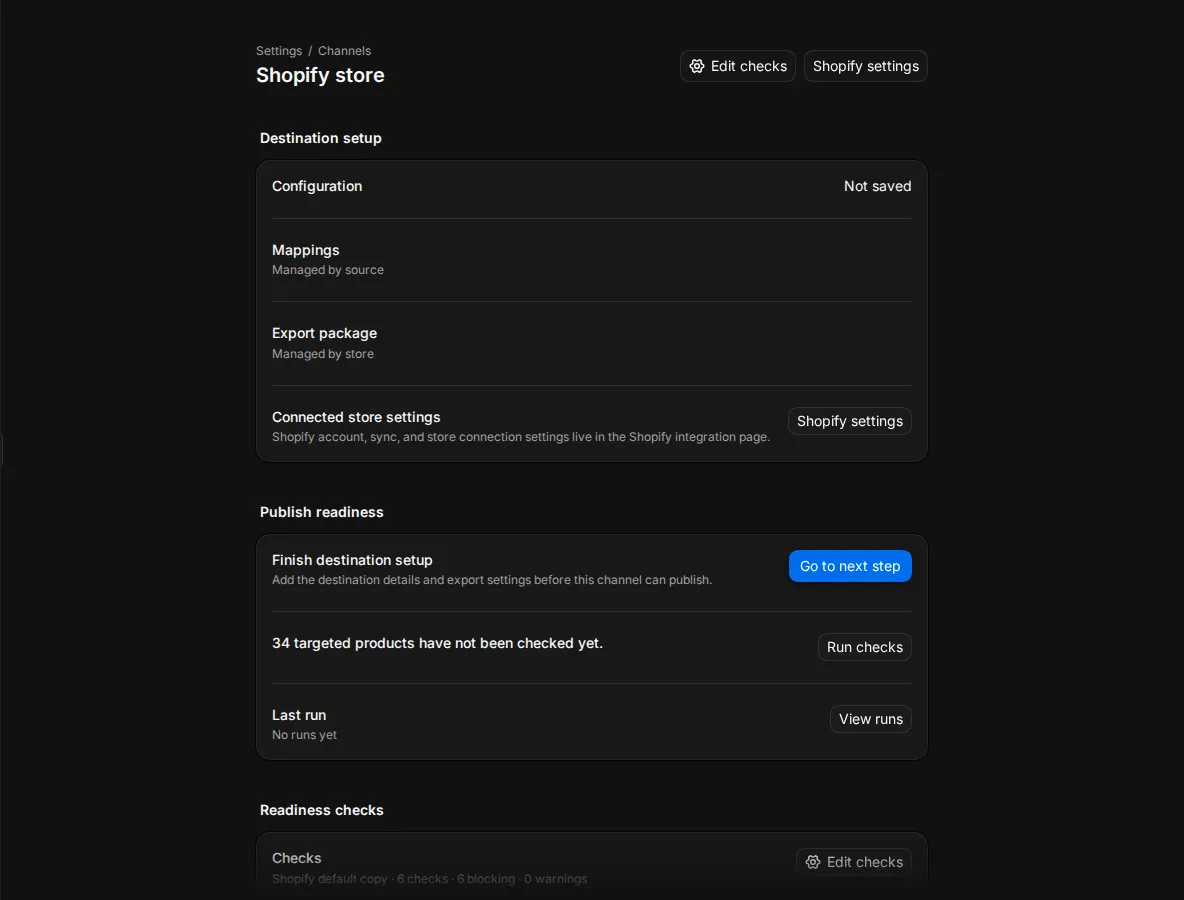
- Select Run checks to check the products again, for example after you change the checks.
- Select Open blocked products to see the blocked products in the product list and fix them. See Readiness.
Choose the checks
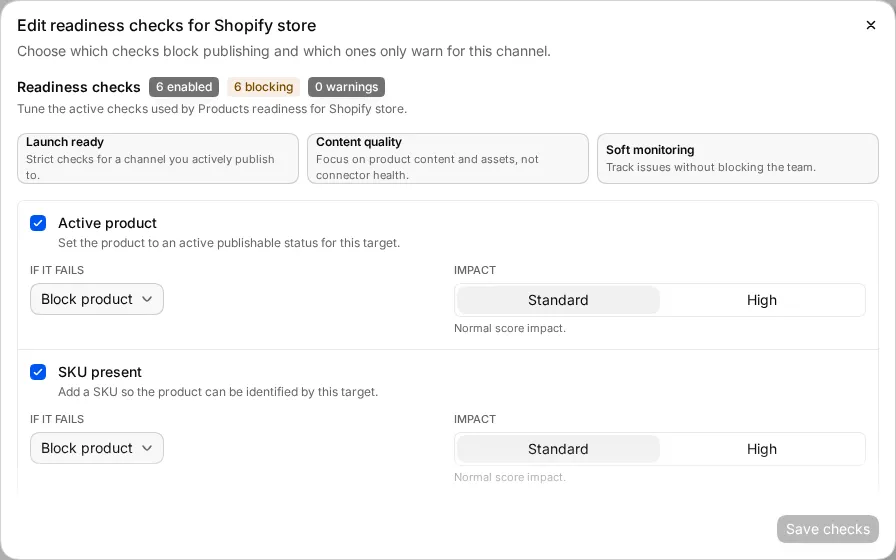
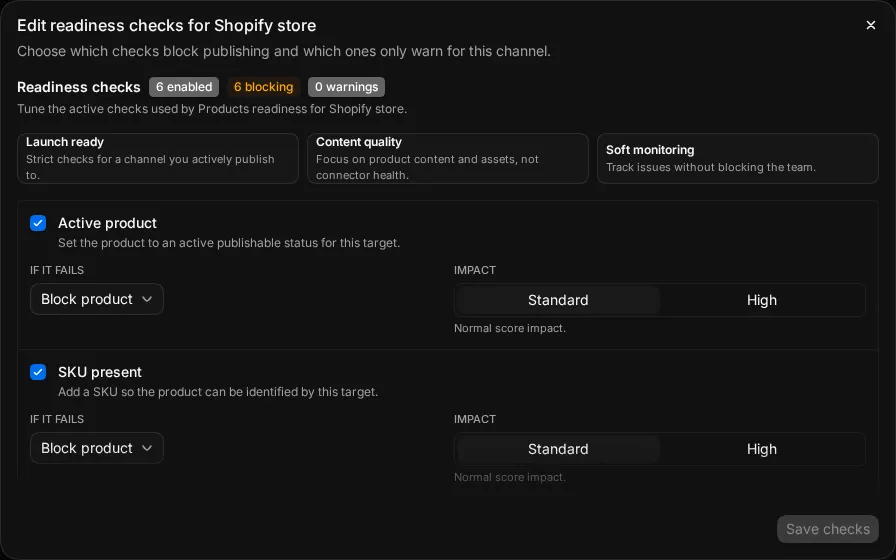
The Readiness checks section lists the channel's checks and how many block or warn.
- Select Edit checks.
- Turn each check on or off.
- Under If it fails, choose Block product or Show warning.
- Under Impact, choose Standard or High. High counts more in the score.
- Select Save checks.
To set all checks at once, use a starting point at the top of the editor:
- Launch ready: strict checks for a channel you publish to.
- Content quality: product content and images, not the store connection.
- Soft monitoring: track problems without blocking anyone.
Each channel type starts with Studio's default checks. When you first edit them, Studio makes a copy for your workspace, so your changes never affect another workspace.
Check images against an image spec
An image spec sets the size, format and other rules for images. Under Image spec, pick one of your workspace's image specs, or No image checks. Imported images for this channel's products are then checked against the spec.
Under For every channel on the channel list, Fix imported images automatically is on by default. Free fixes such as resizing and format changes are saved as a new version. AI fixes wait in Review.
Choose which products a channel gets
By default a channel gets All products. To narrow it, switch Products for this channel to Custom rules.
- Select Add rule.
- Choose Include or Exclude.
- Choose Product types and pick one or more types, or One product and pick it.
- Select Add.
The section says how many products the channel gets, how many are excluded and how many no rule matches. Adding an include rule switches the channel to custom rules. In custom rules, products that no include rule matches are left out.
When rules disagree, a rule for one product wins over a product type rule. Between product type rules, exclude wins over include.
Products a channel does not get are not counted as blocked for that channel, and are left out of its exports.
Choose the content language
When the workspace has more than one content language, the setup has a Content language menu. Checks and exports read product copy in this language. A missing translation stays empty; Studio does not fall back to the primary language. Shopify always gets the primary language.
Set content languages in Settings > General. Studio does not let you remove a language, or change the primary one, while a channel reads it.
Publish or export on a schedule
- On a Shopify channel, Auto-publish sends products to the store when they change. Choose a schedule for Scheduled full runs: Off, Hourly, Daily or Weekly.
- On other channels, Scheduled export builds export packages Hourly, Daily or Weekly, or only when you ask (Manual).
Select Publish ready products now or Export ready products now to run it at once. Only products that pass every blocking check go. If runs fail several times in a row, the schedule pauses. Select Resume schedule when the problem is fixed.
Check past runs
Activity and errors lists each run: validation, export or sync, its status and how many products it covered. A run can end as Success, Partial (some products failed) or Failed.
Select a run to see Per-product results, the reason for any problem, and links to Open blocked products or Open warning products.
Readiness per Shopify sales channel
In the Shopify admin app, the Checks page sets checks for each Shopify sales channel: Online Store, Google & YouTube, Facebook & Instagram, Amazon, or your own rules. See Use Studio inside Shopify.
Delete a channel
At the bottom of the channel page, under Danger zone, select Delete this channel. Products and past activity stay in the workspace.