Brand context
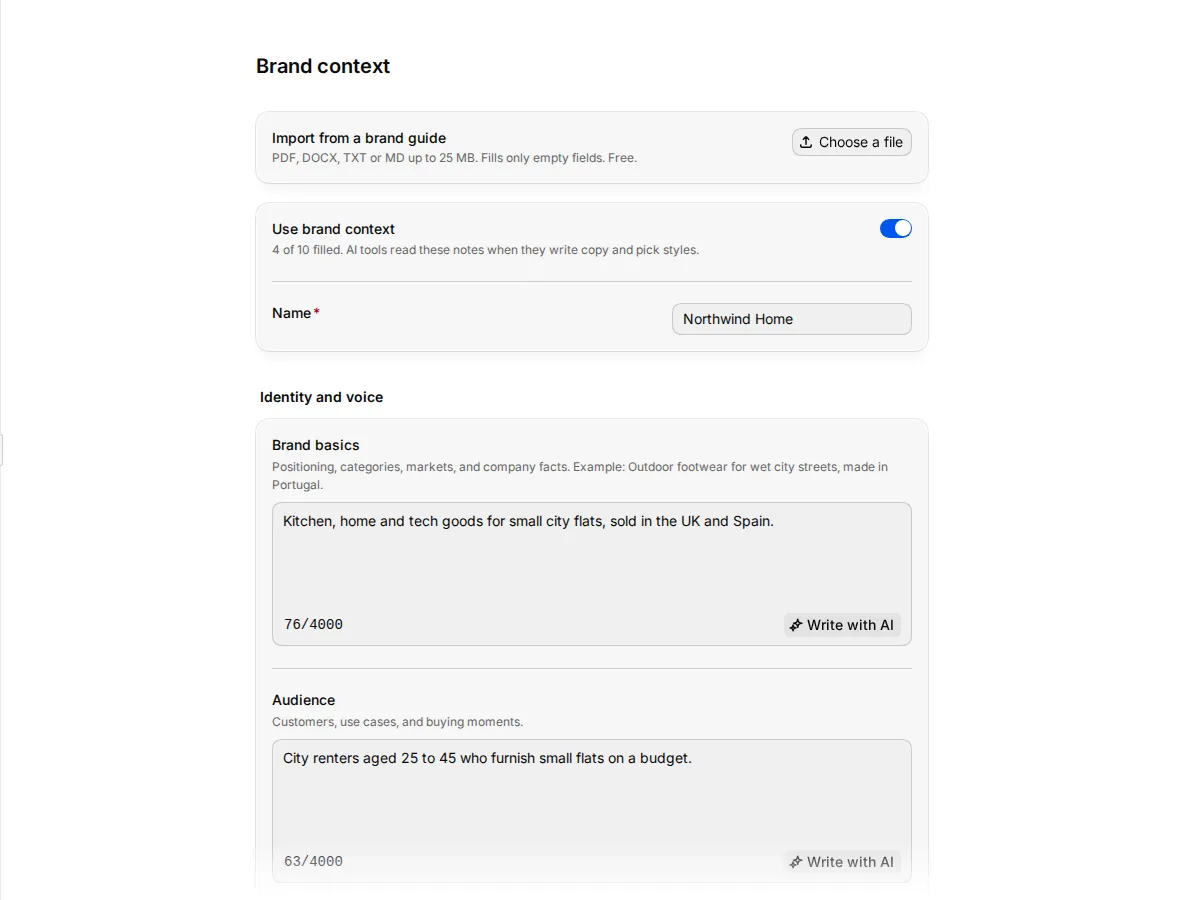
Tell Studio's AI about your brand's voice, words, visual style and limits, or fill the fields from an existing brand guide.
Brand context is a set of notes about your brand that AI tools add to their instructions: who you sell to, how you write, which words you use and avoid, and how your photos look. With it, AI-written text sounds like your brand and AI images follow your style. Each workspace has one brand context.
Who can use this:
| Task | Who |
|---|---|
| View brand context in Settings > Brand context | Members who can view or edit workspace settings |
| Change it, import a brand guide or use Write with AI | Members with permission to edit workspace settings: Owner and Admin by default |
Every plan includes brand context. A member who can only view it sees You can view brand context, but only workspace settings editors can change it.
Fill in brand context
- Open Settings > Brand context.
- Enter a Name, for example your brand name. You cannot save without one.
- Fill in the fields you need. Short, concrete notes work best. You do not need to fill every field.
- Make sure Use brand context is on.
- Click Save in the Unsaved changes bar.
The fields are in three groups:
| Group | Field | What to write |
|---|---|---|
| Identity and voice | Brand basics | Positioning, categories, markets and company facts. Example: outdoor footwear for wet city streets, made in Portugal. |
| Audience | Customers, use cases and buying moments. | |
| Voice | Tone, sentence style and the rhythm of product copy. | |
| Content rules | Vocabulary | Preferred terms and words to avoid. |
| Product content rules | Rules for descriptions, alt text, claims and SEO. | |
| Channel overrides | Changes for Shopify, marketplaces, social or email. | |
| Guardrails | Claims, words, styles or behaviours to block. | |
| Visual and source context | Visual style | Backgrounds, lighting, crops, colours and visual limits. |
| Examples | Approved copy, visual references and rejected examples. | |
| Source material | Brand books, briefs, links and source notes. |
To draft one field, click Write with AI next to it. Studio suggests text from what you have already written, starting from Brand basics. Check the suggestion before you save.
Import a brand guide
If you already have a brand book, Studio can fill the empty fields from it.
- Open Settings > Brand context.
- Under Import from a brand guide, click Choose a file.
- Pick a PDF, DOCX, TXT or MD file of up to 25 MB.
- Wait while Studio reads the file. It fills only empty fields and never overwrites what you wrote.
- Check the filled fields, then click Save. To take the import back before you save, click Undo.
Importing a brand guide is free. If the file has nothing for the empty fields, Studio says so and changes nothing.
Check what the AI reads
The What AI tools read panel shows the text that AI tools receive, built from the fields you filled. The status line above the fields tells you the state:
- On: AI tools read these notes when they write copy and pick styles.
- On, but empty: AI tools have nothing to read yet. Start with Brand basics.
- Off: AI tools do not read these notes. Turn on Use brand context to use them again.
Turning brand context off keeps your notes, so you can turn it back on later.
Which AI tools read it
When brand context is on, Studio adds it to these AI requests:
- alt text,
- product descriptions,
- generated images and prompt-based image edits,
- changed backgrounds and product lifestyle scenes,
- Write with AI suggestions.
Brand context is guidance, not a source of facts. The AI is told not to invent product claims, certifications, discounts, materials or policies that are not in the product's own data.
Today, these tools read brand context when they run through the Studio API. A run started from a tool's page in Create Studio does not include it yet.